
Nothing kills your station’s momentum faster than dead air. It's the sound of lost listeners and wasted potential. You've spent hours curating the perfect vibe, but you can't be behind the mic every second of the day. It's exhausting. Impossible, really. You need a rock-solid backbone that works while you sleep.
Tired of wrestling with playlist logic that just won't behave? That's why learning how to set up auto dj in centova cast is the most critical move you'll make this year. You already know that a silent stream is a dead stream. You want that professional, 24/7 presence without the constant manual grind. This guide is your no-nonsense roadmap to mastering the Auto DJ. No fluff. No confusion. We're going to bridge the gap between silence and a global broadcast.
We'll clear up the mess between FTP and the File Manager once and for all. From uploading your first track to configuring advanced rotation rules, you're about to turn your station into a high-bitrate powerhouse that never misses a beat. It's time to stop worrying about the technical hurdles and start growing your audience. Let's get you on the air.
Key Takeaways
- Stop the silence. Learn why server-side automation is the secret to a 24/7 station that never sleeps.
- Master the setup. We’ll show you exactly how to set up auto dj in centova cast to ensure your stream is rock-solid.
- Organize with intent. Use the Media menu to build a professional library that’s ready for any time slot.
- Command your schedule. Mix general rotation with timed events to keep your audience hooked around the clock.
- Transition without the glitch. Manage DJ accounts and priority settings for a seamless handoff from Auto DJ to live talent.
Stop the Silence: Why Auto DJ is Your Station’s Secret Weapon
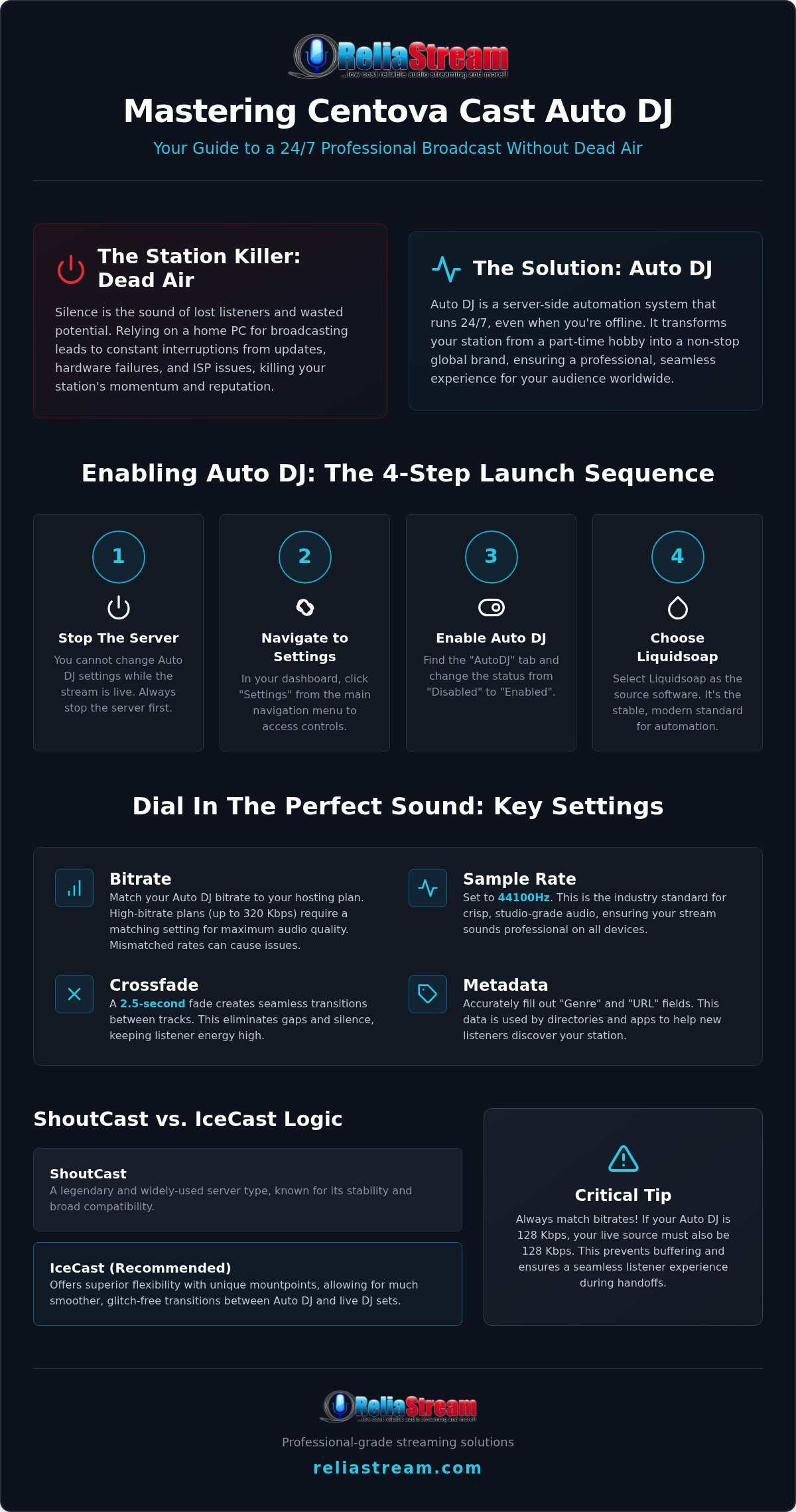
Dead air is a station killer. It’s that simple. In 2026, listeners have zero patience for silence. With digital platforms now claiming nearly half of all radio consumption, you’re competing with global giants. You need to be everywhere, all the time. Auto DJ is your secret weapon. It’s a server-side automation system that streams your media without requiring a local PC to be running. Mastering how to set up auto dj in centova cast is how you transform from a part-time streamer into a 24/7 global brand.
What if you could run station IDs, ads, and scheduled shows while you sleep? That’s the "Pro" advantage. Looking at the history of internet radio, the shift toward cloud-based automation has leveled the playing field for independent creators. You don't need a massive studio anymore. You just need the right tools. Auto DJ ensures your audience in Tokyo hears a perfect set while you’re asleep in New York. It keeps the momentum going without you ever touching a fader.
ShoutCast vs. IceCast Auto DJ Logic
Centova Cast handles automation differently based on your server type. ShoutCast is a legend in the industry, but IceCast server hosting provides unique mountpoint flexibility. This allows for much smoother transitions between your automated playlists and live sets. A critical tip: always match your bitrates. If your Auto DJ is pushing 128 Kbps, your live source should do the same. This prevents buffering and keeps your listeners locked in. Glitches are for amateurs. We’re building something better.
The ReliaStream Uptime Guarantee
Stop relying on your home PC. It isn't built for 24/7 broadcasting. Windows updates, hardware failures, and local ISP hiccups will tank your station’s reputation. Our high-speed backbone at ReliaStream ensures your stream stays live, even if your house loses power. If you’re moving up from a budget internet radio hosting plan, this is your next logical step toward professional growth. We specialize in high-bitrate streams up to 320 Kbps. That means your Auto DJ won't just keep the lights on. It’ll sound like a high-end studio production every single minute of the day.
Step 1: Enabling and Configuring Auto DJ Settings
Ready to get under the hood? It’s time to move from theory to execution. This is where your station finds its pulse. First, log into your dashboard and click the "Settings" link in the navigation menu. This opens the control center for your entire broadcast. Look for the "AutoDJ" tab at the top. It’s the engine room of your 24/7 operation. Don't rush this. Small mistakes here lead to big headaches later.
There is a catch. You can’t change these settings while the stream is live. Stop the server first. Once it’s quiet, change the AutoDJ status from "Disabled" to "Enabled". This is the first move in how to set up auto dj in centova cast. For the source software, choose Liquidsoap. It’s the 2026 industry standard for a reason. It’s fast. It’s stable. It handles complex playlist logic without breaking a sweat. If you’re still using older encoders, you’re asking for lag. Upgrade your logic now.
Crucial Configuration Fields
Don’t just enable it and walk away. You need to dial in the details. Start with your bitrate. If you’ve invested in a 320 Kbps radio streaming plan, make sure your Auto DJ is set to match. Low-bitrate automation sounds thin and amateur. Keep your sample rate at 44100Hz for that crisp, studio-grade punch. Want that classic FM feel? Adjust your crossfade settings. A 2.5-second fade creates a seamless transition that keeps the energy high between every track. No gaps. No silence. Just professional flow.
Public vs. Private Auto DJ Info
Your metadata is your station's face. If your song titles are messy or missing, your station looks broken. This is especially critical for radio streaming app development. When a listener asks Alexa what’s playing, or checks your Roku app, they expect accurate info. Fill out your "Genre" and "URL" fields carefully. These are used by directories to categorize your stream so new listeners can find you. Even though digital rules differ from traditional airwaves, following professional FCC broadcasting regulations regarding public information keeps your brand credible and trustworthy. Ready to launch? Our Centova Cast plans give you the power to manage every detail from one spot.
Managing Your Library: Uploading and Organizing Media
Your media library is the lifeblood of your station. It’s where your sound lives. In the Centova Cast dashboard, the "Media" menu is your central hub for every track, jingle, and station ID you own. If you’re just starting to figure out how to set up auto dj in centova cast, this is where things get real. You aren't just dumping files; you're building a sonic identity. Professionalism starts with organization.
Don't get stuck using the browser uploader for your entire library. It’s a common rookie mistake. Browser uploads are great for a quick hit or a single new track, but they’ll choke on bulk transfers. For serious library management, you need an FTP client. We recommend FileZilla. It’s faster. It’s more reliable. It handles thousands of tracks without a hiccup. Mastering how to set up auto dj in centova cast means respecting the file system and using the right tools for the job.
Organization is your best friend. Don't throw everything into one folder. Create separate directories for "General Rotation," "Jingles," and "Special Shows." This keeps your workflow clean and your automation logic sharp. Looking back at the history of broadcast automation, we see that organized data has always been the difference between a pro setup and a mess. No broken paths. No missing files. Just clean audio.
Mastering the FTP Connection
Finding your credentials is easy. Head to the "Quick Links" section in your dashboard. You’ll find your FTP host, username, and port right there. When you connect, look for the /media folder. This is the only place Centova Cast looks for your music. Pro tip: keep your file names clean. Avoid symbols like #, %, or &. Weird characters cause playback errors that can crash your stream. Stick to letters, numbers, and underscores for total stability.
Updating the Media Library
Uploading the files is only half the battle. Your dashboard won't see them until you click "Update Media Library" in the Media Manager. This is non-negotiable. Centova Cast scans your ID3 tags to pull artist and title info. If your tags are messy, your metadata will be too. Seeing "Missing Files" in your manager? It usually means you uploaded outside the /media folder or skipped the update step. Fix the path, hit update, and get back to broadcasting. Efficiency is everything.
Mastering Playlists: Building a 24/7 Sonic Experience
Automation isn't just a loop. It's a strategy. If you want a station that sounds like a professional broadcast, you have to move beyond the "shuffle" button. Mastering how to set up auto dj in centova cast is about more than just clicking "enable." It's about programming. You are the architect of your station's sound. You decide the rhythm, the flow, and the energy. Centova Cast gives you four distinct playlist types to make that happen.
General Rotation is your baseline. This is the filler that keeps the music going round the clock. But don't let it get stale. Scheduled Playlists allow you to create appointment listening. Want a "Top 40 Countdown" every Friday at 8 PM? Set it once and let the server handle the rest. For your branding, use Interval Playlists. These trigger your Station IDs or jingles every few songs. Finally, Immediate Playlists are your emergency break. They cut the current track instantly for breaking news or special announcements. That’s total control.
Setting Up Your Rotation Strategy
Not all songs are created equal. Why play a deep cut as often as a chart topper? Use weighting to fix this. You can set your "Hot Hits" to a weight of 10 and your "Oldies" to a 2. This ensures your biggest tracks get more airtime. You can also restrict playlists to specific times. Want "Smooth Jazz" only between 10 PM and 6 AM? It’s a two-click fix. When analyzing centova cast vs mediacp, Centova’s granular playlist weighting remains a massive advantage for broadcasters who demand a specific sonic signature. It’s about precision.
The "Jingle" Trick
Branding is your station's soul. Use an Interval playlist to keep your name in the listener's ear. You can configure these to play every X tracks or every X minutes. In 2026, this is critical. Listeners on Alexa, smart speakers, or Google TV often tune in mid-stream. If they don't hear your station ID within three songs, they might forget who you are. Consistent branding builds loyalty. It transforms a random stream into a destination. Ready to launch your 24/7 brand? Our pro-tier Centova Cast plans provide the rock-solid backbone you need to sound like a major market station from day one.
Going Live Without the Glitch: Seamless Transitions
The moment you hit "Connect" on your live encoder is the ultimate test. Will it be a smooth handoff or a train wreck of buffering loops? Understanding the priority logic is the final piece of the puzzle when learning how to set up auto dj in centova cast. In Centova Cast v3, the live source is king. When you connect, the system is designed to "kick" the Auto DJ to the curb and give you the airwaves. But it only works if your settings are tight. If you don't respect the priority system, your listeners get a face full of silence.
One major pitfall? Bitrate mismatch. If your Auto DJ is pushing a 128 Kbps stream and your live encoder tries to shove 320 Kbps through the same mountpoint, the server will panic. You'll hear a stuttering loop that kills the vibe and drops your listener count. Always match your live settings to your Auto DJ configuration. Testing the switch is easy. Keep a low-volume monitor open on a separate device. Hit connect. You should hear the Auto DJ track cut and your live mic go hot within seconds. No drops. No dead air. Just pure, professional broadcasting.
Creating and Managing DJ Accounts
Don't share your master login. That's a security nightmare waiting to happen. Use the "DJs" menu to create unique credentials for every guest host on your team. You can restrict their access so they can't mess with your global settings or delete your library. The best part? You can schedule their slots. This tells Centova exactly when to expect a live connection, allowing for a surgical transition from automation to live talent. It keeps your station professional and your backend secure while you focus on the content.
The "ReliaStream" Pro Setup
We take transitions seriously. That's why our SSL Radio Link technology is integrated into our professional hosting plans. It ensures your live-to-auto switch is encrypted and stable. For a truly flawless broadcast, use "Source Overrides." This feature allows your live stream to take over the mountpoint without needing to stop and start the server manually. Once you've dialed in these final tweaks, do one last server restart from the dashboard. This locks in all your changes and clears the cache. You're no longer just a hobbyist. You're a broadcaster with a 24/7 global reach.
Your 24/7 Global Broadcast Starts Now
You've got the tools. You've got the knowledge. Now, it's time to stop the silence. Mastering how to set up auto dj in centova cast is the single most important step you'll take to ensure your station never goes dark. We've covered the core settings, the power of FTP organization, and the strategic logic behind playlists that keep your listeners hooked. A professional station isn't just about the music; it's about the reliability of the stream and the seamless handoff between your live sets and automation.
Don't let technical hurdles hold your vision back. You need a partner that’s as serious about your uptime as you are. ReliaStream has been delivering 99.9% uptime since 2008. We provide instant Auto DJ setup and expert 24/7 technical support to keep you moving forward. Our high-bitrate plans ensure your station sounds like a pro studio, whether you're behind the mic or fast asleep. It's time to scale your reach and dominate the airwaves.
Ready for a Rock-Solid Station? Get ReliaStream Centova Cast Hosting for $1.99!
Your audience is waiting. Get on the air and stay there. We're ready when you are.
Broadcaster Frequently Asked Questions
Why is my Auto DJ status showing "Disabled" even after I uploaded music?
Uploading files is only the first step. You must manually enable the feature in your settings. Head to the AutoDJ tab, switch the status to "Enabled", and ensure you have assigned tracks to an active "General Rotation" playlist. If the playlist is empty or the feature is toggled off, the server won't trigger the stream. Restart your server after making these changes to lock them in.
Can I use MP3 and AAC+ files in the same Centova Cast playlist?
You can, but it is a bad move for a professional station. Mixing formats often causes playback errors on mobile apps and smart speakers. Consistency is your best friend. Stick to one format across your entire library to ensure a stable, glitch-free experience. If you are pushing for elite audio quality on our 320 Kbps Hosting Plan, keeping your file types uniform prevents decoding issues during transitions.
How do I stop the Auto DJ so I can broadcast live from my PC?
You don't have to stop it manually. Centova Cast v3 uses a smart priority system. When you connect your live encoder using a valid DJ account, the server automatically "kicks" the Auto DJ to the background. Your live audio takes over instantly. Once you disconnect, the Auto DJ resumes exactly where it left off. It is a seamless handoff designed to keep your station live without any manual intervention.
What is the best bitrate for Auto DJ on a ReliaStream hosting plan?
Always match your Auto DJ bitrate to your hosting plan's maximum limit. If you are on our 128 Kbps Hosting Plan, set your encoder to 128 Kbps. For the ultimate sonic experience, our 320 Kbps Hosting Plan allows for studio-grade fidelity. Matching these numbers prevents buffering loops and ensures your listeners hear the best possible version of your stream. Don't settle for low-quality audio when you have the bandwidth.
Why aren’t my song titles showing up correctly on the web player?
This is almost always an ID3 tag issue. Centova Cast reads metadata directly from your uploaded files. If your tracks aren't tagged with Artist and Title info, the player will show "Unknown" or nothing at all. Use a tagging tool to clean your library before uploading. Also, verify that your metadata settings are enabled in the panel so your SSL Radio Link can broadcast that info to your audience.
Can I schedule a specific song to play at an exact time every day?
Yes. You need to use a "Scheduled" playlist for this. Create a new playlist, set the type to "Scheduled", and select the exact time and recurrence. This is a pro-level move for daily station intros or specific branded segments. Mastering how to set up auto dj in centova cast with these timed rules gives your station a rigid, professional structure that keeps listeners coming back for specific shows.
How many songs can I upload to my Centova Cast Auto DJ?
There is no hard limit on the number of songs. Your only limit is the disk space provided by your ReliaStream plan. Whether you have 1,000 tracks or 10,000, the system will manage them as long as you stay within your storage quota. Just remember to hit "Update Media Library" after every bulk upload. This ensures the system indexes every new track so they are ready for your rotation.
What happens to Auto DJ if my internet connection at home drops?
Your stream stays live. That is the entire point of server-side automation. Your Auto DJ runs on our professional hardware, not your local computer. If your home internet fails or your power goes out, the music keeps playing for your global audience. This is why learning how to set up auto dj in centova cast is so critical. It provides a rock-solid safety net that protects your station’s reputation 24/7.


