

Why are you still broadcasting audio that sounds like a scratchy long-distance call from 1995? In 2026, listeners don't just want to hear your voice. They want to feel the bass and catch every crisp high note. If your stream sounds "lo-fi" while your competitors are sounding "studio-grade," you are losing ears every single day. It is time to stop settling for muddy audio and learn how to upgrade your radio stream bitrate the right way.
You already know that bitrate is the lifeblood of your sound quality. But let's be real; you're probably worried that a higher bitrate means constant buffering for your mobile fans. It is a valid fear. You don't want to trade reach for quality. This guide is your roadmap to mastering that balance. We will show you how to boost your audio from muffled to crystal clear by syncing your encoder settings with your server capacity. We are diving into the exact steps to transition from basic plans to professional 320 Kbps streams using Centova Cast or MediaCP. No more confusion. No more technical dread. Let’s get your station sounding like the professional powerhouse it deserves to be.
Key Takeaways
- Stop settling for muddy sound. Learn why bitrate is the single most important factor in your station's professional identity.
- Match your encoder to your server. Avoid the "bitrate bottleneck" by understanding your hosting plan limits before you go live.
- Follow our step-by-step guide on how to upgrade your radio stream bitrate instantly through your control panel.
- Balance quality and bandwidth. Keep your mobile listeners happy while providing crystal clear audio for home setups.
- Go beyond the browser. Integrate SSL security and launch your high-quality stream on Roku and Amazon Fire TV.
Understanding the Bitrate: Why Your Stream Quality Matters
What is bitrate? Think of it as the pipe through which your audio flows. Technically, Bit rate is the amount of data processed over a given unit of time; usually measured in kilobits per second (Kbps). The more data you push, the more detail you preserve. It's the massive difference between a tinny, hollow AM radio sound and studio-grade immersion. In 2026, your audience isn't just listening. They are judging. With high-end headphones and smart speakers becoming the norm, a low-quality stream is a death sentence for your brand. Understanding these basics is the first step in learning how to upgrade your radio stream bitrate effectively.
There is a catch, though. High bitrates require a stable internet connection from your listeners. If you're pushing a 320 Kbps stream to a listener on a spotty 3G connection in a rural area, they're going to hit a wall of buffering. It's a trade-off between absolute fidelity and total accessibility. You want to sound amazing, but you also want to be heard. Finding that "sweet spot" is where the professional broadcasters separate themselves from the amateurs. Don't leave your listeners hanging with a stream that skips or sounds like it's underwater.
The Impact of Bitrate on Listener Retention
Ever wonder why people tune out after five minutes? It's often listener fatigue. Poorly compressed audio at low bitrates creates digital artifacts, those weird metallic chirps and echoes, that the human brain finds exhausting to process. A crisp 128 Kbps stream sounds like a professional station. It builds immediate trust. If you're playing music, you need that extra data space. Music is complex. It has layers, textures, and transients that need room to breathe. While talk radio can survive on lower settings, music requires the headroom that only a higher bitrate can provide. Step up your game or get left behind.
ShoutCast vs IceCast Bitrate Handling
Not all protocols are created equal. ShoutCast is a veteran in the space, but IceCast hosting offers incredible flexibility for those pushing high-data streams in 2026. IceCast handles mount points brilliantly, allowing you to offer multiple bitrates from a single server. This is crucial when you're figuring out how to upgrade your radio stream bitrate without breaking your connection for mobile users. You must ensure your encoder software matches your server protocol perfectly. Whether you use Centova Cast or MediaCP, compatibility is king. If your encoder and server aren't speaking the same language at the same speed, your stream won't just sound bad; it won't work at all.
The Bitrate Bottleneck: Encoder vs. Server Plan
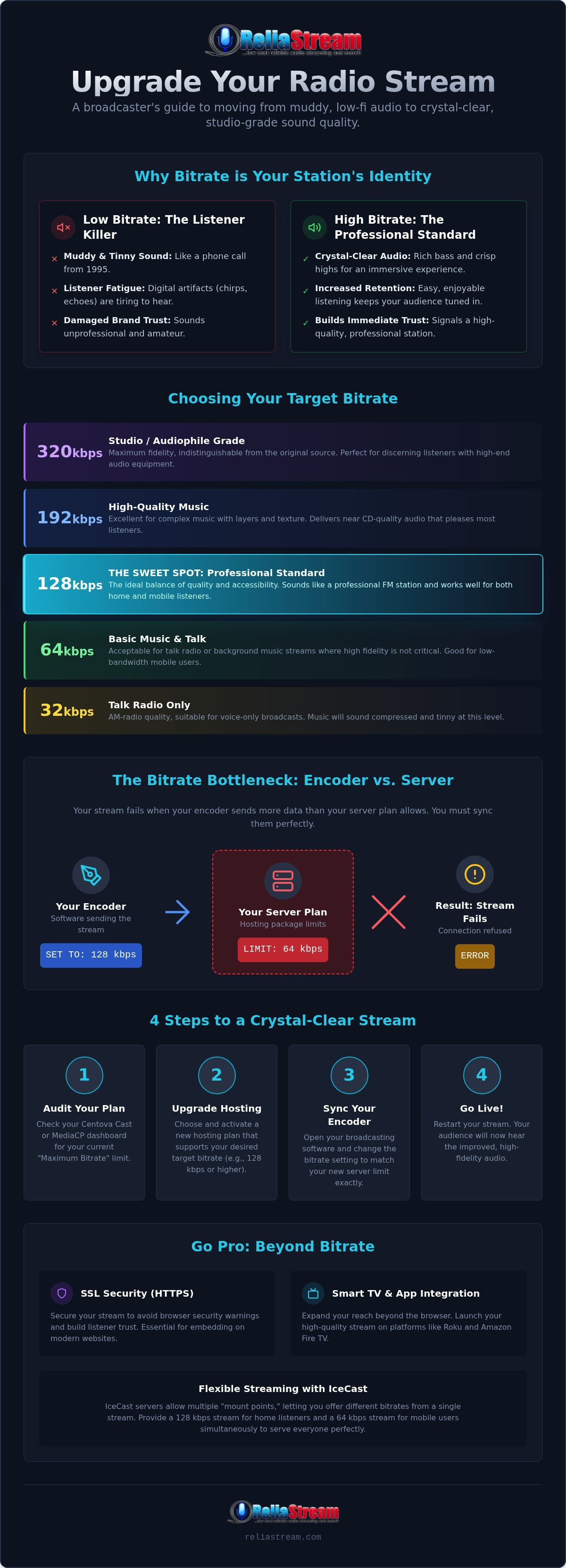
So, you have cranked the slider in your encoding software to 128 Kbps. You hit "Start" and wait for that crisp sound to kick in. Suddenly, your connection drops. Why? Because you have hit the bitrate bottleneck. Your encoder is the source; it is the engine generating the sound. But your server is the distributor. If your server is built to handle a small stream, it won't let a massive flood of data through the gates. This is a common point of confusion for broadcasters researching how to upgrade your radio stream bitrate. You cannot just change a setting in your software and expect it to work. Plan limits are hard. If you are paying for a 64 Kbps Hosting Plan, your server will literally reject anything higher. You will see that frustrating "Server Connection Refused" error. It is not a bug. It is a mismatch.
Professional audio requires a deeper understanding bitrate and how it interacts with bandwidth. If your encoder and server aren't in perfect sync, your station stays silent. You must ensure your hardware or software settings mirror exactly what your hosting plan allows. If you are ready to stop guessing, you can browse our professional hosting tiers to find the right fit for your sound.
Auditing Your Current Hosting Plan
Check your Centova Cast or MediaCP dashboard right now. Look for your "Bitrate Limit" or "Maximum Bitrate" setting. Are you pushing right up against it? If your dashboard shows you are at your max, you have no room for higher fidelity. The Plan Limit is the absolute ceiling for your audio quality. You cannot squeeze 320 Kbps through a 64 Kbps pipe. If your current listeners are complaining about quality, but your dashboard says you are at the limit, it is time to scale up.
Upgrading Your ReliaStream Plan
Scaling up is easier than you think. You might have started with low bitrate radio hosting to get your feet wet. That is a smart move for beginners. But as your audience grows, they will demand more. Moving from a 32 Kbps starter plan to a pro 320 Kbps setup is a seamless process. We focus on the "No-Downtime" upgrade. You shouldn't have to kick your listeners off the air just to improve your sound. When you are ready to make the jump, you simply select your new tier in the client area. Once the plan is active, you update your encoder settings to match. It is instant. It is professional. It is how to upgrade your radio stream bitrate without the headache of a broken stream.
Choosing Your Target: 32 Kbps to 320 Kbps
Not all bitrates are created equal. You need to pick the right weapon for the job. You wouldn't use a sledgehammer to hang a picture frame, and you shouldn't use 320 Kbps for a weather report. When you are looking at how to upgrade your radio stream bitrate, you have to consider your content. A 32 Kbps or 64 Kbps Hosting Plan is the workhorse of talk radio. It is clear. It is efficient. It gets the message across for news and sports without wasting a single byte of bandwidth. But once the music starts? Everything changes.
The industry standard for music is 128 Kbps. It is widely considered "CD quality" for the average ear. It is the sweet spot where most listeners cannot tell the difference between the stream and the original file. If you are running an audiophile station or playing complex classical pieces, you need more headroom. That is where the 192 Kbps to 256 Kbps range comes in. And then there is the 320 Kbps tier. This is the gold standard. It is absolute transparency. It provides the deep, professional sound that makes your station feel like a major global network.
Matching Bitrate to Content Type
Content dictates your technical needs. Talk radio is forgiving. You can save money with lower bitrates and still sound professional because the human voice doesn't require massive data to remain intelligible. However, genres like Electronic, Rock, or Heavy Metal are dense. They have complex layers of sound. If you try to squeeze them through a low-bitrate pipe, they become "muddy" and lose their punch. Classical and Jazz stations require the highest tiers to capture the full dynamic range. You want your listeners to hear the quietest violin and the loudest trumpet with the same crystal clarity.
The Mobile Listener Consideration
Mobile listeners are your biggest demographic in 2026. You have to respect their data plans and their hardware. A 320 Kbps stream consumes approximately 144 MB of data every hour. For a listener on a capped mobile plan, that is a significant chunk of their monthly limit. High bitrates are also sensitive. If your listener hits a spotty 4G area, a high-data stream will stutter and buffer. Finding the "sweet spot" for mobile reach often means balancing quality with reliability. While 320 kbps radio streaming is the ultimate goal for fidelity, it requires a robust infrastructure and a listener base with stable connections. Learning how to upgrade your radio stream bitrate means knowing when to go big and when to stay lean to keep your audience connected.
Step-by-Step: How to Execute the Bitrate Upgrade
Ready to flip the switch? Upgrading isn't just a mental shift; it's a technical sequence that requires precision. You have the vision, now you need the execution. Let’s get into the weeds of how to upgrade your radio stream bitrate without breaking your broadcast. Follow these steps to move from "muddy" to "mastered" in minutes.
- Step 1: Log in to your ReliaStream client area. This is your mission control. Select the specific service you want to boost.
- Step 2: Choose the "Upgrade/Downgrade" option. This is where you pick your new power level. Select your new bitrate tier, whether it is a 128 Kbps or a full-throttle 320 Kbps Hosting Plan.
- Step 3: Update your Auto DJ settings. If you use server-side playlists, your Auto DJ needs to know the rules have changed.
- Step 4: Adjust your local encoder. Whether you use BUTT, Mixxx, or RadioBOSS, your software must mirror your new plan exactly.
- Step 5: Restart the server. This clears the old cache and applies your new limits. Verify the stream with a quality check on multiple devices.
Precision is the difference between a professional broadcast and a hobbyist stream. If you are ready to hear the difference, upgrade your hosting plan now and start broadcasting in high definition.
Updating Auto DJ Settings in Centova Cast
If you rely on the server to keep the music playing while you're away, you must update your Auto DJ. Navigate to the "Settings" tab in your Centova Cast or MediaCP control panel. Look for the "Mount Point" settings. You need to adjust the bitrate here to reflect your new plan. Why is this vital? Because the Auto DJ re-encodes your files on the fly. If you don't update this setting, you are still broadcasting at your old, lower speed. You must restart the Auto DJ service to apply these changes. Don't skip this. A simple "Save" isn't enough to push the new data through.
Configuring Your Live Encoder
Your local software is the engine of your live show. Set your Sample Rate to 44.1 kHz. This is the industry standard for digital audio. Now, you face a choice: CBR (Constant Bitrate) or VBR (Variable Bitrate). Use CBR. Always. VBR might seem efficient, but it causes massive headaches with listener buffering. CBR provides a steady, predictable flow of data. This consistency is what keeps your audience connected when their own signal fluctuates. It ensures that your high-fidelity sound remains stable from the moment you hit "Live."
Pro-Level Broadcasting: SSL and Smart App Integration
High bitrate sounds amazing. But if your stream isn't secure, nobody will hear it. Modern browsers are ruthless. They see a non-SSL link and they kill the connection immediately. You have done the hard work to learn how to upgrade your radio stream bitrate, so don't let a missing security certificate flush that effort down the drain. In 2026, ssl radio streaming is the baseline for professional broadcasters. It is the digital handshake that tells the world your station is legitimate and safe to play.
Securing Your High-Bitrate Stream
Browsers like Chrome and Firefox now block "mixed content" by default. If your website is secure but your stream is not, the player simply won't load. It is that simple. By setting up an SSL Radio Link, you get that professional green padlock that builds instant trust with your audience. SSL is the handshake of modern broadcasting. It keeps your data safe and your stream accessible across all platforms. At ReliaStream, we ensure your high-fidelity audio is wrapped in the security it deserves. Don't let your bitrate upgrade go to waste because of a technicality.
Taking Your Quality Global with Custom Apps
Why stop at the browser? Your listeners are in their cars, their kitchens, and their living rooms. This is where radio streaming app development changes the game. When you are researching how to upgrade your radio stream bitrate, don't forget that the delivery platform is just as important as the data rate. When you push a crisp 128 Kbps or 320 Kbps stream through a Roku Radio App or Amazon Fire TV App, you aren't just a "web station" anymore. You are a global broadcaster. Imagine the thrill of your listeners hearing your station on a 5.1 surround sound system via Roku. That is the true power of high-bitrate audio.
Smart speakers like Alexa demand clarity. A low-bitrate stream sounds like garbage on a high-end Echo Studio. You need at least 128 Kbps to keep those AI assistants sounding natural and full. We handle the technical heavy lifting, from SSL certificates to app deployment, so you can focus on the talent. This is the ReliaStream advantage. We provide the backbone. You provide the voice. Whether you are using Centova Cast or MediaCP, scaling your quality is a click away. Ready for the big leagues? Upgrade your ReliaStream plan today! and dominate every device in the house.
Claim Your Sound in 2026
Your listeners deserve better than a muffled, low-fidelity stream. You now have the exact blueprint for how to upgrade your radio stream bitrate without the technical headaches. Remember, it is all about the balance. Sync your local encoder with your hosting plan, choose a bitrate that matches your content, and never skip on SSL security. Whether you are running a talk show at 64 Kbps or a high-def music station at 320 Kbps, the quality of your audio is your professional signature. Don't let a "lo-fi" sound hold your brand back from reaching its full potential on smart speakers and mobile apps.
Success in broadcasting is built on a reliable backbone. With hosting plans starting at just $1.99, secure SSL streaming included, and expert support for Centova Cast and MediaCP, you have every tool you need to succeed. It's time to stop overthinking and start broadcasting. Level up your sound with ReliaStream’s Pro Hosting! We are ready to help you grow. Let's get your station sounding crystal clear today.
Frequently Asked Questions
Will increasing my bitrate cause my stream to buffer for listeners?
Yes, it can if your audience has a weak connection. Higher bitrates require more bandwidth from the listener. If someone is tuning in on a spotty mobile signal, a 320 Kbps stream will likely stutter and buffer. It is a classic trade-off between absolute audio fidelity and total accessibility. Many professional broadcasters find that 128 Kbps is the perfect "sweet spot" for reaching both mobile and desktop users without interruptions.
Can I change my bitrate in the middle of a live broadcast?
No, you cannot change settings mid-stream without a brief disconnect. Your encoder and the server establish a technical handshake at a specific speed when you hit the "Live" button. If you adjust your software settings while broadcasting, the server will usually reject the new data or crash the connection. You must stop the encoder, update your bitrate settings, and then restart the broadcast to apply the changes to your live stream.
What is the best bitrate for a talk radio station?
A 64 Kbps Hosting Plan is usually the gold standard for talk, news, and sports. Human speech is less complex than music and doesn't require massive amounts of data to sound clear and professional. Using a lower bitrate for voice-only content saves you bandwidth and ensures that listeners with even the slowest internet connections can hear every word without buffering. It is the smartest way to maximize your reach while keeping audio intelligibility high.
Do I need a faster internet connection to stream at 320 Kbps?
Absolutely. Your home or studio upload speed must be significantly higher than the bitrate you are pushing. For a 320 Kbps stream, we recommend a stable upload speed of at least 1 Mbps to handle network fluctuations. If your connection is too slow, your encoder will struggle to send the data packets fast enough. This results in "choppy" audio or frequent disconnects before the stream even reaches our high-speed servers.
Why does my stream sound distorted after I increased the bitrate in my encoder?
Distortion usually happens when your encoder bitrate exceeds your actual hosting plan limit. If you are trying to push 128 Kbps through a 64 Kbps Hosting Plan, the server will struggle to process the excess data, causing digital clipping or a "Server Connection Refused" error. It is a common mistake when learning how to upgrade your radio stream bitrate. Always ensure your Centova Cast or MediaCP plan matches the settings in your broadcasting software.
Is there a difference in bitrate quality between ShoutCast and IceCast?
The bitrate measurement itself is identical on both platforms, so 128 Kbps contains the same amount of data regardless of the protocol. However, IceCast is often preferred for high-bitrate flexibility because it handles mount points more efficiently. This allows you to serve different bitrates to different devices from a single server. ShoutCast is a reliable industry veteran, but IceCast's modern architecture makes it a powerhouse for broadcasters who want to offer multiple quality options.
Does ReliaStream charge a fee to switch between bitrate plans?
We don't charge a hidden "switching fee," but your monthly rate will adjust based on the new capacity you select. Upgrading is instant within your client area. You simply pay the difference for the higher tier. We believe in being a proactive partner for your growth. If your station gains a massive following on a Tuesday, you should be able to scale up by Tuesday afternoon without being penalized for your success.
How do I know if my listeners can handle a higher bitrate stream?
Check your listener analytics in your Centova Cast or MediaCP dashboard. Look at where your audience is located and what devices they use to tune in. If the majority of your fans are using mobile devices in regions with inconsistent cellular data, stay with a lower bitrate to prevent buffering. If your analytics show most listeners are on desktop computers or smart speakers with stable home Wi-Fi, they are ready for a high-fidelity experience.


