

Could 128 Kbps give your station clear sound without making the stream harder to reach? It can be a practical middle ground, but bitrate alone doesn’t determine how a station will sound or how many listeners it can support. Choosing 128 kbps radio hosting means considering the codec, your programming, your audience’s connections, and the hosting capacity behind the stream.
It’s reasonable to weigh concerns about sound quality at a lower bitrate against the extra data use of a higher one. The right choice depends on what you broadcast, where your audience listens, and how the stream is encoded and delivered.
This guide explains what 128 Kbps represents and how it affects sound and bandwidth. You’ll learn how to compare bitrate options, estimate delivery demand, and test a stream with your own content. By the end, you’ll have a practical way to decide whether 128 Kbps fits your station or another bitrate better suits your programming and audience.
Key Takeaways
- Bitrate describes a stream’s data rate, not how many listeners your hosting can support.
- Evaluate 128 kbps radio hosting alongside codec, source audio, station format, and listener connection conditions.
- Compare lower, 128 Kbps, and higher bitrates by sound expectations, data use, and audience needs, not by a universal quality ranking.
- Test encoder settings with live broadcasts and Auto DJ playback if both are part of your station workflow.
- Match the bitrate to your station’s needs, then consider how tools such as Centova Cast or MediaCP support day-to-day management.
What Does 128 Kbps Radio Hosting Actually Mean?
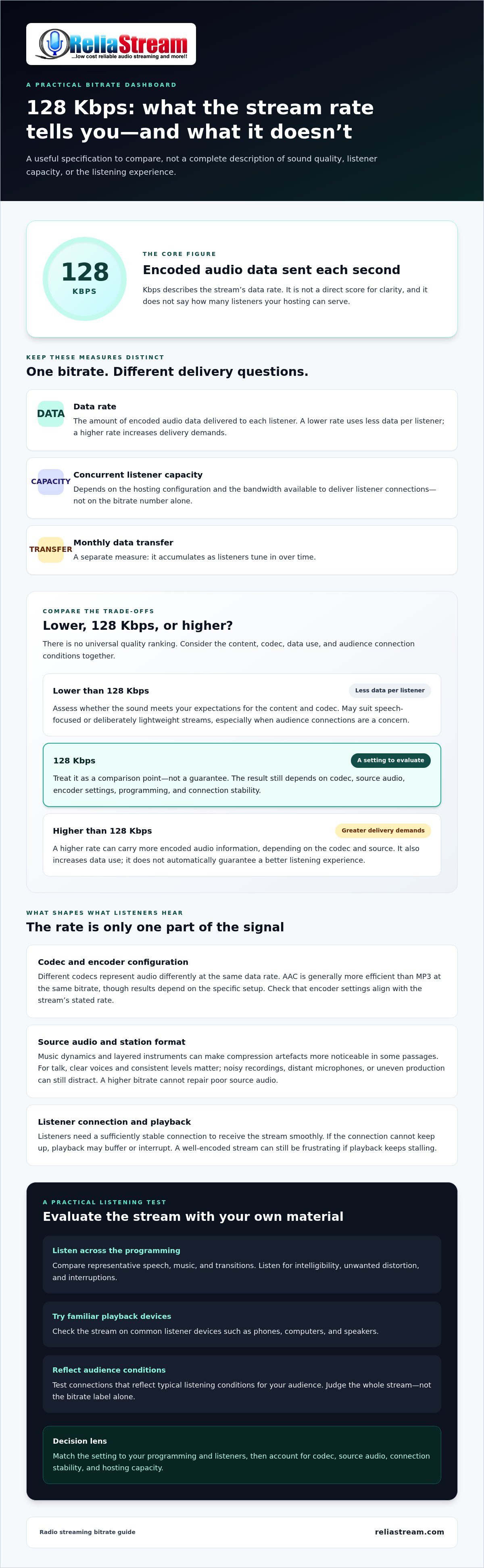
128 Kbps radio hosting delivers an audio stream encoded at 128 kilobits per second. Kbps describes the stream’s data rate, not the number of listeners it can serve or a guaranteed level of sound quality. The result also depends on the codec, source audio, encoder settings, and stream configuration.
In practical terms, Kbps measures how much encoded audio data is sent each second. It’s a measure of bit rate, not a direct score for clarity. Don’t confuse kilobits with kilobytes: they’re different units, and that distinction matters when estimating how much data a stream delivers.
How bitrate affects an internet radio stream
A higher data rate can carry more encoded audio information, depending on the codec and the quality of the source audio. But the number alone doesn’t tell you how that information will sound. Listeners also need a sufficiently stable connection to receive the stream smoothly. If a connection can’t keep up, playback may buffer or interrupt, regardless of the advertised bitrate.
The displayed bitrate is only one part of the encoding picture. It doesn’t identify every encoder setting or reveal whether the source was clear before broadcast. Treat 128 Kbps as a useful specification to compare, not a complete description of the listening experience.
What 128 Kbps does not tell you by itself
Bitrate isn’t the same as hosting capacity. It describes the data sent to each listener; concurrent listener capacity depends on the hosting configuration and the bandwidth available to deliver those connections. Monthly data transfer is different again: it accumulates as listeners tune in over time.
Sound also depends on the original audio and encoder settings. A clean source can’t be judged by bitrate alone, and encoding can’t restore detail that wasn’t present in the source. Codec choice matters too: different codecs can represent audio differently at the same data rate, so 128 Kbps in one codec shouldn’t automatically be treated as equivalent to 128 Kbps in another.
There’s no universal line where 128 Kbps becomes “good” or “poor.” A speech-led station, a music-focused channel, and a mixed-format broadcaster may have different priorities. The best fit depends on your programming, codec, audience connections, and hosting configuration. Start with the number, then assess how the full stream performs for your listeners.
How Codec, Programming, and Listening Conditions Shape 128 Kbps Quality
Two stations can stream at 128 Kbps and still sound noticeably different. The codec, source recordings, encoder configuration, programming mix, and listener’s playback conditions all shape the result. Bitrate alone cannot guarantee perceived audio quality.
Does 128 Kbps work for music and talk radio?
It can be a useful setting to test, but the listening experience depends on the station. Music’s changing dynamics and layered instruments can make compression artefacts more noticeable in some passages. For a talk-heavy show, listeners may focus more on clear voices and consistent levels, though noisy recordings, distant microphones, or uneven production can still distract.
Use these as starting points, not guarantees. A clean speech recording can sound easier to follow than a noisy one, and a music stream’s performance depends on the source and encoding choices as well as its stated rate. A higher bitrate won’t repair poor source audio. Listen to representative material from your own station before settling on a setting.
Why codec and source audio matter
A codec is the method that encodes audio for streaming and decodes it for playback. Different codecs handle audio data differently, so the same bitrate doesn’t necessarily produce the same result. AAC is generally more efficient than MP3 at the same bitrate, though results depend on the specific setup. The Library of Congress’s description of Unified Speech and Audio Coding (USAC) offers broader context on how audio codecs are designed to work across different bitrates.
Separate the hosting plan’s stated stream bitrate from the encoder settings used to create the broadcast. The plan’s rate describes the stream delivery setting; your encoder determines how the source is prepared using the selected codec and configuration. Check that the settings align, then assess the output rather than assuming the plan number tells the whole story.
Test with the programs your audience actually hears. Compare speech, music, and transitions on common listener devices, such as phones, computers, and speakers. Try connections that reflect your audience’s typical listening conditions. Listen for intelligibility, unwanted distortion, and interruptions. A stable connection matters too: even a well-encoded stream can be frustrating if playback keeps stalling.
Once you’ve identified settings that suit your content and audience, compare them with a 128 Kbps radio hosting plan as an option for your station.
128 Kbps vs. Lower and Higher Radio Bitrates: What Should You Compare?
Compare the trade-offs, not just the numbers. A lower stream rate uses less data per listener, while a higher rate increases delivery demands. Neither automatically guarantees a better listening experience: codec, source audio, program format, and connection stability all matter. Adobe’s guide to understanding audio bitrate explains how bitrate relates to audio quality and file size.
| Bitrate choice | What to weigh | May suit |
|---|---|---|
| Lower than 128 Kbps | Less data per listener; assess whether the sound meets your expectations for the content and codec. | Speech-focused or deliberately lightweight streams, especially when audience connections are a concern. |
| 128 Kbps | A middle option to test for audio expectations, listener data use, and delivery capacity. | Stations with a mix of music and speech that want to balance sound needs with bandwidth demands. |
| Higher than 128 Kbps | More data per listener and greater delivery requirements; test whether listeners can receive it reliably. | Broadcasters prioritizing more audio detail for audiences with suitable connections. |
These are comparisons, not quality rankings. A higher bitrate can’t repair poor source audio, and a lower one may still be suitable depending on the codec and programming. Use each row as a starting point, then test the actual stream.
When a lower bitrate may be a better fit
A lower setting may make sense for talk-led programming, limited listener bandwidth, or a station aiming to keep its stream lightweight. The trade-off is that you need to judge whether the result still meets your standards for clarity and listening experience. For broader context, compare this decision with guidance on budget internet radio hosting.
When to consider a higher bitrate than 128 Kbps
If your station prioritizes audio detail and your listeners have connections that can sustain the stream, testing a higher setting may be worthwhile. It also increases the data delivered to each listener, so account for the hosting resources needed to serve simultaneous connections. For a focused comparison, see a guide to high-quality 320 Kbps radio streaming.
Estimate outgoing capacity by multiplying bitrate by concurrent listener connections. For example, 128 Kbps multiplied by 100 connections gives an illustrative payload rate of 12,800 Kbps, or 12.8 Mbps, before network overhead. This assumes each listener receives one constant-rate stream; it isn’t a hosting-plan specification or a guaranteed capacity. Actual listener limits depend on the plan and available resources, so allow for overhead when planning.
How to Test Whether 128 Kbps Radio Hosting Fits Your Station
Don’t decide from a single song or a quick listen on one device. Test the stream using real station content, realistic connections, and your planned broadcast workflow. This gives you a clearer basis for choosing 128 kbps radio hosting and spotting issues before they affect your audience.
- Identify your format. Note what listeners hear most: speech, music, or a mix. Include demanding examples such as dense instrumentation, quieter passages, and transitions between segments.
- Review your source audio. Check that recordings are clear and levels are reasonably consistent before streaming. A bitrate change won’t fix noise, distortion, or weak source quality.
- Configure the encoder. Set it to match the intended stream bitrate and codec. Don’t copy another station’s encoder values without checking that they apply to your setup.
- Test the full workflow. Listen to live playback and Auto DJ playback if your station uses both. Try headphones, a mobile device, and other devices your audience commonly uses.
- Record results and reassess. Note clarity, unwanted audio artefacts, buffering reports, and stream-capacity warnings. Change one setting at a time, then repeat the test so you can tell what helped.
A practical stream-quality test before launch
Choose representative broadcasts, not just one short sample. Include different voices, music styles, and program transitions. Listen over connections that reflect how your audience tunes in, including a stable connection and a less consistent mobile connection. Keep a simple log of what you hear and any listener feedback. That record helps you compare settings without relying on memory.
How to review bandwidth and listener capacity
As a planning aid, multiply the stream bitrate by the number of listeners connected at the same time to estimate outgoing data demand. Treat the result as an estimate, not a hosting guarantee. Protocol overhead and changes in concurrent listener demand affect actual resource needs.
Keep the encoder bitrate separate from the capacity included in a hosting plan. One describes the stream’s rate; the other concerns the resources available to deliver it to listeners. Review both alongside your test results before settling on a configuration.
Ready to put your decision into practice? Explore ReliaStream’s 128 Kbps radio hosting and choose a setup that fits your station’s workflow.
Choose 128 Kbps Radio Hosting with the Tools to Manage Your Station
The right bitrate is only part of the decision. Match it to your codec, programming, audience connections, and the hosting capacity needed to serve listeners. Then consider how you’ll manage broadcasts day to day. A good fit brings the stream setting and station workflow together.
What to look for in 128 Kbps radio hosting
Check that the hosting setup supports your streaming technology and the way your station operates. ReliaStream provides ShoutCast and IceCast hosting, with Centova Cast and MediaCP control-panel options. These tools help manage station operations, while the selected bitrate describes the stream.
If Auto DJ is part of your workflow, factor it into your setup so scheduled or automated playback fits alongside live broadcasts. SSL streaming is another feature to consider. It secures the stream connection, but it doesn’t increase audio quality or change what the bitrate means.
Think beyond the encoder setting too. A 128 Kbps stream may suit your content, but the hosting configuration must also suit the number of listeners you expect and the resources needed to serve them. Your tests can help you judge whether sound and delivery work well together.
Your next step with ReliaStream
ReliaStream’s 128 Kbps hosting plan gives stations an option to evaluate against their programming and audience needs. ReliaStream has provided internet radio hosting since 2008, with features that include Auto DJ and SSL streaming. Choose a bitrate based on your tests, then use the control-panel tools that fit your broadcasting workflow.
For a wider view of available setups, explore ReliaStream’s radio hosting options. The goal isn’t to pick the biggest number. It’s to choose a stream that sounds right for your station and can be delivered reliably to your listeners.
Explore ReliaStream radio hosting
Choose a Stream Setting That Fits Your Station
128 Kbps can be a practical choice, but the number alone won’t tell you whether it’s right for your audience. Match the bitrate to your codec, programming, listeners’ connection conditions, and hosting capacity. Then test representative content across devices and playback workflows before making the setting permanent.
Comparing 128 kbps radio hosting with lower and higher options helps you weigh sound expectations against data use and delivery needs instead of choosing by bitrate alone. A control panel and station features such as Auto DJ and SSL streaming can also support broadcast management, though they serve different purposes from audio quality.
ReliaStream has provided internet radio hosting since 2008, with a 128 Kbps plan, ShoutCast and IceCast hosting, and control-panel options. Explore the hosting setup that aligns with your station’s needs: Explore ReliaStream radio hosting.
Test your stream with representative content, choose the bitrate that fits, and explore ReliaStream’s hosting options to manage your station.
Frequently Asked Questions
Is 128 Kbps good enough for internet radio?
It can be a suitable starting point for internet radio, but it doesn’t guarantee sound quality. The result depends on the codec, source audio, encoder configuration, station format, and listeners’ connections. A music station and a talk-focused station may have different priorities. Test representative broadcasts on common devices and realistic connections before deciding whether 128 kbps radio hosting fits your audience.
What is the difference between 128 Kbps and 320 Kbps radio streaming?
At 320 Kbps, the stream sends more encoded data each second than at 128 Kbps. That increases data use per listener and the delivery capacity needed for concurrent connections. It may suit a station prioritizing audio detail, but it doesn’t guarantee a better listening experience or repair poor source audio. Compare both settings using your own content, codec, audience connections, and hosting capacity.
How much bandwidth does a 128 Kbps radio stream use per listener?
A 128 Kbps stream carries about 128 kilobits of data per second per listener, before protocol overhead. As a rough estimate, that’s 16 kilobytes per second, or about 57.6 megabytes per hour using decimal units. Actual transfer can vary with stream behavior and delivery overhead. Treat this as an estimate, not a hosting-plan specification, and account for the number of people listening at the same time.
Can 128 Kbps radio hosting support multiple listeners at once?
Yes, but bitrate alone doesn’t determine how many listeners can connect. Each listener receives a stream, so simultaneous connections increase outgoing data demand. The hosting plan’s listener capacity and available resources also matter. For planning, multiply the stream rate by the expected number of concurrent listeners, then allow for protocol overhead. Treat the calculation as an estimate, not a promise of capacity.
Does a higher bitrate always mean better radio audio quality?
No. A higher bitrate sends more data, but perceived quality also depends on the codec, encoder settings, and source recording. A noisy or poorly mastered track won’t become clean simply because it’s streamed at a higher rate. Higher data use may also make playback less reliable for listeners with unstable connections. Compare settings through listening tests rather than treating bitrate as a quality score.
Which codec should I use for a 128 Kbps radio stream?
Choose a codec your streaming setup and listeners’ playback devices support, then test it with your station content. MP3 and AAC are common internet radio codecs; AAC is generally more efficient than MP3 at the same bitrate, though results depend on implementation and source audio. Check compatibility across your listening platforms and compare actual playback before settling on a codec.
Can I change my radio station bitrate after launch?
Usually, a station can change its bitrate by updating its encoder and stream configuration, provided the hosting setup supports the intended rate. Before switching, review how the change affects data use and concurrent listener capacity. Test live and Auto DJ playback if you use both, then check audio quality and stream stability. A change may require updating player or broadcast settings, depending on your setup.


