

A voice command gives listeners a direct way to tune in. An Alexa skill for an internet radio station lets people launch your live stream by voice, once they’ve enabled the skill. No need to search for the stream each time.
If your station already broadcasts online, you know that easy access matters. A skill can also support useful features: listeners may ask for the current track title and artist, then say “Alexa, stop” to end playback.
This guide explains how a dedicated skill can support your station, how listeners launch and control it, and what an online radio skill can offer. It also covers the Alexa app’s role in setup, so you can see the listener experience from the first command to playback.
Key Takeaways
- A custom skill can give your station a branded presence in the Amazon Alexa Skills Store and create a more direct listening experience.
- Clear launch and playback commands help listeners start a station and control listening hands-free.
- Online radio skills can support different stream formats and offer useful details, such as the current track and artist.
- Listeners may need to set up a station’s skill before using voice commands to play it.
Why Alexa Skill?
A dedicated Alexa skill for an internet radio station gives listeners a direct, voice-controlled route to its stream. A custom skill can also put your station’s identity front and center. It can be published in the Amazon Alexa Skills Store, where listeners can find and enable it. Rather than relying only on a general radio directory, you can shape a branded listening experience around your station’s name and programming.
Start with a clear invocation name. It should contain at least two words and sound natural in a request, such as “Alexa, open River City Radio.” Each skill supports one language, so choose the language that fits your audience. A custom welcome message can greet listeners, while station artwork and a direct activation link can make discovery and setup easier. These details help the skill feel connected to your station, not generic.
Custom intents let the skill respond to specific spoken requests. Listeners might ask for the current track title and artist, or request a named show or audio stream. On-demand audio can make the experience more flexible than simply starting a live broadcast. The available requests depend on the skill’s configuration and the audio your station provides.
Amazon’s radio-skill setup uses station details, artwork, language, and stream information. Copyrighted music requires appropriate permissions for your station’s use; publishing a skill does not grant music rights. Skill setup and music permissions are separate parts of running an online station.
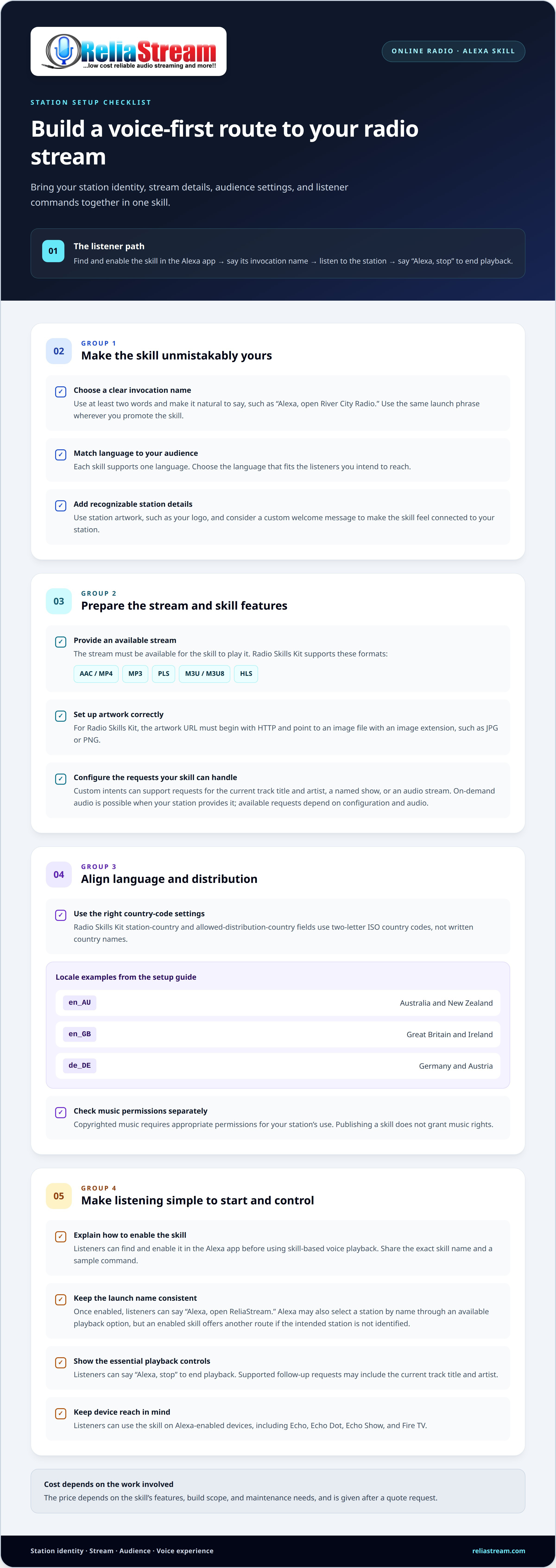
Radio Skills Kit streams can use AAC/MP4, MP3, PLS, M3U/M3U8, or HLS formats. The stream must be available for the skill to play it, so the chosen stream source and format matter. The price depends on the skill’s features, build scope, and maintenance needs, and is given after a quote request. A custom skill can bring these pieces together: station identity, voice commands, and a route to online audio.
Voice commands for launching and controlling a station
Alexa can sometimes play a station selected by the listener without its custom skill. However, listeners must enable the skill in advance to use its skill-based voice playback.
The command experience depends on how listeners find your station and what they want to do next.
Enabling and Using a Skill in the Alexa App
Listeners can find and enable your station’s skill in the Alexa app before asking Alexa to play it. Once enabled, they can use its invocation name in a spoken command, such as “Alexa, open ReliaStream.” A clear, memorable name helps them connect the request with the right station. They can then make requests the skill supports, rather than relying on a general station search.
Playing a Station by Name Without Enabling
A dedicated skill isn’t the only way to play radio through Alexa. A listener might say, “Alexa, play ReliaStream,” and Alexa can select the station through an available playback option. If that doesn’t identify the intended station, an enabled skill offers another way to launch it using its invocation name.
For a custom skill, use the same launch phrase in every station promotion. Your website or an on-air announcement can share the skill name and the command to say, making the first voice request easier to remember. Avoid using different names for the same skill: listeners need its invocation name to open it.
Once playback starts, listeners can say “Alexa, stop” to end the stream without finding a phone or opening an app. Your skill can also handle supported follow-up requests, such as asking for the current track title and artist. Clear command design gives listeners a practical path: launch the station, make an available request, and stop playback when they’re done.
Alexa Skills for online radio stations
An online station skill connects spoken requests with your stream and station identity. Listeners can use it on Alexa-enabled devices, including Echo, Echo Dot, Echo Show, and Fire TV. The skill’s details help Alexa identify which station to play and where it can be distributed.
Station artwork is a practical part of setup. For Radio Skills Kit, the artwork URL must begin with HTTP and point to an image file with an image extension, such as JPG or PNG. Choose an image that clearly identifies your station, such as its logo. A recognizable image helps listeners identify the skill when browsing or enabling it.
Distribution settings also determine who can access a skill. Radio Skills Kit station-country and allowed-distribution-country fields use two-letter ISO country codes, not written country names. For stations serving audiences across borders, these settings define the countries associated with the station and its permitted distribution.
- en_AU covers Australia and New Zealand.
- en_GB covers Great Britain and Ireland.
- de_DE covers Germany and Austria.
Locale examples show why skill setup should match the intended audience, not just the station’s broadcast location. A station serving listeners in Australia and New Zealand can consider the en_AU locale; one targeting Great Britain and Ireland can use en_GB. The German-language de_DE locale covers Germany and Austria. Match the skill’s language and distribution details to the listeners it is designed to reach.
Before publishing in the Amazon Alexa Skills Store, bring together your station identity, stream information, artwork, and distribution choices. Each element has a distinct role: artwork identifies the station, locale supports the intended audience, and the stream delivers the audio. Aligning these details makes the skill a practical extension of your online broadcast.
How to enable and use radio station skills in Alexa app?
Listeners need to enable your station’s Alexa skill before using it for voice-activated playback. They can find and enable it in the Alexa app, then speak its invocation name to start the station. For example, “Alexa, open River City Radio” tells Alexa which skill to launch.
Keep your station’s instructions simple. Share the exact skill name and a sample command on your website, social channels, or during a broadcast. Listeners can search for that name in the Alexa app and enable the matching skill. A clear name matters: enabling a different skill may not launch your station.
- Open the Alexa app and find the station’s skill by name.
- Enable the skill before asking Alexa to play the station.
- Say the skill’s invocation name, such as “Alexa, open River City Radio.”
- Use supported requests, then say “Alexa, stop” to stop playback.
Available options depend on the skill. One station might support requests for the current track title and artist, while another may focus on launching its live stream. Listeners can manage linked, supported music streaming services through the Alexa app’s Music & Podcasts settings. Those services are separate from enabling a station skill.
If Alexa doesn’t open the intended station, listeners can repeat the skill’s precise name or find it again in the app. The station can reduce confusion by using the same name in every instruction and by giving one example command. For broadcasters planning the stream behind voice playback, explore radio streaming setup as a related next step.
ReliaStream: Alexa Streaming App
ReliaStream’s Alexa Streaming App helps your station reach listeners through Alexa. Pair it with suitable radio hosting to give the skill a stream to play, connecting voice requests with your online broadcast.
Choose a hosting plan that fits your stream’s bitrate needs. ReliaStream offers 32 Kbps, 64 Kbps, and 128 Kbps Hosting Plans. The right option depends on the audio quality and listening experience you’re building for your audience. These services support the streaming side of the setup; the Alexa skill itself defines how listeners find and launch the station.
Ready to connect your station’s stream with Alexa listening? Contact ReliaStream.
Make Your Station Easier to Find by Voice
Make the listening experience unmistakably yours. Treat the Alexa skill as part of your station’s identity: choose language that suits your brand, keep listener instructions consistent, and build around the audio experience you want people to return to. An Alexa skill for your internet radio station can be more than a way to start playback. It can become a familiar entry point to your programming.
Bring the streaming setup into that plan, too. ReliaStream offers 32 Kbps Hosting Plan, 64 Kbps Hosting Plan, and 128 Kbps Hosting Plan options for broadcasters. The right choice depends on the stream you’re preparing and the listening experience you want to deliver. A clear plan helps connect the station’s voice commands with the broadcast behind them.
Ready to take the next step? Contact ReliaStream about your station and move your listening experience forward with confidence.
Frequently Asked Questions
How does it work?
An Alexa skill connects a spoken request with your station’s online audio stream. The listener asks Alexa to open or play the station, and the skill responds with audio and any other supported features. For example, a station may configure a request for the current track and artist. The response depends on the skill’s setup and the information your station provides.
How to create a good invocation?
Choose an invocation name that listeners can say clearly and remember. It should contain at least two words and identify your station without sounding like an everyday phrase. Try saying it aloud in a command such as “Alexa, open Harbor Light Radio.” Use the same wording in station announcements so listeners know what to say when launching the skill.
How do I play an internet radio station on Alexa?
Listeners can ask Alexa to play the station by name or use the invocation phrase for its enabled skill. For example, they might say, “Alexa, play Harbor Light Radio.” Alexa can play a station selected by the listener, but skill-based voice playback requires the station’s skill to be enabled beforehand. If the wrong station starts, repeat the exact station or skill name.
What Alexa skills are available for internet radio stations?
Stations can offer dedicated Alexa skills to launch their streams and respond to station-specific requests. Radio playback can also use supported music streaming services linked through the Alexa app’s Music & Podcasts settings. Listed language options for radio skills include English, Spanish, French, Italian, German, Portuguese, Arabic, Hindi, and Japanese. Each skill supports one language, so choose the option that suits its intended audience.
How do I create an Alexa skill for my own internet radio station?
To create an Alexa skill for an internet radio station, first define your station’s identity and the listener experience you want to offer. Choose the skill’s language and invocation name, then decide which spoken requests it should handle. Add the stream and station artwork, and set country and distribution details for your audience. Prepare the skill for publication in the Amazon Alexa Skills Store, aligning its audio source and listener commands.


