

Dead air is the ultimate station killer. It is the silent thief. It steals your audience and your credibility the second you step away from the mic. You have worked too hard on your brand to let a technical hiccup shut you down. We get it. Learning how to set up auto dj in mediacp should not feel like a chore that drains your creative energy. You want to focus on the hits, not the plumbing. But here is the reality: your station needs a heartbeat that never stops. No excuses. No silence.
Mastering the MediaCP interface is your ticket to total broadcasting freedom. This is not just about looping tracks. It is about creating a professional, 24/7 experience that keeps listeners hooked around the clock. In this definitive 2026 guide, we are stripping away the jargon. We will show you exactly how to organize your media, nail those Liquidsoap transitions, and automate your schedule with total confidence. You will learn to leverage the latest MediaCP 2.16.3 features to ensure your stream is stable, sleek, and loud. Stop worrying about the silence. It is time to build your empire.
Key Takeaways
- Eliminate dead air forever. Learn why a server-side Auto DJ is the non-negotiable backbone for any serious station.
- Get the step-by-step blueprint on how to set up auto dj in mediacp using the latest 2026 dashboard updates.
- Stop hitting shuffle. Master the logic of General Rotation and Scheduled playlists to build a professional, intentional broadcast flow.
- Sound like a pro. Fine-tune your audio with bitrate mastery and seamless 2-4 second crossfades for a polished listener experience.
- Go global. See how your automated stream feeds directly into custom Roku, Fire TV, and Alexa apps to reach listeners in their living rooms.
What is Auto DJ and Why is it the Heartbeat of Your Station?
What happens when you close your laptop? Does your radio station go dark? If you're still relying on a local PC to push every single track, you're living in the past. Auto DJ is the solution. It is server-side software that lives directly within your ReliaStream hosting account. It streams your music, jingles, and station IDs without needing a local computer to stay powered on. Think of it as the brain of your broadcast. It's the modern evolution of broadcast automation systems, designed to keep your audio flowing even when you're miles away from the studio.
Silence is the ultimate audience killer. Listeners who hear "dead air" don't wait around; they tune out and never come back. This is why 24/7 automation is non-negotiable for professional stations. When you learn how to set up auto dj in mediacp, you aren't just playing music. You're creating a "Zero Dead Air" guarantee. MediaCP acts as the powerhouse choice for 2026, offering a sleek, high-performance alternative to legacy panels. It handles the server-side heavy lifting so you can focus on the hits. Plus, it's efficient. You'll save massive amounts of electricity and bandwidth by letting our data centers do the work instead of your home internet connection.
Auto DJ vs. Live Broadcasting
Automation isn't a replacement for your personality; it's the foundation that supports it. MediaCP manages the "hand-off" between your automated stream and your live shows with surgical precision. When you're ready to go live, the Auto DJ gracefully steps aside. When your show ends, it takes over instantly. No gaps. No awkward silence. You need both to succeed. Use Auto DJ for your 24/7 rotation and save your live energy for peak hours. Not sure if this is the right panel for your workflow? Take a look at our guide on centova cast vs mediacp to see how they compare.
The Benefits of Server-Side Automation
Hardware independence is total freedom. Your station stays online even if your local internet goes down or your computer crashes. It's about global accessibility. You can manage your playlists, upload tracks, and monitor your stream from any browser, anywhere in the world. Scaling is just as easy. Whether you have ten listeners or ten thousand, the server-side infrastructure handles the load without stressing your local hardware. Learning how to set up auto dj in mediacp is the first step toward building a station that actually grows with your ambition.
Step-by-Step: Setting Up Your MediaCP Auto DJ
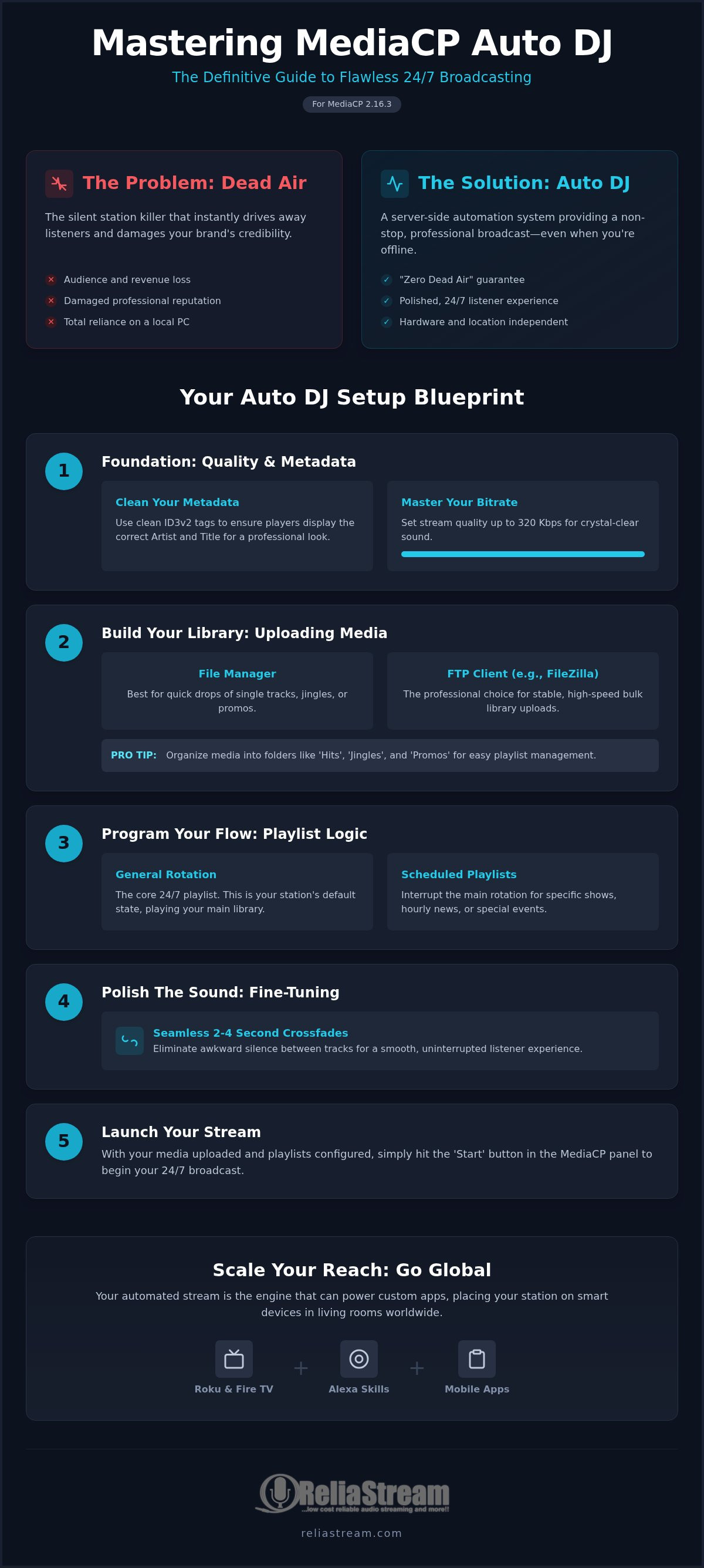
Ready to build your 24/7 stream? Let's get to work. First, log into your dashboard and locate the Auto DJ tab on the left-hand menu. This is where the magic happens. Before you upload a single track, check your metadata. Messy tags lead to a messy station. Professional broadcasters use clean, ID3v2 tags to ensure the listener's player displays the correct artist and title. It's the difference between a pro stream and a hobbyist's mess. Give your audience the information they expect.
When looking at how to set up auto dj in mediacp, your bitrate is your quality ceiling. ReliaStream supports up to 320 Kbps. Don't settle for less. Make sure your encoder settings in the panel match your source files. If you're uploading high-quality 320 Kbps MP3s but your service is throttled to 128 Kbps, you're leaving fidelity on the table. If you haven't secured a high-performance plan yet, check out our MediaCP Plans to lock in that crystal-clear sound.
Uploading Your Media Library
You have two paths for moving your music. The built-in File Manager is perfect for quick drops. Uploading a single new hit or a fresh station ID? Use the browser. It's fast and convenient. But if you're moving a massive library of five hundred tracks, you need FTP. Use a client like FileZilla. It's faster. It's more stable. It handles bulk transfers without breaking a sweat. Just use the FTP credentials found in your MediaCP welcome email to connect and start syncing.
Organization is your best friend. Create folders for 'Hits', 'Jingles', and 'Promos'. This structure makes scheduling a breeze later on. While you're curating your content, it's always smart to stay informed on FCC broadcasting regulations. Even for internet-only radio, understanding public interest and content standards helps you build a more professional brand that listeners trust. Clean folders and clean content make for a long-lasting station.
Starting the Service
Now for the moment of truth. You've uploaded your music. You've assigned your files to a playlist. Now, hit the 'Start' button. MediaCP will initialize the Liquidsoap engine behind the scenes. In the latest 2.16.3 release, this process is faster and more stable than ever. If it doesn't start? Don't panic. Usually, it's an empty playlist or a bitrate mismatch. Check your logs. They aren't just for techies. They tell you exactly why a service failed to kick off. Once you see the 'Running' status, you're live. Once you've mastered how to set up auto dj in mediacp, you'll never look back at manual streaming. Your station now has a pulse.
Professional Programming: Configuring Playlists for Maximum Flow
Most broadcasters think uploading files is the finish line. Wrong. That is just the start. The real work? It is in the programming. If you just hit "shuffle all," you are not running a station. You are running a random folder. Amateurs rely on luck. Pros rely on logic. Professionalism requires intent. It requires a strategy that keeps people from reaching for the dial. When you learn how to set up auto dj in mediacp, you master the science of streaming digital audio. You create a flow that feels intentional. Consistent. Surprising. That is how you win. You want your station to have a personality. That personality is born in your playlist settings.
General Rotation Strategies
MediaCP uses a weighting system from 1 to 10. Use it. Do not leave everything at the default. Give your "A-List" tracks a 10. Give your deep cuts a 3. This ensures your biggest hits rotate frequently while your library remains diverse. You want to create a "Clock" feel. This mimics the traditional radio hour where certain types of content hit at specific times. High weights for hits. Low weights for variety. It is a simple formula for massive retention. Diverse rotations prevent listener fatigue. Nobody wants to hear the same three songs every twenty minutes. If your rotation is too tight, you lose your audience. If it is too loose, you lose your brand identity.
Scheduling and Events
Sometimes you need a specific vibe. Maybe it is a "Friday Night Mix" or a Sunday morning jazz block. Use the Scheduled Playlists feature to trigger these at exact times. This is where you move beyond basic automation. You can also use the "Play Once" rule for special announcements or daily features that should not repeat. Do not forget "Repeat Protection." This is the holy grail of listener retention. It ensures the same artist does not play twice in an hour. Or the same song twice in three hours. It is a small setting. It makes a massive difference in how professional you sound to the average ear.
Finally, master your Interval Playlists. These are the secret to perfectly timed station IDs and commercial breaks. Set them to play every few minutes or every few songs. This keeps your brand front and center. It maintains the 24/7 heartbeat. You can even use these for "Legal IDs" if you want to follow traditional broadcasting standards. Learning how to set up auto dj in mediacp is about more than just music. It is about building a schedule that works while you sleep. It is about total control over your creative output. No dead air. No random gaps. Just pure, professional sound.
Fine-Tuning the Sound: Crossfades and Bitrate Mastery
You have the music. You have the schedule. Now, you need the vibe. If your tracks jump from loud to quiet or cut off mid-beat, you are driving listeners away. Professionalism is found in the details. Audio normalization is your first line of defense. It levels the playing field. It ensures a 1970s rock track doesn't sound like a whisper compared to a 2026 pop hit. When you master how to set up auto dj in mediacp, you realize that silence isn't your only enemy. Inconsistent volume is just as dangerous. Stop guessing. Start listening.
Getting deep into how to set up auto dj in mediacp means looking past the play button. You need to align your output with your goals. If you're on a low bitrate radio hosting plan, efficiency is your best friend. But if you want to compete with the giants, you need to push the limits. ReliaStream allows for crystal-clear quality that legacy panels simply can't match. Every setting matters. Every kilobit counts.
Perfecting the Crossfade
The transition is where the magic happens. A clunky gap between songs kills the momentum of your station. ReliaStream recommends a crossfade length of 2-4 seconds. This provides a smooth, professional hand-off without clashing the intros and outros. It keeps the energy high. However, if you're running talk radio or a podcast block, use "No Crossfade." You don't want your host's closing words buried under the next track's intro. Use the MediaCP preview player to test every change. Don't leave your sound to chance. Listen to your transitions like a listener would before you commit to the settings.
Optimizing for Audio Quality
The 128 Kbps vs. 320 Kbps debate is over. Your audience wants high fidelity. While MP3 remains the king of compatibility, AAC+ is the secret weapon for low-bitrate efficiency. It delivers better sound at lower data costs. But quality isn't just about the codec. It's about security. SSL-secured links are now mandatory for modern browser playback. If your link isn't secure, many players will simply block your stream. Check out our SSL radio streaming guide to understand why security is the backbone of modern broadcasting. Ready for elite audio? Secure your 320 Kbps Hosting Plan today and hear the difference that professional infrastructure makes.
Scaling Your Station: Beyond the MediaCP Panel
You have mastered the technical side. You know how to set up auto dj in mediacp like a veteran. But a great stream in an empty room is just noise. To be a pro in 2026, you have to meet your listeners where they live. That means moving beyond the web browser. It means getting onto the big screen. Your Auto DJ isn't just a backup; it's the 24/7 engine that feeds your global presence. It is time to think bigger than a simple web player.
Branding is everything. A high-energy Auto DJ setup needs a professional landing page to call home. This is your digital storefront. It should look as good as your station sounds. When you combine a polished website with a rock-solid stream, you build trust. You aren't just another internet radio station. You are a media brand. ReliaStream provides the professional backbone for these goals, ensuring your 320 Kbps stream never falters when the traffic spikes.
The Power of Custom Apps
The living room is the new frontier. Smart TV integration is the single biggest growth opportunity in 2026. When you leverage radio streaming app development, you stop being a hidden URL and start being a household name. ReliaStream specializes in custom Roku Radio App and Amazon Fire TV App development. We take that stable MediaCP stream and put it directly on the TV. It's the ReliaStream Advantage. We handle the hosting, the panel, and the app submission. You just provide the content.
Voice activation is the final piece of the puzzle. "Alexa, play my station" is a powerful command. Connecting your stream to a custom Alexa Streaming App makes your station part of the daily routine. It's about total accessibility. It's about making it impossible for your audience to ignore you. Whether they are in the kitchen or the car, your MediaCP-powered stream should be just one voice command away.
Next Steps for the Pro Broadcaster
Once you are live on all platforms, watch the data. MediaCP analytics show you exactly who is listening and when. Use this intel. If your audience spikes on Tuesday nights, that is when you schedule your heaviest hitters. As your listener count climbs, don't let your quality dip. Upgrading your bitrate is a sign of growth. Moving from a 128 Kbps plan to a 320 Kbps Hosting Plan shows your audience you value their ears. High-fidelity audio is a respect thing.
You have the blueprint. You know how to set up auto dj in mediacp and how to scale it to the moon. ReliaStream has been a leader in this space since 2008. We provide the reliability you need so you can focus on the creative side. Stop dreaming about a professional station. Start streaming today. Your audience is waiting for that first beat to drop.
Your 24/7 Broadcasting Empire Starts Now
You have the roadmap. You understand why zero dead air is the only acceptable standard. From mastering the logic of playlist weighting to the precision of a 4-second crossfade, you're now equipped to dominate the airwaves. Learning how to set up auto dj in mediacp isn't just a technical hurdle; it is the foundation of your creative freedom. It's the engine that keeps your brand alive while you sleep. Why wait for "someday" when you can be live right now? Every missed minute is a missed listener.
Since 2008, ReliaStream has acted as the proactive mentor for broadcasters who refuse to settle for mediocrity. We provide the 320 Kbps bitrate support and the custom Roku and Alexa expertise you need to reach the modern living room. Don't let your vision sit on a dusty hard drive. The tech is ready. The global audience is waiting. It is time to turn that heartbeat into a roar. Take the leap. Own the airwaves.
Ready to go on-air? Start your professional station with ReliaStream!
Frequently Asked Questions
Can I upload files larger than 100MB to MediaCP?
Yes, you can upload files over 100MB, but don't rely on the browser's built-in file manager for heavy lifting. It's better to use an FTP client like FileZilla for stability. This ensures your high-quality 320 Kbps tracks or long-form pre-recorded shows transfer without timing out. Always double-check your hosting storage limits to ensure you have enough room for these larger media files.
How do I switch from Auto DJ to a Live broadcast without a gap?
MediaCP is designed for seamless transitions. When you connect your live encoder, the system detects the incoming stream and automatically suppresses the Auto DJ. Once your live show ends and the encoder disconnects, the Auto DJ resumes instantly. This is the "Zero Dead Air" guarantee in action. It's a critical part of knowing how to set up auto dj in mediacp for a professional, 24/7 listener experience.
What is the best bitrate for an Auto DJ station?
The best bitrate depends on your audience's data needs and your hosting plan. While 128 Kbps is the industry standard for a balance of quality and accessibility, 320 Kbps is the gold standard for high-fidelity audio. ReliaStream offers tiered plans ranging from 32 Kbps to 320 Kbps. If you want to sound like a major market station, aim for the higher end of that spectrum to provide a crystal-clear experience.
Does MediaCP support AAC+ for Auto DJ?
Yes, MediaCP fully supports AAC+ for your automated stream. This format is a favorite for broadcasters who want to maintain high audio quality at lower bitrates, making it perfect for mobile listeners on limited data plans. It's a smart way to maximize your reach without sacrificing the listener's experience. Just ensure your playlist files are compatible with the codec settings you've selected in the control panel.
How many songs can I have in my MediaCP library?
There is no hard-coded "song limit" in MediaCP itself. Your capacity is determined by the disk space included in your specific hosting plan. If you find your library outgrowing your current storage, you can easily upgrade your plan to accommodate more hits. Organizing your files into folders like "Hits" and "Jingles" helps keep your vast library manageable as you scale your station's professional 24/7 output.
Will Auto DJ work if I turn off my computer?
Absolutely. The Auto DJ lives on the ReliaStream servers, not your local hardware. Once you've finished learning how to set up auto dj in mediacp and your playlists are active, you can shut down your computer and walk away. Your station will continue to broadcast to the world 24/7. This independence from local hardware is what makes server-side automation the reliable heartbeat of any serious internet radio station.
How do I fix the "Auto DJ is not running" error?
This error usually stems from a few common issues. First, check that your active playlists actually have music assigned to them. Second, verify that your files are in a supported format like MP3 or AAC. Finally, ensure your bitrate settings in the panel match your hosting plan's limits. Reviewing the MediaCP logs will give you a specific error code that points you directly to the solution.
Can I use MediaCP to stream video as well as audio?
MediaCP is a powerhouse for audio, but its primary focus for our users is radio broadcasting. While the software has video modules for Wowza or Nginx-rtmp, ReliaStream specializes in high-performance ShoutCast and IceCast hosting. If you're looking to dominate the airwaves, stick to our tiered audio plans. We focus on delivering the best 320 Kbps audio and custom Roku or Alexa apps to expand your station's reach.


