

Silence. The absolute killer of any radio dream. Is your station one technical glitch away from total dead air? You've spent hours curating the perfect vibe, but the fear of a silent stream keeps you tethered to your desk. It’s frustrating. It’s exhausting. And frankly, it’s completely unnecessary. You deserve a station that works as hard as you do, even when you’re offline.
We get it. Managing a massive music library and navigating confusing technical settings can feel like a mountain you aren't ready to climb. That changes today. We’re going to dive deep into how to use centova cast auto dj so you can reclaim your time and project total professionalism. No more stress. No more dead air. Just a seamless, high-energy broadcast that keeps your audience locked in 24/7.
This is the 2026 Broadcaster’s Guide to total automation. We’ll walk you through setting up professional playlist rotations, mastering easy transitions to live shows, and ensuring your stream stays rock-solid at every bitrate. Let’s turn your radio hobby into a global media empire starting right now.
Key Takeaways
- Stop the silence. Discover why server-side automation is the non-negotiable engine that keeps your station running 24/7 without a PC.
- Master the panel. We show you exactly how to use centova cast auto dj to activate your settings and take full control of your broadcast.
- Manage media with speed. Learn to use high-speed SFTP and ID3 tags to keep your library organized and your metadata professional.
- Build a professional rotation. Use Scheduled playlists to automate time-specific shows and create a seamless flow that mimics major networks.
- Launch with security. Get your stream live and secure it with SSL links to provide a reliable, high-quality experience for every listener.
Kill the Dead Air: Why Centova Cast Auto DJ is Essential
Silence is the ultimate station killer. If your stream drops, your audience vanishes. It is that simple. You need a backbone that never sleeps. You need a solution that stays active while you are at work, at the gym, or fast asleep. That is exactly what Centova Cast Auto DJ provides. It is not just a simple setting; it is your server-side powerhouse. It lives in the cloud, meaning it does not care if your laptop dies or your home Wi-Fi flickers. It keeps the music pumping regardless of what happens in your living room.
Professionalism is not optional in 2026. Listeners have infinite choices. If they click your link and hear nothing but dead air, they are gone for good. Retention depends on reliability. High-quality 24/7 uptime tells your listeners that you are a serious broadcaster. Mastering how to use centova cast auto dj is the first step toward building a real brand that people can rely on for their daily soundtrack.
Server-Side vs. Local Automation
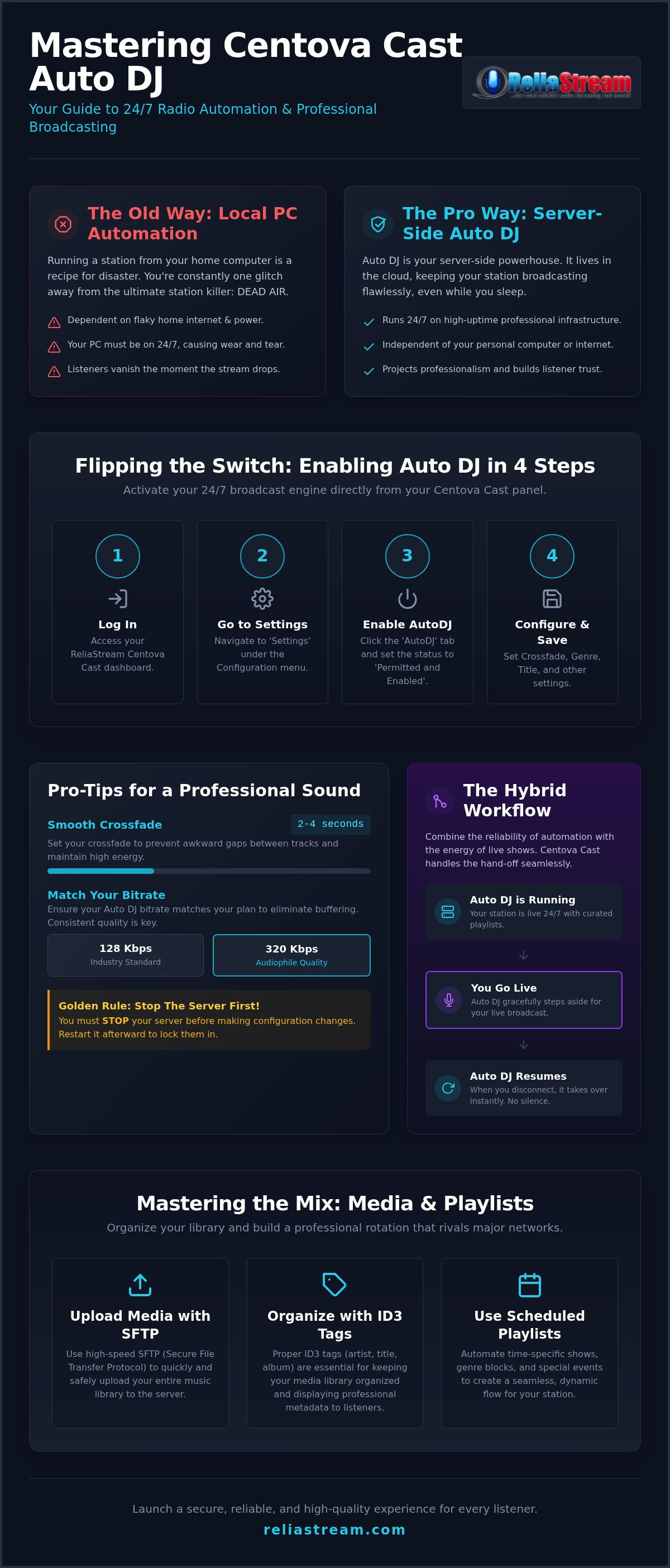
Running a station from your home PC is a recipe for disaster. Home internet is flaky. Power outages happen. If your local computer is the only thing keeping the music alive, you are one thunderstorm away from total silence. ReliaStream provides high-uptime infrastructure that has been supporting broadcasters since 2008. We handle the heavy lifting. Our servers manage thousands of listeners simultaneously without breaking a sweat. You get the stability of a major network without the massive hardware overhead. It is about scalability. It is about peace of mind.
The Hybrid Workflow
Professional radio is a mix of consistency and personality. You want the reliability of automated playlists combined with the raw energy of live sets. Centova Cast makes this transition seamless. When you are ready to go live, the Auto DJ steps aside gracefully. When you finish your show and disconnect, it takes the wheel again instantly. No gaps. No awkward silence. Just a smooth, professional hand-off every single time. It acts as the foundation for your creative empire.
Ready to scale your reach? Learn more about Auto DJ Radio Hosting: Build Your 24/7 Global Broadcasting Empire in 2026 and start broadcasting like a pro. This hybrid approach ensures your station stays active 24/7 while giving you the freedom to jump on the mic whenever inspiration strikes. It is the best of both worlds. It is how you win in the digital audio space.
Flipping the Switch: Enabling Auto DJ in Your Panel
You have the vision. You have the music. Now you need the engine to drive it. Activating your automation is not just a checkbox; it is the moment your station becomes a 24/7 reality. Learning how to use centova cast auto dj starts with a few clicks in the right places. Let's get your hands dirty and fire up the system.
Follow these steps to bring your station to life:
- Step 1: Log in to your ReliaStream Centova Cast dashboard. This is your mission control.
- Step 2: Look at the left hand menu. Navigate to 'Settings' under the Configuration section.
- Step 3: Click the 'AutoDJ' tab. Set the status to 'Permitted and Enabled'. If it is already set to 'Permitted', just make sure it is 'Enabled' to allow the server to take over.
- Step 4: Scroll down to find the 'Crossfade' and 'Replay Gain' settings. These are your secrets to a professional sound.
Configuring the Basic Settings
Precision matters. For the smoothest transitions, set your crossfade between 2 and 4 seconds. This prevents awkward gaps and keeps the energy high. Don't forget your Genre and Title settings. These tags make your station discoverable in radio directories. Here is the golden rule: you must 'Stop' the server before making these changes. The panel cannot rewrite its configuration while the stream is active. Think of it like changing the oil while the engine is running. It just doesn't work. Hit stop, save your changes, and then restart to lock them in.
Audio Quality and Bitrate Matching
Your Auto DJ needs to play nice with your specific plan. If you are using our radio hosting starting at $1.99, ensure your Auto DJ bitrate matches your stream's limit. While 128 Kbps is the industry standard for a clean sound, many pros opt for our 320 Kbps plans to deliver crystal-clear audio to audiophiles. Consistent bitrates across your library and settings prevent the server from struggling to realign data, which effectively eliminates stream buffering for your listeners. If you want to push your station to the next level, you can always upgrade your stream to a higher bitrate plan for that premium sound.
Feeding the Beast: Uploading and Managing Media
Your engine is idling. The Auto DJ is enabled. Now it needs fuel. But don't just dump random files into the system and hope for the best. A professional station requires a high-quality library. This is where many beginners fail. They upload messy files with broken names and wonder why their stream looks amateur. Understanding how to use centova cast auto dj means mastering your media management from day one.
First, choose your weapon. Centova Cast offers a built-in File Manager. It is great for a quick, single-track upload. But for a serious library? It is too slow. Browser-based uploads often crash when you try to move hundreds of tracks at once. For a real broadcast operation, you need speed. You need reliability. You need SFTP.
Before you upload, check your formats. MP3 at 44.1 kHz remains the gold standard for 2026. It offers the perfect balance of audio fidelity and universal compatibility. Organize your files into logical folders before they ever touch the server. Create directories for Genres, Station IDs, Promos, and Commercials. Clean organization now saves you hours of searching later.
SFTP: The Pro Way to Upload
Speed matters. Batch uploading is the only way to build a massive library without losing your mind. Grab a client like FileZilla or WinSCP. Use the SFTP credentials found in your Centova Cast "Quick Links" section. This allows you to drag and drop your entire music collection directly onto the ReliaStream servers. No browser timeouts. No interrupted transfers. Just raw, high-speed data movement. Keep an eye on your storage limits. Delete old promos and dead tracks regularly to keep your station lean and responsive.
Tagging for Smart Speakers
Metadata is the lifeblood of modern radio. When a listener asks Alexa what is playing, the answer comes from your ID3 tags. If your tags are empty, your station looks broken. Proper Artist and Title tags are essential for radio streaming app development and listener engagement. Your metadata must be perfect to display correctly on Roku, Amazon Fire TV, and mobile apps. Use a batch tagging tool to clean up your filenames before you upload. Professionalism isn't just about what people hear. It is about what they see on their screens. Don't let a "Track 01.mp3" ruin your brand's reputation.
Mastering the Mix: Playlists and Rotation Logic
Centova Cast provides four distinct playlist types to help you achieve this:
- General Rotation: This is your station's soul. It is the default music that plays when nothing else is scheduled.
- Scheduled: Use these for time-specific shows. Want a "Friday Night Mix" that starts at 8 PM? This is how you do it.
- Interval: These are your branding workhorses. Automate your station IDs, jingles, or promos to play every X tracks or every X minutes.
- Immediate: This is your emergency broadcast system. It is for breaking news or one-time announcements that must interrupt the current track instantly.
Ready to launch your own station? Start your professional broadcast today with ReliaStream and get the backbone your station deserves.
The Power of Playlist Weights
Variety is the lifeblood of listener retention. Centova Cast uses a weight scale from 1 to 25 to manage song frequency. It is a simple probability game. A playlist with a weight of 20 will play songs much more often than a playlist with a weight of 5. Use this to your advantage. Create a "Heavy Rotation" playlist for your biggest hits and a "Deep Cuts" playlist for your rarer tracks. This prevents the "Loop Trap" where your audience hears the same three songs every hour. Strategic weight distribution keeps your station sounding fresh and unpredictable.
Scheduling for Global Time Zones
Your station is global. While it is "Morning Drive" for you, it might be "Night Chill" for a listener across the ocean. Strategic scheduling allows you to cater to these different moods. You can set specific playlists to run during peak hours in your primary target market. You might also want to consider the underlying server technology you are using. Check out our guide on ShoutCast vs IceCast: The Definitive Broadcaster’s Comparison for 2026 to see which server type best supports your global programming goals. Managing these settings correctly ensures your station sounds intentional, not accidental. It is the difference between a hobbyist and a professional broadcaster.
Final Launch: Starting the Stream and Going Secure
Your library is organized. Your playlists are weighted. It is time to pull the trigger. This is the final piece of the puzzle in learning how to use centova cast auto dj effectively. You are moving from the staging area to the global stage. It is a big moment. Let's make sure your launch is flawless and your connection is ironclad.
Head over to the 'Media' section in your control panel. This is where the magic happens. On the right, you will see the folders you uploaded via SFTP. On the left, your playlists wait for content. Simply drag your tracks or entire folders into your active playlists. Hit 'Save' at the bottom. Without that save, your changes are just ghosts in the machine. Once saved, return to the main dashboard and hit the 'Start' button. If the status flips to 'Stream is online,' you are officially a broadcaster. Congratulations.
What if you hit start and see a 'No Files Found' error? Do not panic. This usually means one of two things: either you forgot to drag tracks into a 'General Rotation' playlist, or you haven't clicked 'Update Media Library' to let Centova Cast index your new uploads. Run the update, double check your playlists, and try again. It is a minor speed bump, not a roadblock.
Verifying Your Stream Status
Do not just take the panel's word for it. Test your stream like a listener would. Check the 'Now Playing' widget on your dashboard to see if the metadata is scrolling correctly. Open your stream link on your phone, your laptop, and even a smart TV. Consistency is key. You also need to ensure your stream is accessible on modern browsers like Chrome and Safari. These browsers block non-secure streams. This is why SSL Radio Streaming: Busting the Myths is essential reading for 2026. ReliaStream provides integrated SSL Radio Links to ensure your audience never sees a 'Not Secure' warning. Security is professional. Security is mandatory.
Next Steps: Building Your Brand
The Auto DJ is your foundation, but it is just the beginning. Now that your 24/7 stream is rock solid, you can start thinking bigger. Your automated feed can now power custom Alexa skills or Roku radio apps. It provides the consistent content these platforms require. When you are ready for a live takeover, just connect your encoder. The Auto DJ will step aside and wait for you to finish your set. It is a seamless, professional ecosystem designed for growth. You have the tools. You have the knowledge. Ready to go global? Get started with ReliaStream now and build your empire.
Launch Your Global Media Empire Today
You have the roadmap. You know the technical secrets. Now it's time to stop dreaming and start broadcasting. Mastering how to use centova cast auto dj isn't just about clicking buttons; it's about building a reliable brand that never sleeps. You've learned how to kill dead air, manage high-quality media, and create playlist rotations that keep listeners hooked. No more technical hurdles. No more silent streams. Just pure, professional audio.
ReliaStream has been the authoritative backbone for broadcasters since 2008. We provide the high-performance infrastructure your vision deserves. You get instant Centova Cast activation and support for 320 Kbps high-quality audio. We handle the technical heavy lifting so you can focus on the content. It's efficient. It's powerful. It's ready for you right now.
The global audience is waiting. Don't leave them with silence. Ready to dominate the airwaves? Launch your station for just $1.99 with ReliaStream! We're here to help you expand your reach and modernize your sound. Let's get your station on the map.
Frequently Asked Questions
Do I need to keep my computer on for Centova Cast Auto DJ to work?
No. You don't need your PC on. That is the whole point of server-side automation. Your station lives on our high-uptime infrastructure. Once you've learned how to use centova cast auto dj and hit start, our servers take the wheel. You can kill your power, lose your internet, or smash your laptop. It doesn't matter. Your stream stays live 24/7 because we are doing the heavy lifting for you.
What is the best audio format and bitrate for Auto DJ files?
Stick to MP3 at 44.1 kHz. It is the universal standard for a reason. For the bitrate, 128 Kbps is great for mobile users, but our 320 Kbps plans are the pro choice for high-fidelity sound. Pro tip: ensure your uploaded files match your stream's output bitrate. This prevents the server from working overtime to transcode your audio, which keeps your stream stable and buffer-free.
How do I switch from Auto DJ to a live broadcast without a gap?
It is automatic. When you connect your live encoder, the Auto DJ gracefully steps aside. It is a hybrid workflow that eliminates dead air. Once you finish your set and disconnect, the automation resumes instantly. No gaps. No silence. Just a professional hand-off that makes you sound like a major network. It is the ultimate safety net for live broadcasters who want 24/7 presence without the stress.
Can I use Auto DJ with both ShoutCast and IceCast?
Yes. Centova Cast is the industry standard for a reason. It handles both ShoutCast and IceCast without breaking a sweat. The interface for managing your media and playlists stays exactly the same. You get the same gritty, reliable performance regardless of which server technology powers your stream. It is about giving you the flexibility to broadcast exactly how you want on the platform you prefer.
Why are my songs skipping or not playing in the correct order?
Check your file types. Skipping often happens with Variable Bitrate (VBR) files. Switch to Constant Bitrate (CBR) for rock-solid playback. If the order feels off, look at your playlist weights. How to use centova cast auto dj effectively means understanding that 'General Rotation' is probabilistic. If you need a specific song order, move those tracks into a 'Scheduled' playlist set to sequential playback instead of random rotation.
How many songs can I upload to my Centova Cast Auto DJ?
That is up to your plan. We offer different storage tiers to match the size of your library. Whether you have 500 songs or 50,000, we have the space. Monitor your disk usage directly in the Centova Cast dashboard. If you start running low, you can always upgrade your storage to keep feeding the beast. It is scalable, professional hosting that grows alongside your station's musical library.
Does Auto DJ handle music royalty licensing automatically?
Absolutely not. Centova Cast is a technical tool, not a legal shield. You are the broadcaster. You are responsible for your own music royalty licensing. If you're playing commercial tracks, you need to clear the rights through organizations like SoundExchange or ASCAP. Don't risk a takedown. Treat your station like a real business and get your legal ducks in a row from day one to avoid trouble.
How do I update the 'Now Playing' info on my station's website?
Use the built-in widgets. Centova Cast makes this easy. Navigate to the 'Widgets' section in your panel to find ready-to-use HTML snippets. Copy and paste them into your site to display 'Now Playing' info and recent tracks automatically. For those building custom mobile apps or Roku channels, our API provides a direct data feed. It is about keeping your audience engaged and informed on every platform you occupy.

![Centova Cast Login: Pro Broadcaster's Guide [2026]](https://getautoseo.com/storage/hero_images/centova-cast-login-pro-broadcasters-guide-2026.jpg?v=bbcae8778692)
