
Streaming radio on Fire TV requires a compatible device, an internet connection, and any account required by the app or listening service. An amazon fire tv radio app can bring live stations and catch-up audio to your television, so you can listen from the sofa instead of using a phone or computer.
Not every radio app works the same way. The app determines what you can play, whether you can browse past episodes, and whether you need to sign in. Your Fire TV setup matters too: the device needs an internet connection to stream, and app access depends on compatibility.
This guide explains how to find and install a radio app, what to expect from Alexa voice controls, and how device compatibility affects access in the United States and elsewhere. You’ll also learn which account and connection details to have ready, so you can move from setup to listening with fewer surprises.
Key Takeaways
- Find and install a suitable radio app through Fire TV, then follow its prompts to open it and sign in if needed.
- Use voice control to start listening when the station or app supports Alexa commands.
- Check what an app offers before choosing it: live stations, catch-up programs, or podcast episode browsing can vary.
- App access depends on Fire TV device compatibility and availability in your region, including the United States.
- Broadcasters looking to stream to listeners can explore ReliaStream hosting plans at different bitrates.
How do I install a radio app on Fire TV?
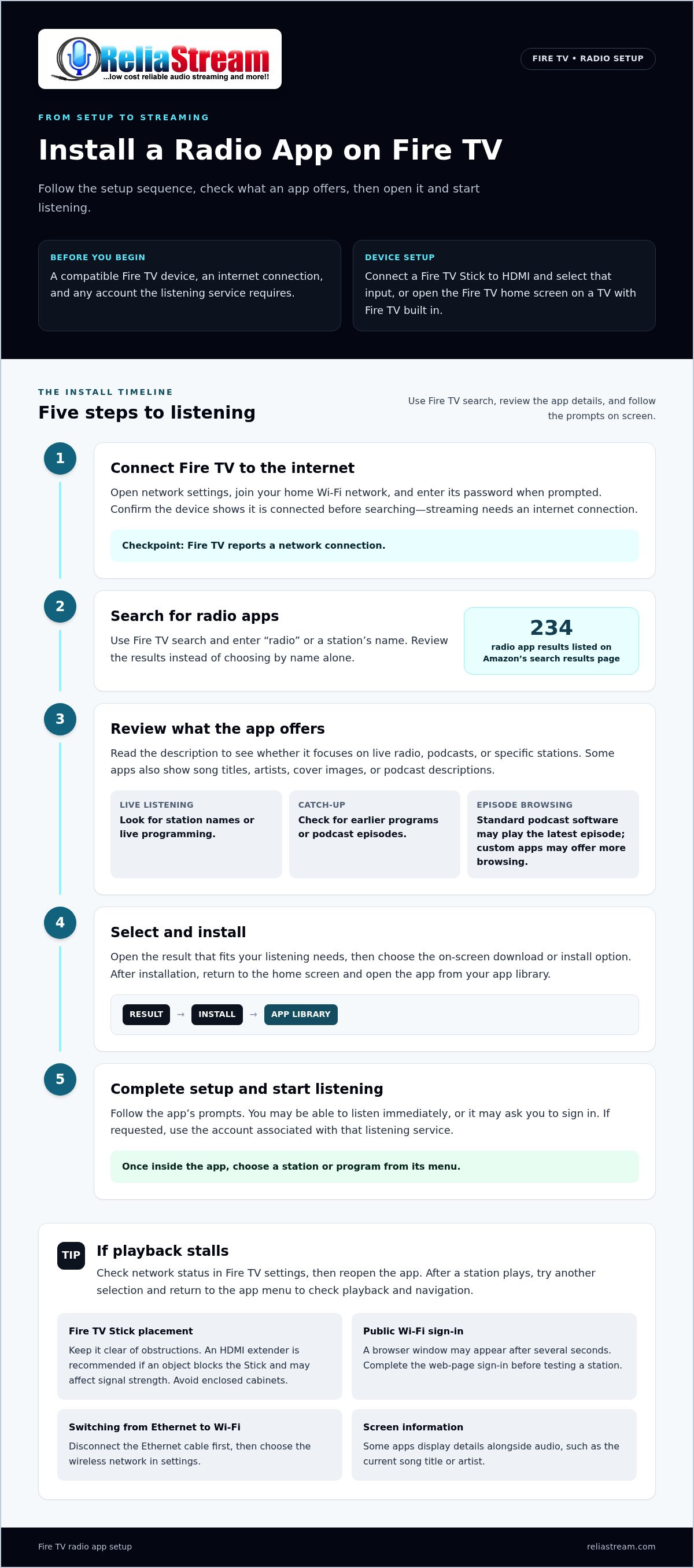
Install a radio app using the search feature on your Fire TV device. Connect the device to the internet, find a compatible app, select it, and follow the on-screen installation prompts. Then open the app and sign in if required. An Amazon Fire TV radio app may provide live stations, podcasts, or both, depending on the app.
First, make sure your television setup can run Fire TV. A Fire TV Stick connects to an HDMI port, while some Smart TVs and Fire TV Sticks have the Fire TV system built in. Turn on the television and select the HDMI input used by the Stick, or open the Fire TV home screen on a television with the system pre-installed.
- Connect to the internet. Open the network settings on Fire TV and join your home Wi-Fi network. Enter its password when prompted. Streaming needs an internet connection, so confirm the device shows it is connected before searching for an app.
- Search for radio apps. Use Fire TV’s search feature and enter a term such as “radio” or a station’s name. Amazon’s search results page lists 234 radio app results, so read each result’s description instead of choosing by name alone.
- Review the app details. Check whether the description points to live radio, podcasts, or specific stations. Some apps show song titles, artists, cover images, or podcast descriptions alongside audio. Those details can help you distinguish a station app from an episode-browsing app.
- Select and install. Open the result that fits your listening needs, then choose the on-screen option to download or install it. Fire TV adds the app to the device after installation. Return to the home screen and open it from your app library.
- Complete setup. Follow the app’s prompts. You may be able to start listening immediately, or the app may ask you to sign in. Use the account associated with that listening service if a sign-in screen appears.
Choose an app based on how you plan to listen. For a live station, look for station names or live programming in its description. For catch-up listening, check whether it provides access to earlier programs or podcast episodes. Standard podcast software may play the latest published episode, while custom podcast apps can offer browsing across episodes or shows.
After installation, open the app and choose a station or program from its menu. Fire TV apps may display information alongside the audio, such as the current song title or artist. This makes the television screen useful even when you’re listening rather than watching. If the app asks for account details, complete that step to access any account-based features.
Check the connection if playback stalls
Start by checking the network status in Fire TV settings, then reopen the app. If you’re using a Fire TV Stick, make sure it has a clear connection to the television and isn’t tucked behind an obstruction. An HDMI extender is recommended if an object blocks the Stick and may affect signal strength. Avoid placing Fire TV in an enclosed cabinet, which can affect signals to the device, remote, and game controllers.
On public Wi-Fi, a browser window may appear after several seconds for a web-page sign-in. Complete that sign-in before testing a station. If Fire TV is connected through Ethernet but you want to use Wi-Fi, disconnect the Ethernet cable first, then choose the wireless network in settings.
Once a station plays, try another selection and return to the app menu. This confirms that the app opens, the connection streams audio, and its navigation works with your Fire TV remote.
Can I use Alexa to play radio stations on Fire TV?
Yes. Amazon Fire TV can play live-streaming radio programs and podcasts through a television, and Fire TV skills can sometimes be activated by voice. You can make an Alexa voice request for supported listening options instead of navigating every menu by hand. The key is to match your request to a station, skill, or app available on your setup.
Start by identifying the station or listening app you want. A broad request such as “play the news” can direct Alexa to different audio sources. Naming a specific station makes the request clearer. If you know the app, include its name, such as “play [station name] on [app name].” These are examples, not universal command formats. The service and its voice support determine which requests work.
Try a simple sequence from your Fire TV:
- Check the listening option. Open the app or skill you plan to use and note the station’s exact name. A station brand may differ from the name of its stream or program.
- Make a direct request. Use the Alexa voice control available with your Fire TV setup. Say the station name clearly, or name the app and station together.
- Listen to Alexa’s response. If Alexa identifies a matching station or service, allow it to start playback. If the result is wrong, try the station name with its city or network name.
- Refine the request. For a podcast, name the show or episode when you know it. A standard podcast app may play the latest published episode, while a custom app may let you browse more episodes.
- Use the screen when needed. If voice search doesn’t reach the station, open the app and select it with the Fire TV remote.
Voice requests work best when the target is distinct. Saying a station’s full name, for example, can help distinguish it from a similarly named show. If Alexa starts the wrong stream, stop playback and try again with the app name included. You can also use the on-screen menu to confirm the station before restarting audio.
Keep the roles of Alexa and the radio app clear. Alexa handles voice requests, while the app or skill supplies the station or program. A voice request won’t add a station that the listening service doesn’t provide, and it won’t replace sign-in when an app requires an account. Complete any account prompt shown by the app, then repeat your request using the same station name.
When voice control doesn’t start playback
Use the Fire TV screen to narrow down the problem. Open the listening app directly and try selecting the station. If manual playback works, focus on your Alexa request or the skill’s voice support. If the app can’t play audio, check that Fire TV has an internet connection and that the app is open and ready.
Alexa voice control is useful for hands-free station changes, but the remote is a practical backup. Use it to browse station lists, inspect program details, or choose a podcast episode. Some Fire TV apps show song titles, artists, cover images, or podcast descriptions alongside the audio. That information can help confirm that Alexa opened the intended stream.
For broadcasters, voice listening is one route to an audience, not a substitute for a reliable stream. The station still needs an online audio feed that a compatible app or skill can play. Listeners benefit when the station name is easy to say and recognize. Keep the request simple, test it on your own Fire TV, and make the station’s identity clear in the listening experience.
Are radio apps available on every Fire TV device and in the United States?
Radio apps are available in the United States on compatible Fire TV devices, but not every app works on every device. Amazon lists radio apps as available instantly on compatible devices. Some features of the Amazon Fire TV app also require a compatible Fire TV device. Match the app and its features to the Fire TV setup you use.
Fire TV supports more than one kind of television setup. A Fire TV Stick plugs into a television’s HDMI port, while some Smart TVs have Fire TV built in. The home screen and app access depend on having the Fire TV system available. An HDMI port alone doesn’t provide Fire TV apps; the Stick or built-in system provides that platform.
For US listeners, start with the app listing on the Fire TV device itself. Search for the station or radio app you want, then open its details. The result should show whether it’s available to install on that device. An Amazon search results page lists 234 radio app results, so search results offer choices, not proof that every listed app suits every listener.
Check compatibility before choosing an app
Read the app description and compare it with your needs. A live station app, a podcast app, and an app that displays program information can serve different purposes. A description mentioning live radio, for instance, fits real-time station listening, while a podcast description may focus on episodes. Look for station names and listening features that match what you want on your television.
- Identify the device. Check whether your television runs Fire TV directly or uses a Fire TV Stick connected through HDMI.
- Search on that device. Use Fire TV search for the app or station name, rather than relying only on a general search result.
- Open the listing. Review the description for live stations, podcasts, or other audio features relevant to your listening.
- Install and launch. Select the compatible result and follow its on-screen prompts. Then open the app from Fire TV.
- Test the feature you need. Try a live station or podcast episode to see how the app behaves on your setup.
Compatibility can affect features as well as installation. An app may appear on a Fire TV device, while a particular function still requires compatible hardware. For example, some features of the Amazon Fire TV app require a compatible Fire TV device. Check the details for the feature you plan to use, then test it on the television where you’ll listen.
Catch-up listening depends on the app’s design. Standard podcast software may offer the latest published episode, while custom podcast apps can let listeners browse multiple episodes or shows. Fire TV podcast apps can play podcasts regardless of the hosting service used, but episode selection and browsing depend on the app. If you want on-demand listening, look for episode browsing in the app description.
App listings and device compatibility are the main checks for availability in the United States. If you’re setting up Fire TV outside the United States, use the local device’s app search and listing. The key question is whether the app appears for that device and provides the feature you need. For broadcasters, a Fire TV app is one listening route among others. Choose an app experience that fits your audience and the programs you stream.
Catch-up listening depends on whether the selected app offers it, so check its details for the specific options you want rather than assuming every radio app includes them. A device’s other functions don’t establish radio-app compatibility. Amazon Fire TV devices can provide access to local content and play video games using the included remote, another game controller, or a mobile app as a remote control. These options describe other ways to use Fire TV; the app listing is where to check whether a particular radio app can be installed.
Consider the device’s placement when setting up Fire TV. Don’t place Amazon Fire TV in an enclosed cabinet, as this can affect signal strength to the device, remote, and game controllers. If you use a remote or controller while listening, keep the device unobstructed and check that the app is available on your setup. This helps distinguish app compatibility issues from problems that may affect the Fire TV device or its controls.
ReliaStream: 32 Kbps Hosting Plan
ReliaStream provides ShoutCast and IceCast hosting for broadcasters preparing their station’s online stream for listeners. The 32 Kbps Hosting Plan is one option; 64 Kbps, 128 Kbps, and 320 Kbps plans are also available. Your stream’s bitrate affects the amount of audio data sent to listeners, so choose a plan that fits your broadcast setup and listening needs.
Fire TV apps give audiences another way to hear a station, but the app is only one part of the listening path. Hosting supplies the online stream that compatible listening experiences can play. If you’re building or expanding an internet radio station, explore the hosting options at reliastream.com.
Make your station easier to discover
Your next move is to treat the living-room listening experience as part of your station’s wider broadcast plan. A well-matched amazon fire tv radio app can give listeners another way to tune in, while a dependable online stream supports the audio behind that experience. Think about how you want people to find your station, start listening, and return for more.
ReliaStream offers the 32 Kbps Hosting Plan, 64 Kbps Hosting Plan, and 128 Kbps Hosting Plan for internet radio broadcasters. The right fit depends on your stream and listening needs. Keep your station identity clear across listening options, and make the path from app to audio straightforward.
Ready to plan the streaming side of your station? Contact ReliaStream for help and take the next step toward bringing your broadcast to more listening screens.
Frequently Asked Questions
Do Fire TV radio apps require a subscription or account?
It depends on the app and listening service. Some let you start streaming without signing in, while others require an account to access certain stations or features. An account and a paid subscription are different requirements: a sign-in prompt alone doesn’t mean payment is required. Read the app’s on-screen prompts and review its access options before choosing it for regular live radio or catch-up listening.
What music and internet radio apps are available on Fire TV?
Fire TV’s search results list 234 radio app results, but available apps and features vary by device. Search for “radio” or a station name on your Fire TV to see compatible apps offering live stations, podcasts, or both.


