

Your station can reach the living room as well as the headphones. An Amazon Fire TV radio app streams your live broadcast through a television and can display station details, images, and messages alongside the audio. It adds a visual dimension to listening while keeping your live stream at the center.
Listeners can tune in on a screen they already use for entertainment and see useful details, such as what’s playing or a station update. The goal is to make the experience clear and engaging, not simply put audio on a TV.
This guide explains how Fire TV radio streaming works, what listeners can see on screen, and how your station’s stream and display content fit together. It also covers what to consider when planning an app, from playback to the information you want listeners to notice. Here are practical answers and next steps for bringing your sound to a bigger screen.
Key Takeaways
- Understand how a live station stream reaches a Fire TV app and plays through a connected television.
- See how station metadata, images, and on-screen messages can make an audio stream more informative.
- Learn why subscription and account requirements depend on the app and the content it provides.
- Explore what to consider when listening with the display off, including how app and device behavior affect playback.
- Review how a 32 Kbps hosting plan fits into the setup, alongside other bitrate options for internet radio streaming.
Live radio streaming on Fire TV
Fire TV brings internet-delivered audio and video to a connected television. For a radio station, the app connects listeners to the live stream and makes station information easy to follow.
Live Station Playback
Live playback takes listeners from choosing a station to hearing its current broadcast through the television. An Amazon Fire TV radio app can show a station list, start its internet stream, and display details such as the song title, artist, cover image, or station message. Plan for clear playback controls and useful on-screen information.
Keep the listening path simple: listeners open the app, choose a station, and start playback. The screen can show the station name and current program as audio plays through the TV speakers or a connected sound system. A music station might show the current track and its cover image; a talk station could use the same space for a program title or brief update.
Fire TV devices deliver digital audio and video over the internet to a connected television. The stream requires an internet connection, and the app gives listeners a way to find and play it. A Fire TV Stick connects to the television’s HDMI port, while some Smart TVs have Fire TV built in. Consider how your station-selection screen will work on both setups.
Before building the listener interface, map the essential actions:
- Show the station name and a clear way to start its live stream.
- Keep the current status visible, such as playing or paused.
- Use metadata and images to add context without crowding the screen.
- Make station messages readable from a typical viewing distance.
Metadata helps a radio stream fit the television experience. Song titles and artist information answer the immediate question, “What’s playing?” Cover images add a visual cue, and a brief station message can highlight a program or update. Choose details that support rather than compete with the broadcast. Audio remains central; on-screen information adds context.
Listening With the Screen Off
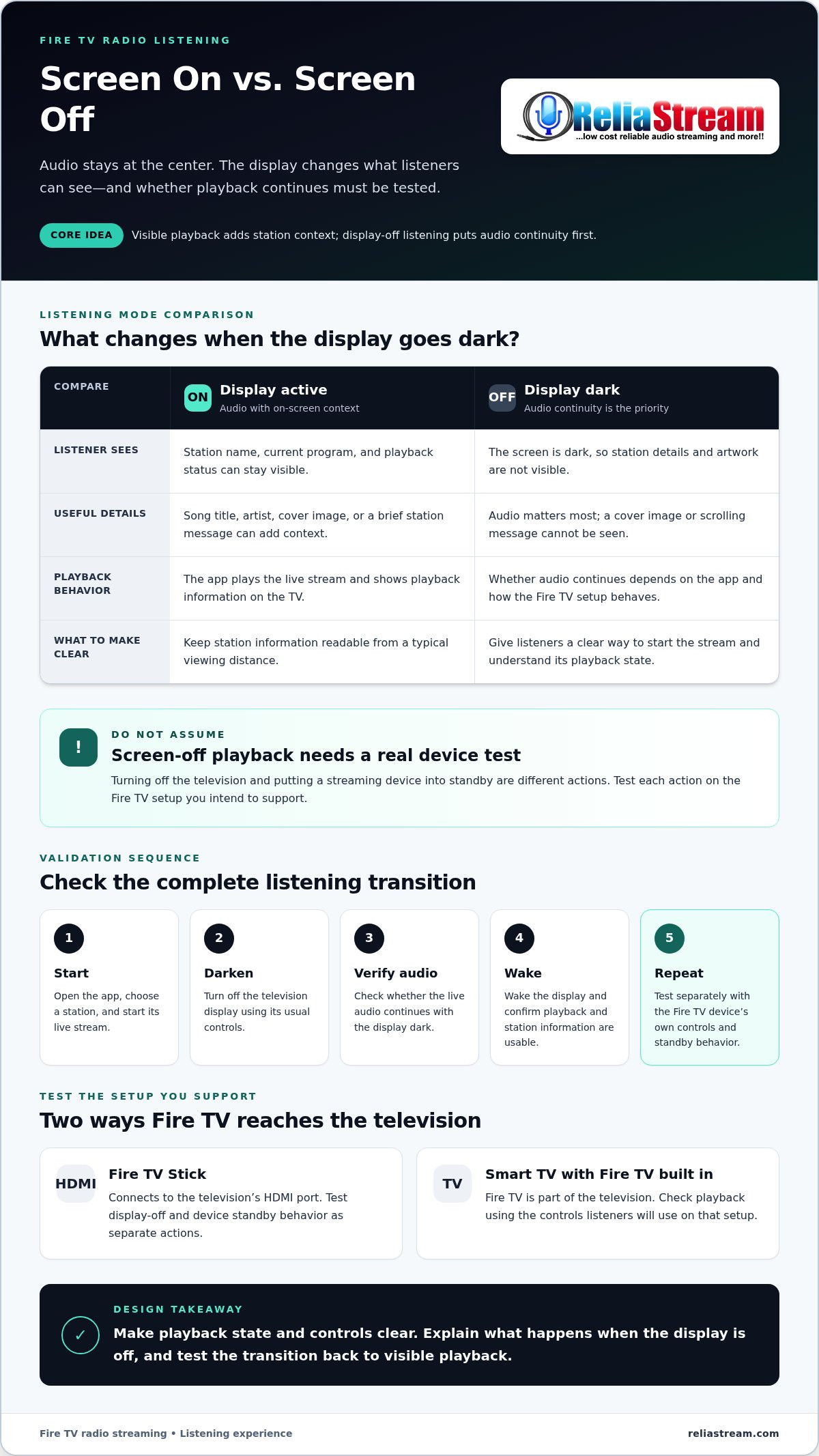
Screen-off listening means audio continues after the television display goes dark. Whether it does depends on how the Fire TV app handles playback and how the device behaves when the display or television powers down. Treat this as a separate listening scenario and test the app rather than assuming live playback will continue with the screen off.
Test the full sequence on the Fire TV setup you intend to support. Start the station, turn off the television display with its usual controls, and check whether audio continues. Then wake the display and confirm that playback and station information are still usable. Repeat the test with the Fire TV device’s own controls: turning off the television and putting a streaming device into standby are different actions.
Make the controls and choices clear. Listeners who want background radio need a reliable way to start the stream and understand its playback state without watching the screen. Those who want station artwork or a scrolling message need the display active. Make the distinction clear in the app’s instructions and interface.
Screen-off listening also changes which station information is useful. A cover image adds value while the display is on, but not when the screen is dark. Audio continuity becomes the priority. Test the transitions between visible playback, display-off listening, and returning to the app, then explain the available controls and behavior to listeners.
Do Fire TV radio apps require a subscription or account?
There is no single account rule for every Fire TV radio app. Access depends on the app’s design and the station’s listening model.
Separate app access from station access
An account and a subscription serve different purposes. An account identifies a listener; a subscription can control access to paid content. A station may offer open listening or require sign-in before playback. The Fire TV platform does not dictate the same access model for every radio app.
For example, a station could let anyone open its app and start the live stream. Another app might ask listeners to sign in to save preferences or access member-only programming. A third could use an account for both app settings and restricted audio. These are design choices, not automatic requirements of internet radio.
Make the distinction clear on the app’s first screen. If listeners can play the station without an account, make the play action easy to find. If sign-in is needed for a particular feature, explain what it unlocks before asking for details. This helps distinguish account creation from payment for access.
What a listener may encounter
When listeners open an app on Fire TV, they may see a welcome screen, a station list, or a sign-in prompt, depending on the app’s setup. For example, a local station app could open directly to its live stream, while a subscription-based audio app could show a login option first.
A station app can separate general listening from optional features. Live radio might be open to everyone, while saved favorites or personalized settings could require an account. If your app works this way, label each feature plainly. “Play live” and “Sign in for saved stations” describe different actions without suggesting that one depends on the other.
Fire TV apps deliver audio and video over the internet to a connected television. An internet connection supports streaming, but it does not by itself mean listeners need a paid subscription. The app’s access model determines whether listeners can start playback directly, need an account, or encounter both steps.
Choose an access model for your station
Start with the listening experience you want to provide. If your goal is broad access to a live broadcast, a direct play path keeps the main action simple. If your station has member programming or account-based features, explain which content requires sign-in. Avoid requiring registration when the live stream is open.
Use this checklist while planning the app:
- Decide whether the live stream is open or restricted.
- Identify any feature that genuinely needs a listener account.
- Separate account creation from payment or subscription steps.
- Explain access requirements before a listener starts playback.
- Test the first screen on a Fire TV device with a new user.
That final test matters. Open the app as someone who has never used it. Can that person tell whether the station is free to hear, where to press play, and why a sign-in screen appears? If the screen offers several choices, arrange them around the main goal. For a live station, make listening easy to find.
Make subscription prompts specific
If the app offers paid access, explain what the subscription covers. Name the restricted program or member feature before presenting a payment step. Don’t call an account requirement a subscription if it only saves listener preferences. Clear wording helps listeners understand the difference before they commit.
Build the experience around the station’s actual content. A single live stream may need only a clear play option. A station with restricted shows may need a sign-in path alongside open listening. Either way, make sure the app’s account and payment prompts match the access rules listeners encounter.
Can I listen to Fire TV radio apps with the screen off?
Sometimes, but it depends on the app’s playback behavior and what “screen off” means in your setup. Turning off a television display differs from putting the Fire TV device into standby, so test both actions before relying on background listening.
Distinguish the television from the Fire TV device
A Fire TV Stick connects to a television’s HDMI port, while Fire TV is also built into some Smart TVs. In either setup, the screen and streaming device have separate roles. Turning off the television display may leave the Fire TV Stick running, while powering down or putting the streaming device into standby can stop it.
That difference matters to radio listeners. If the app keeps streaming and the device remains active, audio may continue while the display is dark. If the device enters standby or the app stops playback, the stream can end. Don’t assume the streaming device stays active just because you used the television’s power button.
Test screen-off listening on your setup
Test on the Fire TV model and television your audience is likely to use. Start a live station, then turn off the display with the television’s usual control. Check whether audio continues. Next, wake the display and see whether the station is still playing or needs to be restarted.
Run a separate test with the Fire TV remote. Use its power or sleep control, then check whether the device stops playback. These controls can produce a different result from switching off only the television. Record the outcome in plain language, such as “audio continues when the TV display is off” or “playback stops when Fire TV enters standby.”
Test the return to viewing, too. Start with the television off, turn it back on, and see whether the app returns to its playback screen. Listeners should be able to tell whether the stream is active, paused, or stopped. A clear status helps prevent repeated play commands and confusion.
Plan for audio-first listening
Screen-off listening changes which app details matter. Song titles, artist names, cover images, and station messages help while the display is visible. Once it’s dark, listeners need usable audio without relying on those visuals. Make the play and pause controls easy to find before the screen goes off.
Consider two everyday situations. Someone may start a station while watching a show, then turn off the display to listen. Another person may leave the television on to view station artwork or program details. Test each path separately: a strong on-screen experience does not tell you what happens after the display goes dark.
Fire TV delivers digital audio and video over the internet to a connected television. Test the network connection and full stream, not just a menu preview. Start the live broadcast, wait for audio, and then try the display and standby controls. This checks the actual listening experience.
Explain the behavior to listeners
After testing the setup, describe the result in the app’s help text or station information. Tell listeners which action turns off only the display and which may stop Fire TV playback. Don’t promise background audio until you have tested the behavior on the relevant device and app.
If playback stops, offer a clear instruction to reopen the app and start the station again. If audio continues with the display dark, tell listeners how to return to the app’s controls. For a dependable listening experience, review your radio streaming setup alongside the Fire TV playback test.
Amazon Fire TV apps can support in-store communication and help businesses reach customers through their home televisions. They can display song titles, artist information, cover images, podcast descriptions, news, and other widgets alongside audio. These details can help while the display is on, but audio-first listening should not depend on visuals once the screen is dark.
The standard podcast software version lets listeners play the latest published episode of a podcast. Custom podcast apps can let users browse multiple episodes of one podcast or episodes from different podcasts in the same app. Before turning off the display, select the intended episode and confirm playback continues under the television and device conditions you tested.
ReliaStream: 32 Kbps Hosting Plan
ReliaStream’s 32 Kbps Hosting Plan gives broadcasters an internet radio hosting option for carrying their station’s live audio to an app. It fits a station assessing its streaming setup as it prepares to reach listeners through Fire TV. The right bitrate depends on your audio quality goals and the listening experience you’re building.
As your station’s streaming needs change, ReliaStream also offers 64 Kbps, 128 Kbps, and 320 Kbps Hosting Plans. These options let broadcasters choose a bitrate suited to their stream. Hosting supports the audio delivery behind the app; the app presents the station to listeners.
Explore ReliaStream’s hosting options and choose the next step for your station at reliastream.com.
Build Your Station’s Next Listening Experience
Shape a Fire TV experience that feels like your station. Decide what listeners should see first, which messages belong on screen, and how the app should welcome someone discovering your broadcast. Those choices make an Amazon Fire TV radio app more than a playback option: it becomes an extension of your station’s identity.
Then match the streaming foundation to your plans. ReliaStream offers 32 Kbps, 64 Kbps, and 128 Kbps Hosting Plans, giving broadcasters bitrate options for their internet radio streams. The right choice depends on your audio goals and the experience you want to deliver.
Ready to take the next step? Contact ReliaStream about your Fire TV app and discuss a streaming setup for your station. Your sound belongs on the big screen. Make the next move with confidence.
Frequently Asked Questions
What radio apps are available on Amazon Fire TV?
Amazon Fire TV apps can stream live radio programs through a connected television. They can also display station details such as song titles, artist information, and cover images.
How do I play radio on Fire TV with Alexa voice commands?
Some Fire TV skills can be activated and later recalled by voice, without further manual steps.


