

What if the buffering isn’t coming from your station at all? One listener’s stream can stutter because of weak Wi-Fi or a congested mobile connection. Interruptions reported by several listeners at the same time point to a different part of the delivery path. Changing bitrate or encoder settings before you know the cause can create new problems. Effective troubleshooting radio stream buffering starts with one question: who’s affected?
This guide walks you through a practical sequence: compare listener reports, check stream status and settings, then trace the path from encoder to hosting server to listener. The goal is to focus on the likely cause, whether that’s a local connection, network conditions, bitrate, encoder configuration, or hosting capacity. Make one change at a time, and use the results to decide what to check next.
Key Takeaways
- Map the stream’s journey from encoder to listener to identify where playback may be interrupted.
- Use the pattern of reports to distinguish one listener’s connection or device issue from a broader station-side problem.
- Follow a step-by-step approach to troubleshooting radio stream buffering, and change one setting at a time so you can tell what helps.
- Check encoder and stream status in your control panel before adjusting bitrate or other configuration settings.
- Treat recurring reports from multiple listeners as a reason to review stream configuration and hosting capacity, not as proof of a specific cause.
Troubleshooting radio stream buffering: identify where playback breaks
Find the break before changing the bitrate, encoder, or another stream setting. Buffering happens when playback pauses while the player waits for more audio data. The cause might be the listener’s connection, the route between networks, or an interruption at the station. Changing settings too soon can obscure the evidence and affect audio quality without fixing the problem.
Start with triage rather than a configuration change. Reproduce the complaint if possible, compare reports from other listeners, check whether the stream is active in your control panel, and record when the interruption happened. These checks turn “the radio keeps buffering” into useful diagnostic information. A brief overview of Internet radio technology can also help explain how online audio delivery differs from traditional broadcast.
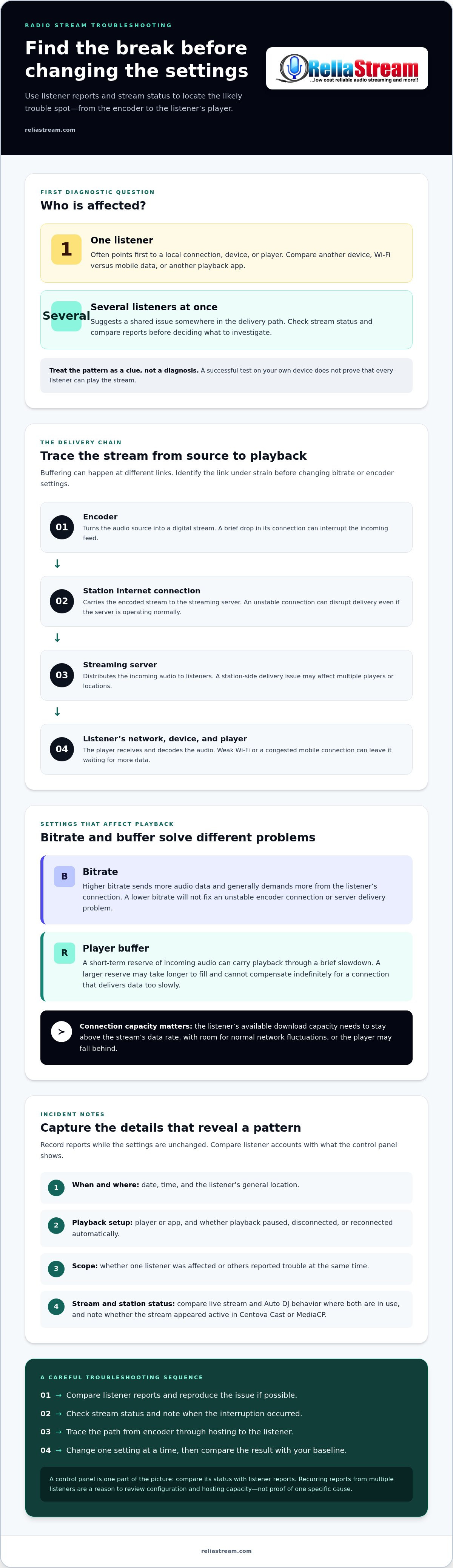
Buffering reported by one listener often points to a local connection, device, or player. Interruptions reported by several listeners at once suggest a shared issue somewhere in the station’s delivery path. Treat this as a starting clue, not a diagnosis. Compare the reports with stream status before deciding what to investigate.
Does buffering affect one listener or every listener?
Ask the affected listener to try another device, switch between Wi-Fi and mobile data if available, and test another playback app. These comparisons help separate a device or player problem from a wider interruption. Then look for patterns: do reports come from the same location, arrive at the same time, or involve one listening platform? One isolated complaint calls for a different first check than several reports arriving together.
Try playing the stream yourself, but don’t treat a successful test as proof that all listeners are unaffected. Conditions vary by location, network, device, and app. If other listeners can play the stream while one person cannot, focus first on that person’s setup. If reports cluster around the same time or come from different listeners, check stream status and investigate the shared delivery path.
What to record before troubleshooting further
Capture enough detail to compare reports instead of relying on memory. Keep a simple incident log with:
- The date and time each listener noticed the issue, plus their general location.
- The player or app used, and whether playback paused, disconnected, or reconnected automatically.
- Whether the problem affected one listener or others at the same time.
- Whether the live stream and Auto DJ showed the same behavior, where both are in use.
Also note what was happening at the station when the report came in, including whether the stream appeared active in Centova Cast or MediaCP. Record what the control panel shows without treating it as the whole picture. Compare it with listener reports. A clear timestamp makes it easier to match an interruption with stream status and spot a recurring pattern.
Once you’ve gathered the reports, leave the original settings unchanged until you have a useful comparison. That gives you a baseline for testing one possible cause at a time. You can then assess whether the evidence points toward the listener, the network path, or the station.
How a radio stream travels from encoder to listener
A radio stream passes through several connected stages before it reaches a listener’s speakers. The encoder turns the audio source into a digital stream. The station’s internet connection carries that stream to a streaming server, which distributes it to listeners. A player then receives and decodes the audio using the listener’s network connection and device.
Think of this as a delivery chain, not a single setting. A brief drop in the encoder’s connection can interrupt the incoming feed. A delivery problem at the server can affect listeners receiving that stream. Congestion or weak Wi-Fi at the listener’s end can prevent the player from receiving data quickly enough. When troubleshooting radio stream buffering, identify which link is under strain before changing settings.
The listener’s available download capacity needs to stay above the stream’s data rate, with room for normal network fluctuations, or the player may fall behind. That’s why a stream can play smoothly on one connection and stutter on another, even when the station is sending a consistent signal.
How bitrate and buffer settings affect playback
Bitrate describes how much audio data the stream sends over time. A higher bitrate carries more data and generally demands more from the listener’s connection. But bitrate isn’t a reliability score. A lower rate won’t fix an unstable encoder connection or a server delivery problem, and a higher rate doesn’t guarantee better playback for every audience.
The player’s buffer is a short-term reserve of incoming audio. It can keep playback going through a brief slowdown by drawing on data already received. A larger reserve may take longer to fill before playback begins, and it cannot compensate indefinitely for a connection that consistently delivers data too slowly. Choose bitrate with the audio, audience connections, and listening context in mind rather than relying on one universal target.
Where encoder, connection, and hosting fit
The encoder creates the stream, while the station’s internet connection carries it to the streaming server. If that connection is unstable, delivery to the server may falter even when the server is operating normally. The server then distributes the incoming audio to connected listeners, so a station-side issue can affect multiple players or locations. A control panel such as Centova Cast or MediaCP can help you review stream status and settings as part of the investigation.
ShoutCast and IceCast both serve as streaming protocols, but the choice between them is only one part of the delivery path. The ShoutCast and IceCast comparison provides context on their roles. If the evidence points to a station-side delivery or configuration issue, reviewing your radio hosting setup is a practical next step. First, identify where data stops arriving smoothly so you can address the relevant part of the setup.
Radio stream buffering causes: compare listener-side and station-side clues
A buffering report tells you playback was interrupted, but it doesn’t explain why. Look for patterns across listeners and compare them with stream and encoder status before deciding where to investigate. Treat each symptom as a clue, not a diagnosis.
Symptom: One listener reports stuttering.
Possible location: Listener connection, device, or player.
Next check: Try another device, network, or compatible playback app.
Symptom: Several listeners report interruptions at once.
Possible location: Encoder, source connection, or stream delivery.
Next check: Compare report times with encoder and stream status.
Symptom: Buffering happens repeatedly at a similar time.
Possible location: A recurring process or network constraint.
Next check: Record when it happens and look for a matching pattern in station activity.
Symptom: Reports come from listeners using the same player or browser.
Possible location: Player compatibility or configuration.
Next check: Compare playback in another compatible option.
Clues that point to a listener-side issue
If only one listener is affected, start with their setup. Ask them to test another device or switch from Wi-Fi to mobile data if possible. Wi-Fi interference, distance from the router, or competing activity such as large downloads can reduce the capacity available for audio. In residential settings where weak wireless coverage causes frequent audio dropouts, home network specialists such as kinetixit.ae can assist with Wi-Fi troubleshooting and coverage optimization. A busy device may also struggle to run playback smoothly. If practical, compare browser playback with another compatible player. A difference can narrow the search, but it doesn’t prove the player is the only cause.
Clues that point to the station or stream setup
Several complaints at once call for a station-side check. Compare their timestamps with encoder status and the source internet connection. If the encoder loses its connection or stops sending audio, listeners may experience interruptions even when their own networks are working. Repeated reports at similar times are worth comparing with station activity, but timing alone doesn’t establish the cause.
Also consider whether the bitrate fits the audience. If listeners repeatedly struggle on weaker connections, the stream’s data rate may demand more than those connections can consistently deliver. Treat that as a reason to investigate, not an automatic instruction to lower bitrate. First check what the encoder is sending and whether reports share a platform, location, or connection pattern.
Hosting capacity can also be a factor, but a larger audience does not by itself mean the server is overloaded. More listeners may increase delivery demand, yet audience size alone doesn’t confirm a capacity issue. Look for supporting evidence, such as matching interruptions across different listener networks or stream-status changes during the reports. A cause becomes more credible when separate clues point to the same part of the delivery path. Keep the evidence distinct: one person’s Wi-Fi issue calls for a different response than an interruption reported across the audience.
How to troubleshoot radio stream buffering step by step
Work through the stream in order, from the encoder outward. This keeps troubleshooting radio stream buffering focused: check the connection and settings that could explain the reports before making changes that might affect every listener. Keep a short log of each check, what you changed, and what happened afterward.
- Reproduce the interruption. Play the stream yourself and note the time, player, and whether the audio pauses, disconnects, or resumes. Ask an affected listener to test again if possible. A successful test on your connection is useful, but it doesn’t rule out a problem on theirs.
- Check stream and encoder status. In Centova Cast or MediaCP, review the available stream status and settings. Confirm that the encoder is connected and sending audio. Interface labels can change, so use the current controls in your panel rather than relying on an old menu path.
- Compare playback conditions. Test from a separate device and network, then try another compatible player. This helps distinguish a player or listener-network problem from an interruption that follows the stream across setups.
- Compare live and Auto DJ playback. If you use both, check whether buffering happens during live broadcasting, Auto DJ, or both. If one plays smoothly while the other doesn’t, that difference helps narrow the investigation toward the live source or the shared delivery path.
- Review the source connection. Check whether the encoder’s connection to the internet is stable during the reported interruption. If the encoder disconnects or audio stops arriving, investigate that link before changing listener-facing settings.
- Review bitrate fit. Compare the current bitrate with encoder stability and your audience’s connection conditions. A lower bitrate can reduce the amount of data sent, but it won’t repair a dropping source connection, player issue, or station-side interruption. The budget internet radio hosting guide offers context for weighing bitrate as part of a broader setup.
- Change one variable, then test again. If the evidence supports a settings change, adjust only one item. Retest using the same device, player, and network, then record whether playback improved, worsened, or stayed the same. If you change several settings together, you won’t know which one mattered.
Adjust settings only when the evidence supports it
Compare encoder output with the stream settings shown in your control panel, and follow the instructions for your current Centova Cast or MediaCP interface. Avoid copying settings intended for a different encoder, format, or audience. If a change makes no difference, record the result and restore the previous value before testing another variable. A clear baseline is more useful than a pile of guesses.
If repeated checks point to station-side delivery or configuration, explore ReliaStream hosting. A hosting review makes sense when the evidence points there, not as a substitute for testing the encoder, source connection, bitrate, and listener playback conditions.
Prevent repeat radio stream buffering and choose the next step
A smooth stream depends on consistent checks, not constant setting changes. Build a simple routine around encoder status, listener feedback, and playback continuity. When buffering returns, your notes can show whether it followed an encoder change, a network interruption, a particular listening setup, or a recurring time. That makes it easier to choose the next step.
Build a simple monitoring routine for your station
Keep a brief log of interruption times, reported symptoms, listener locations, and configuration changes. Note whether the encoder remained connected and whether playback continued through the live stream or Auto DJ. After a significant encoder or network change, check stream status in your control panel and test playback from a separate device. Consistent records turn scattered complaints into patterns you can investigate.
Keep compatibility checks separate from buffering diagnosis. If a web player fails on a secure website, check whether the stream link uses SSL. An unencrypted HTTP stream may be blocked by modern browsers on HTTPS pages, preventing playback rather than causing pauses after the stream starts. Testing the correct SSL link helps distinguish access or compatibility trouble from interruptions during playback.
When a hosting or setup change may be worth considering
Consider a closer review when reports recur across multiple listeners, devices, or locations and your records point to a shared interruption. Compare those reports with encoder and stream status before deciding that hosting capacity is the cause. Recurring problems can also come from source connection instability, encoder configuration, bitrate fit, or the player. Gather evidence first, then choose the relevant part of the setup to review.
Match hosting bitrate and control-panel tools to the way your station operates. A talk-focused stream and a music-heavy stream may have different audio and bandwidth priorities, while the listener’s connection also affects playback. ReliaStream hosting plans range from 32 Kbps to 320 Kbps, with Centova Cast or MediaCP control panels for stream management. ShoutCast and IceCast hosting, along with Auto DJ, can support different station workflows, but a hosting change alone can’t fix a listener-side network problem.
Persistent buffering calls for evidence-led diagnosis, not repeated guesswork. Keep monitoring after any change, compare the result with your log, and avoid changing several variables at once. If your findings point to a station-side delivery or configuration review, find a radio hosting solution that fits your stream and control-panel needs.
Make stream reliability part of your station routine
Turn each interruption into useful information for the next broadcast. A concise incident log can reveal patterns that are easy to miss in the moment, especially when listener reports arrive at different times. Keep it alongside your regular station checks, and use it to decide when to investigate, when to make a controlled adjustment, and when to leave a stable setup alone.
That habit also helps you respond with confidence. Instead of making repeated changes whenever someone reports a pause, you’ll have a clearer record of what happened and whether a previous fix made a difference. Good troubleshooting radio stream buffering isn’t about changing every possible variable at once. It’s about making the next decision based on what your stream is actually doing.
If your evidence points to a recurring station-side issue, take the next step with a setup built around your broadcasting needs. Explore ReliaStream radio hosting for ShoutCast or IceCast hosting with control-panel options that support stream management. Your audience is tuning in for the content. Give them a stream that’s ready to carry it.
Frequently Asked Questions
Why is my radio stream buffering?
Radio stream buffering usually means audio data isn’t reaching the player consistently enough for uninterrupted playback. The cause might be a congested listener connection, a busy device, an encoder interruption, or a delivery issue. For an initial clue, note whether other online audio plays smoothly on the same device and connection. If it does, compare your station’s playback on another network before changing stream settings.
How do I stop my internet radio from buffering?
Start by isolating the conditions: pause other downloads, move closer to the Wi-Fi router, or try mobile data. If you’re broadcasting, test the stream on a separate device and connection while checking that your encoder is still sending audio. Change one thing at a time and note the result. This approach to troubleshooting radio stream buffering helps you avoid lowering audio quality when the actual issue is a listener’s network.
Can a high bitrate cause radio stream buffering?
Yes. A higher bitrate can contribute if a listener’s connection can’t sustain the incoming data rate, especially while other devices are using the same network. But bitrate alone doesn’t explain every interruption. A stream can buffer at a lower bitrate if the source connection drops or the player has trouble. Before adjusting it, compare reports from listeners on different connections and consider whether the problem follows a particular stream quality or listening setup.
Why does my radio stream buffer for some listeners but not others?
Listeners don’t share identical connections or playback conditions. One person may be on crowded public Wi-Fi, using mobile data with a fluctuating signal, or listening on a device running several demanding apps. Another may have a stable wired connection and hear no interruption. Ask affected listeners whether the issue follows them across networks or devices. If it disappears when they switch connections, their original listening path is a strong place to investigate.
How can I tell if radio buffering is caused by my server?
A server issue becomes more plausible when listeners on separate networks report interruptions at similar times and the problem doesn’t follow one particular device or app. Compare those timestamps with encoder and stream status in your control panel. A single report, or an increase in audience size by itself, doesn’t prove the server is responsible. Look for multiple clues pointing to delivery before treating hosting capacity as the cause.
Should I lower my radio stream bitrate to fix buffering?
Not automatically. Lowering bitrate may help listeners whose connections can’t sustain the current data rate, but it won’t fix a disconnected encoder, unstable source connection, or incompatible player. If listener tests suggest bandwidth is the issue, make a controlled bitrate change and compare playback on the same devices and networks. Keep audio quality in mind too. If buffering remains unchanged, restore the previous setting and investigate another part of the stream path.
Can SSL radio streaming cause buffering?
SSL encryption itself isn’t usually the first explanation for intermittent buffering. A more common compatibility problem is using an unencrypted HTTP stream on a secure HTTPS webpage. A browser may block that stream, preventing playback rather than causing recurring pauses after it starts. Check that your player uses the intended secure stream link, then test whether the problem is failure to start or interruptions during playback. Those symptoms point to different issues.


