

A silent Shoutcast stream doesn’t automatically mean the server is down. The problem could be with the encoder, network, hosting setup, stream link, or listener’s device. That’s why fixing shoutcast server downtime starts with tracing the broadcast path, not restarting everything and hoping for the best.
If listeners can’t connect or hear audio, getting back on air is urgent. But an unnecessary restart or configuration change can interrupt scheduled programming or Auto DJ playback without fixing the cause. A methodical check helps you narrow down the issue and restore the stream with fewer risks.
This guide shows you how to tell whether the encoder, connection, or Shoutcast server is failing, what to check before changing settings, and how to bring your broadcast back online. You’ll also learn how monitoring and a well-organized hosting control panel can make future interruptions easier to spot and manage. Restore the signal, then make the next outage easier to handle.
Key Takeaways
- Distinguish a silent stream, a failed connection, and intermittent playback before deciding what to troubleshoot.
- Trace the broadcast path from encoder to server to listener to narrow down where the disruption begins.
- Approach fixing shoutcast server downtime with read-only checks first, then make one targeted change and retest.
- Use ongoing monitoring and review stream settings after changes to the encoder, DNS, firewall, or SSL configuration.
- See how ShoutCast hosting, control panels, Auto DJ, and SSL-secured links can support a more dependable station setup.
Shoutcast server downtime: identify what listeners are actually experiencing
Shoutcast downtime means an interruption prevents listeners from receiving the expected audio. The cause might be the source, server, stream link, network, or listener’s device. A station can appear offline to one listener while playing normally for another. A reachable server can also deliver silence. Treat listener reports as useful evidence, not proof that the server itself has failed.
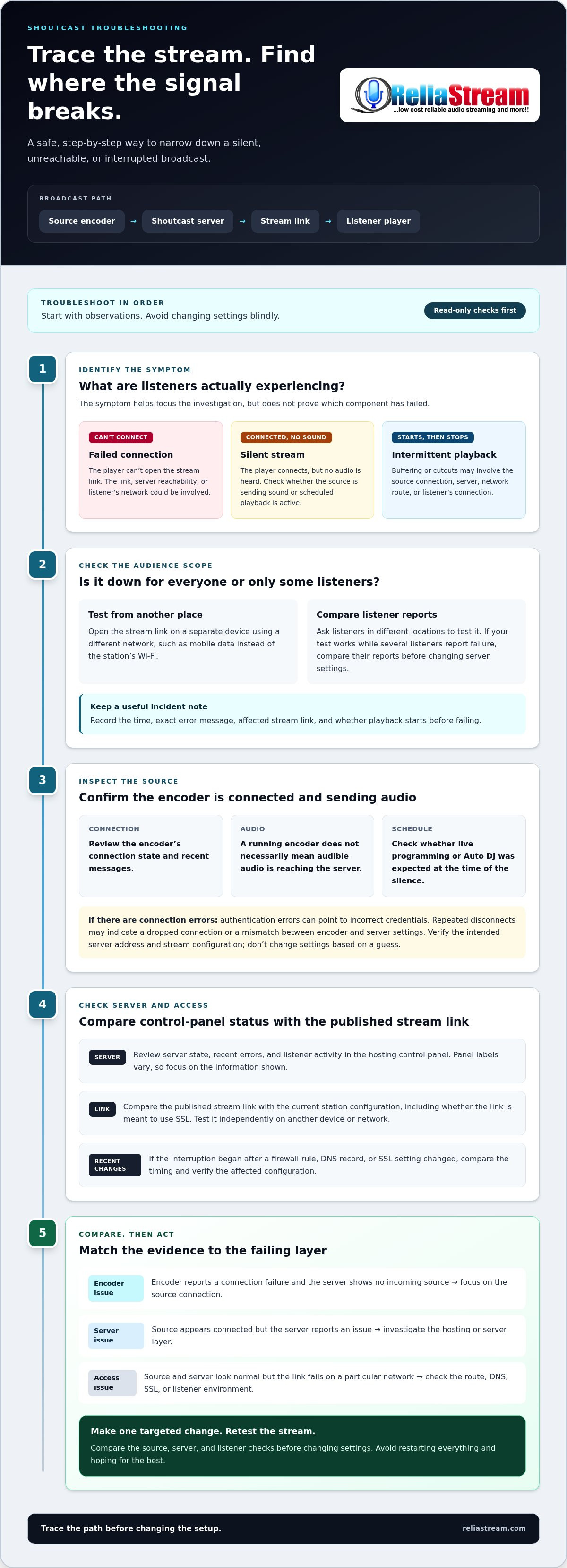
Follow the audio’s route: the source encoder sends audio to the Shoutcast server, the server distributes it through a stream link, and a player on the listener’s device receives and plays it. A break at any point can interrupt the broadcast. Shoutcast (formerly SHOUTcast) is a service for streaming media over the Internet to media players, using its own cross-platform proprietary software. Since the server distributes audio supplied by a source, checking the server alone won’t confirm that the encoder is sending usable audio or that listeners can play it.
Start by identifying the symptom. These three reports point to different parts of the broadcast path:
- Failed connection: The player can’t open the stream link. The link, server reachability, or listener’s network could be involved.
- Silent stream: The player connects, but no audio is heard. The source may not be sending sound, or scheduled playback may not be active.
- Intermittent playback: Audio starts, then buffers or cuts out. The source connection, server, network route, or listener’s connection may be unstable.
These symptoms don’t identify the fault on their own, but they give you a more focused starting point for fixing shoutcast server downtime. Record what listeners experience, then test the path layer by layer instead of changing settings blindly.
Is the stream down for everyone or only some listeners?
Open the stream link on a separate device using a different network, such as mobile data instead of the station’s Wi-Fi. If you need to verify reachability from external environments, connectivity tools and mobile routing options from Proxied can also assist with testing. Ask listeners in different locations to test it too. If your test works but several listeners report failure, compare their reports before changing server settings. A local network or access issue may affect only part of the audience. Record the time, exact error message, and whether playback starts before failing. Those details help show whether the reports describe the same incident.
What a silent stream can tell you
A player that connects but produces no sound is different from one that can’t reach the stream. Check whether the source encoder is connected and sending audio. A running encoder doesn’t necessarily mean an audible signal is reaching the server. Then compare the silence with the station schedule: was a live broadcast expected, or should Auto DJ have been playing? A gap between live programming and automation can explain the silence without showing that the server is unreachable.
Keep this first pass observational. Note the affected stream link, listener reports, playback behavior, and whether live source or Auto DJ was expected. These clues help you investigate the failing layer instead of restarting components at random.
Trace Shoutcast downtime to the source, server, network, or listener
Move from the reported symptom to evidence at each point in the stream path. Start with the source encoder, inspect the server and its control panel, then test the published stream link from a listener’s perspective. This order helps separate a source-delivery problem from a server or access issue. Compare the source, server, and listener checks before changing settings.
Keep the results side by side. If the encoder reports a connection failure and the server shows no incoming source, focus on the source connection. If the source appears connected but the server reports an issue, investigate the hosting or server layer. If both look normal but the link fails on a particular network, look at the route, DNS, SSL, or listener environment.
Check whether the source encoder has disconnected
Inspect the encoder’s connection state and recent messages. Authentication errors can point to incorrect credentials. Repeated disconnects may indicate a dropped connection or a mismatch between encoder and server settings. Confirm that the encoder targets the intended server address and stream configuration. Don’t change credentials or settings based on a guess. Check the documentation for your encoder and Shoutcast version before following version-specific instructions.
Check server status, stream links, and network access
- Source check: Is the encoder connected, and is it sending the intended audio?
- Server check: Does the control panel show the server running, with source or listener activity that fits the report?
- Listener check: Does the current stream link open and play from a separate device and network?
Use recent changes as clues, not automatic explanations. If an interruption began after a firewall rule, DNS record, or SSL setting changed, compare the timing and verify the affected configuration. A wrong or outdated link can fail even while the server and source are operating. For broader server-security practices, the National Institute of Standards and Technology (NIST) provides guidance on server setup, configuration, and maintenance.
If your checks point to hosting or stream management rather than the encoder or a listener’s local connection, a control panel can make server status and settings easier to inspect. ReliaStream’s ShoutCast hosting options include Centova Cast or MediaCP control panels for managing station settings.
Fix Shoutcast server downtime with a safe recovery sequence
Once you’ve narrowed down the failing layer, resist the urge to restart everything. A restart can interrupt active listeners or scheduled playback, and it won’t fix a disconnected encoder, incorrect stream URL, or listener-side network problem. Start with checks that don’t change the system. Then make one correction that matches the evidence and test the result.
Follow a step-by-step troubleshooting order
Keep recovery controlled. Capture the outage time, exact error, and who is affected. Check the encoder’s output, server state, and stream URL. Then correct the confirmed issue and test again. This gives you a clear before-and-after comparison instead of a string of changes that might briefly restore playback without revealing why it failed.
- Record the incident. Save the time, player error, affected stream link, and whether the issue affects every listener or only some. Note whether audio fails immediately or stops after playback starts.
- Verify the path. Confirm the encoder is sending audio, review the server information in your control panel, and check that the published URL matches the current station setup.
- Make one targeted correction. If the encoder has disconnected, restore its connection using the intended server details. If the stream link is confirmed to be wrong, correct that link. Test playback again before changing another setting.
Keep the change small. If the source has stopped sending, reconnecting or correcting its settings may be enough. If the stream plays through one link but not another, focus on the confirmed link discrepancy instead of altering encoder or server configuration. The goal is to restore audio while keeping a clear record of what changed.
Know when to escalate instead of guessing
Some fixes require access you may not have. If you can’t inspect or restart the server, or the same fault returns after a targeted correction, stop making speculative changes. Gather timestamps, error messages, encoder observations, and control-panel details so the issue can be investigated with useful evidence. Changing several settings at once can hide the original cause and make recovery harder.
Restart a server service only when your checks point to a server-side issue, you have the required access, and you understand that listeners or scheduled broadcasts may be interrupted. Follow the instructions for your current Shoutcast version and hosting panel. After a restart or other recovery, confirm the stream is working instead of relying on the control panel’s status. Open the stream link from a separate device, verify audible playback, and check again after it has been running for a while.
A documented recovery plan makes future incidents less chaotic. Arcserve discusses recovery planning, system updates, and infrastructure testing as strategies for reducing unplanned downtime. Apply the same discipline to your station: preserve evidence, change one thing, and retest. If your diagnosis points to hosting or stream management, ShoutCast hosting with a control panel provides an organized place to manage station settings and playback features such as Auto DJ.
Prevent repeat Shoutcast outages with better monitoring and setup
A one-time fix gets the station back on air. Ongoing checks can help you catch a weak point before it causes another interruption. Monitor the whole broadcast path: confirm the source is sending audio, check the server through your control panel, and test the public stream link from a listener’s perspective. Each check answers a different question, so a basic reachability test alone won’t tell you whether audio is playing.
Build a practical outage-prevention routine
Make checks part of station operations, not just emergency response. Choose a routine that fits your broadcast schedule, and pay particular attention to transitions between live programming and Auto DJ. Keep a change log and a short recovery guide so whoever is operating the station can see what changed and what to check next.
- Test the public stream link: Open it from a separate device or network and confirm playback, not just that the link loads.
- Check the source connection: Verify the encoder is connected and sending the expected audio during a broadcast.
- Log important changes: Record updates to encoder credentials, stream URLs, DNS, firewall rules, and SSL settings, along with when each change was made.
- Document recovery steps: Note how to check the source and server, where to find relevant settings, and who has access to make changes.
Automation can add another layer of continuity. If a live source disconnects, Auto DJ may keep scheduled programming moving when it’s set up for that workflow. Treat it as a fallback, not a substitute for checking that the public stream is audible. If you’re weighing streaming-server options for your station, this ShoutCast and IceCast comparison can help you consider the protocol choice in light of your broadcasting needs.
Review hosting and secure-stream configuration
After changing encoder, DNS, firewall, or SSL settings, retest the stream link and confirm the encoder still reaches the intended server. A control panel such as Centova Cast or MediaCP can help you inspect station status and manage streaming settings in one place. Don’t rely on a remembered URL after a configuration change. Compare it with the current link in your station setup.
If the issue involves a secure stream address, review the relevant settings and test the HTTPS link on a listener device. The SSL radio streaming guide offers context for troubleshooting secure broadcast links. Consistent checks, clear records, and a suitable fallback make fixing shoutcast server downtime less of a scramble and can help reduce repeat interruptions.
For ShoutCast hosting with control-panel options, Auto DJ, and SSL-secured stream links, explore ReliaStream radio hosting.
Get your Shoutcast station back on track with a clear next step
Bring the troubleshooting together: identify what listeners experience, isolate the failing layer, apply one evidence-based fix, then retest the stream. If playback returns, confirm it from a listener’s perspective, not just from the server panel. If the same server-side problem keeps coming back, review how your station’s hosting and stream management are set up. That’s a practical next step in fixing shoutcast server downtime without making promises about uptime.
Before making further changes, write a short incident report. Clear notes help you spot recurring patterns and give anyone investigating the issue a useful starting point.
- Stream link: Record the exact public URL tested, including whether it uses SSL.
- Timing and symptoms: Note when the interruption started, whether playback was silent, failed to connect, or cut out, and when it recovered.
- Listener scope: Record whether reports came from one listener, several listeners, or different networks.
- Checks and actions: Summarize encoder output, server observations, control-panel details, and each step already attempted.
When hosted Shoutcast is the logical next step
Recurring problems that point to hosting or stream management call for a closer look at the setup, not repeated restarts. ReliaStream provides ShoutCast and IceCast hosting with Centova Cast or MediaCP control-panel options. A control panel gives broadcasters a place to inspect station status and manage streaming settings. Choose an arrangement that fits your station’s workflow and how its operators manage the broadcast.
Consider how each feature fits your day-to-day operations:
- Auto DJ can keep scheduled programming playing when a live source disconnects, if it fits the station’s setup.
- SSL-secured stream links provide a secure link for listeners and are relevant when diagnosing playback or link configuration.
- ShoutCast and IceCast hosting give broadcasters hosting options for either streaming platform.
Prepare a useful outage report before making changes
Include enough detail to distinguish a one-off incident from a recurring fault. Record the stream URL, outage times, symptoms, and affected listeners. Add what the encoder was doing, what the control panel showed, and which settings or recovery steps you changed. Keep observations separate from assumptions. For example, write “encoder disconnected” rather than guessing why it disconnected.
With the diagnosis and incident notes in hand, decide whether to keep troubleshooting the existing setup or move to hosting that better fits your station’s operations. Explore ReliaStream hosting options for ShoutCast and IceCast streaming with control-panel choices, Auto DJ, and SSL-secured links.
Make your next broadcast interruption easier to manage
A station’s resilience comes from more than getting back online. It also depends on having a clear operating plan, knowing who can act, and keeping the next troubleshooting step easy to find. Turn what you learned from this outage into a short station runbook, then revisit it whenever your setup changes. That way, fixing shoutcast server downtime becomes a controlled process instead of a scramble through settings while listeners wait.
ReliaStream provides internet radio hosting. If your diagnosis points to the hosting setup, review an option built around your station’s broadcasting workflow and the tools you use to manage it.
Explore ReliaStream ShoutCast hosting and get your station moving. Keep building, keep testing, and keep your station ready for its next broadcast.
Frequently Asked Questions
Is Shoutcast server downtime the same as a silent stream?
No. A silent stream means a listener receives no audible program, but it doesn’t prove the Shoutcast server is unreachable. For example, the stream may connect while the encoder sends silence or the wrong audio input. Compare what the encoder reports with playback from a separate device. If audio is present at the source but absent from the stream, that points to a different fault than a connection error.
Can a firewall block a Shoutcast stream while the server is running?
Yes. A firewall rule can block traffic between the encoder, server, or listener even if the server process itself is running. Check whether a firewall change happened near the start of the problem, and compare access from different networks. Don’t turn off firewall protection as a first test. Review the relevant rule and connection path, then make a narrow correction only when you’ve identified what is being blocked.
What happens to Auto DJ when a Shoutcast server restarts?
It depends on how the hosting panel and Auto DJ are configured, and on what kind of restart occurred. Automation might resume according to its settings, or an operator may need to check that playback is active again. After a restart, confirm the scheduled playlist is running and listen through the public stream link. Also check whether a live encoder has connected and taken over the broadcast as intended.
Can listeners’ apps keep using an outdated Shoutcast stream link?
Yes. An app may still point to an older stream URL after the station changes its link or configuration. The server can be healthy while that app continues to send listeners to the wrong address. Compare the app’s configured stream source with the current public link, then test the corrected address on the device. If listeners use a station app, make sure its stream information is updated through the app’s normal update process.
Does switching from Shoutcast to IceCast automatically prevent downtime?
No. Changing streaming platforms doesn’t automatically prevent interruptions caused by a disconnected encoder, network problems, incorrect settings, or listener access issues. A platform switch also introduces configuration and link changes that need careful testing. Before migrating, consider your broadcasting workflow, listener apps, and stream-link setup. Compare ShoutCast and IceCast based on what your station needs, then test the new setup before directing listeners to it.
Should I restart my Shoutcast server every time listeners report a problem?
No. A restart can interrupt listeners and scheduled playback, and it won’t fix a problem outside the server, such as an outdated app link or blocked connection. When fixing shoutcast server downtime, first establish whether reports point to a server issue or affect only certain listeners. Save the error and timing details. Restart only when the evidence indicates a server-side fault and you have the access to do so safely.


