

What if the tool you use to manage your station isn’t the thing that actually puts it on air? That’s the key distinction in Centova Cast radio hosting: Centova Cast is the control panel for managing your station, while a hosting account provides the streaming server and infrastructure listeners connect to. They work together, but they do different jobs.
If you’re deciding what you need beyond a panel, start by separating the station-management tools from the streaming service. This guide explains how Centova Cast and hosting fit together, what to compare in a plan, and how to prepare your station for its first stream.
ReliaStream pairs ShoutCast or IceCast hosting with a choice of Centova Cast or MediaCP. Plans include Free Auto DJ, Free Secure Link, Stream Live, and Remote DJ capability. Here’s a practical path from account access to configuring playback and testing your stream.
Key Takeaways
- Centova Cast radio hosting combines a station-management panel with a separate hosting service that powers the stream.
- Plan how live broadcasting and AutoDJ fit your workflow, including scheduled playback and live shows.
- Compare hosting options by stream software, bitrate, storage, listener capacity, and whether you’ll use AutoDJ, live broadcasting, or both.
- Prepare station details, audio files, playlists, and DJ access before setup to make the path to your first broadcast smoother.
- ReliaStream offers ShoutCast or IceCast hosting with Centova Cast or MediaCP, plus Free Auto DJ, Free Secure Link, Stream Live, and Remote DJ capability.
Centova Cast radio hosting: what the control panel does, and what it doesn’t
Centova Cast is a web-based control panel for managing internet radio streams. It gives broadcasters a dashboard for station tasks, but it isn’t the streaming server itself. Logging into a panel does not mean your station has a hosted stream ready to broadcast. Centova Cast radio hosting pairs panel access with a hosting service that supplies the server environment and account resources behind the stream.
Think of the panel as your station’s control room and hosting as the broadcast infrastructure. The panel lets you manage station operations; the infrastructure carries audio to listeners. For a grounding in how Internet radio delivers audio over a network, the basic concept is straightforward: a stream needs both an audio source and a system that distributes it to listeners.
What can a broadcaster manage in Centova Cast?
Centova Cast brings routine station controls into a web-based dashboard. Depending on the hosting account and configuration, broadcasters can use panel tools to control the stream, organize station media, manage AutoDJ playback, and review listener or performance statistics.
For example, you might organize media for automated playback, review available stream statistics after a show, or switch between automated programming and a live broadcast workflow. The dashboard is a management layer, not a replacement for your audio source or hosting account. The tools available depend on the hosting setup connected to the panel.
What does radio hosting add to Centova Cast?
A hosting account provides the environment that makes the stream available: a streaming server, account resources, and the access details needed to connect your station and broadcast. The hosting service provides the stream and panel access, so you can manage the station through Centova Cast while the hosting infrastructure handles delivery.
In practical terms, hosting connects your station’s output to a stream listeners can access. It also provides the account resources associated with the plan, such as access to the server, listeners, and storage. The panel and host work together, but they aren’t interchangeable. Centova Cast by itself doesn’t provide the infrastructure that distributes your audio.
Before choosing a setup, keep the roles clear:
- Control panel: Helps you manage stream settings, media, AutoDJ, and available statistics.
- Hosting service: Supplies the streaming environment and account resources that support delivery.
- Your station: Provides the programming, whether it comes from a live broadcast, automated playback, or a mix of both.
Once those pieces are in place, you can use the panel to manage your station through the hosted account. That’s the difference between having a management interface and having a stream ready to reach listeners.
How Centova Cast, AutoDJ, and a live radio stream work together
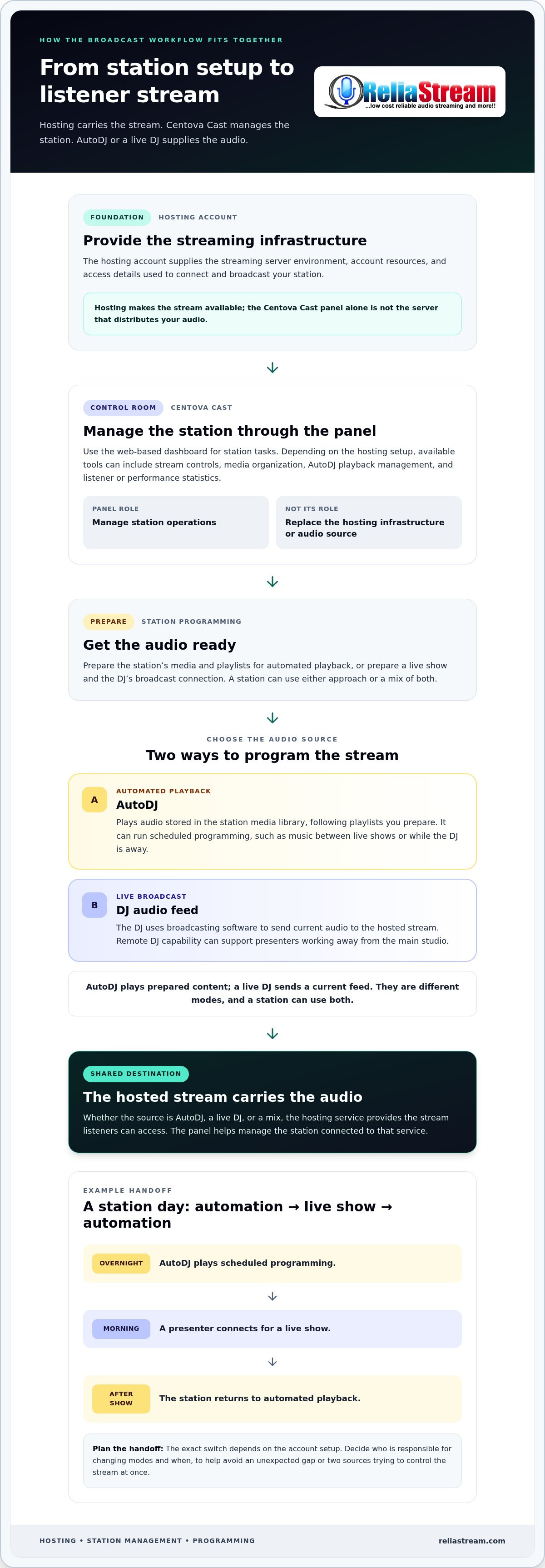
A station’s broadcast workflow has three parts: the hosted account provides the streaming service, Centova Cast gives you controls for managing the station, and your programming supplies the audio. With account access, you can prepare media and playlists, then choose how the audio reaches the stream: automated playback through AutoDJ, a live feed from a DJ, or a mix of both.
Hosting carries the stream, Centova Cast manages the station, and AutoDJ or a live DJ supplies the audio. That’s the working relationship. The Centova Cast official site describes the platform’s role in managing internet radio streams; your hosting account connects those controls to the streaming service listeners tune in to.
AutoDJ and the station media library
AutoDJ supports scheduled programming by playing audio stored in the station’s media library according to playlists. You can prepare tracks and organize them into a sequence for unattended playback, such as music between live shows or programming that runs while the DJ is away.
Automated playback and live broadcasting are different modes, not competing names for the same thing. AutoDJ plays prepared content; a live DJ sends a current audio feed. Stations can use both to suit their schedules, but AutoDJ doesn’t replace a live show when a host wants to present in real time.
Live broadcasting and remote DJ access
For a live show, the DJ uses broadcasting software to send audio to the station’s hosted stream. The host’s account provides the streaming service, while the panel helps manage the station. Remote DJ capability supports access for presenters working away from the main studio, helping a station coordinate shows across its schedule.
Use the hosted account’s instructions to set up a DJ connection. Keep the workflow simple: prepare the show, connect using the account’s supplied details, and make sure the station is set to the intended playback mode. Opening the panel alone does not start a live broadcast.
For example, a station might schedule AutoDJ to play overnight, then have a presenter connect for a live morning show. After the live segment, the station can return to automated playback. The exact handoff depends on the account setup, so plan who is responsible for switching modes and when. Clear roles help prevent an unexpected gap or two sources trying to control the stream at once.
That’s the practical value of Centova Cast radio hosting: the panel, stream, and audio source work as one operating setup, while each handles a distinct job. If you’re mapping out a station workflow, explore Centova Cast hosting options that include AutoDJ and Remote DJ capability.
Choosing Centova Cast radio hosting for your station’s needs
The right setup depends on what you broadcast, how you run the station, and how many listeners you plan to serve. Start with your workflow, then compare stream software, bitrate, storage, and listener capacity. A solo broadcaster with scheduled music and occasional live shows has different priorities from an operation managing multiple stations or customer accounts.
Use this table to compare the main decisions. ReliaStream’s plan details make it possible to compare bitrate and storage directly; the Awesome $99 Special includes 500 listener slots. Match the listed resources to your station’s content and expected audience.
| Factor | What to consider | How it shapes your setup |
|---|---|---|
| Stream software | ReliaStream offers ShoutCast and IceCast hosting. | Consider the stream software that fits your station and the players or workflows you use. For protocol-specific context, read this ShoutCast and IceCast comparison. |
| Bitrate and price | ReliaStream plans range from 32 Kbps at $1.99 USD to 320 Kbps at $9.99 USD. Other options are 48 Kbps at $2.99 USD, 64 Kbps at $3.99 USD, 96 Kbps at $4.99 USD, 128 Kbps at $5.99 USD, 160 Kbps at $6.99 USD, 192 Kbps at $7.99 USD, and 256 Kbps at $8.99 USD. The 32 Kbps plan is as low as $1.99 USD per month. | Choose with audio-quality goals and listener demand in mind. Higher bitrate sends more audio data per second to each listener. |
| Storage | Plan storage ranges from 8 GB to 20 GB, depending on the bitrate plan. | Match the plan’s storage to your library and programming workflow, including how often you rotate or add audio. |
| Listener capacity | Estimate the audience you expect to tune in at the same time. ReliaStream’s Awesome $99 Special is a 12-month plan with 500 listener slots. | Consider simultaneous listening demand alongside bitrate. Both affect the hosting resources your station needs. |
| Live or AutoDJ | Decide whether shows are live, automated, or a mix. | Plan for AutoDJ playback, live DJ access, or both, based on your schedule and who operates the station. |
Match bitrate and capacity to your audience
Bitrate describes how much audio data the stream sends each second. It’s one part of the listening experience, not a complete measure of sound quality on its own. Consider your source audio and intended listening experience, then weigh that choice against expected concurrent audience demand. Don’t select a bitrate in isolation; account for both your stream-quality goals and listener capacity.
Match station workflows to hosting features
Map a typical broadcast day. Does AutoDJ cover hours without a presenter? Do remote DJs need access for live shows? How much station media will you organize for playback? The answers help you assess storage, listener, and account-access needs. A single broadcaster can focus on one station’s programming and presenter access. A reseller or multi-station operation must also plan how to organize accounts and manage its stations or customers.
ReliaStream plans include a choice of Centova Cast or MediaCP as the control panel, alongside ShoutCast or IceCast hosting. Compare the options against your workflow, then choose the setup that supports the way your station runs. The practical approach to Centova Cast radio hosting is to fit the resources to the broadcast, not the other way around.
Set up your Centova Cast hosting account: a broadcaster’s checklist
A smooth first broadcast starts before you open the panel. Organize your station information, media, and show plan, then work through the hosted account in sequence. This keeps setup focused and makes it easier to identify where an issue is happening if playback doesn’t behave as expected.
Prepare your station before logging in
Gather the station name and other identity details you’ll use in its presentation. Organize audio files and playlists, and sketch out the first broadcast schedule. Decide whether you’ll begin with AutoDJ, a live DJ, or both. List who needs account or DJ access, and agree on who handles programming and playback changes.
- Select a hosting account. Choose an account that fits your planned stream software, audio-quality goals, audience, media needs, and live or automated workflow.
- Collect your access details. Keep the hosting account’s login information and setup instructions together. These provide access to Centova Cast and the account-specific details used to manage the stream.
- Open Centova Cast. Sign in through the access provided with the hosted account. Locate the station controls and media tools before making changes.
- Review the station settings. Check the available stream and media settings in the panel. Follow the account’s instructions for configuration details instead of guessing at connection values or settings.
- Prepare your first programming. Add the audio and playlists you need for AutoDJ, or prepare the live broadcast source and DJ access. If you’ll use both, plan when the station changes between them.
- Test playback privately. Start the intended source and listen through the station’s listening link. Confirm that audio plays, the expected programming is on air, and the link opens in the player or website where you plan to use it.
Configure, test, and start streaming
Test the complete listening path, not just the panel controls. Try the stream link in its intended player or website and confirm that the audio starts and continues as expected. For a live show, test with the DJ’s source; for AutoDJ, check the selected playlist and playback. If anything fails, review the account instructions and verify the source and playback mode before promoting the stream.
Still deciding which panel fits your workflow? This Centova Cast and MediaCP control-panel comparison covers that separate choice. Once your station passes its playback test, you’re ready to share its listening link. Explore ReliaStream Centova Cast hosting to choose a hosted setup and prepare your station for its first broadcast.
Centova Cast hosting with ReliaStream: what broadcasters get
With ReliaStream, your station’s hosting and management tools come together in one setup. Choose ShoutCast or IceCast hosting and select Centova Cast or MediaCP as the control panel. The hosting service powers the stream; the panel gives you a place to manage station operations. That distinction keeps expectations clear as you prepare for live shows, automated programming, or both.
ReliaStream plans include Free Auto DJ, Free Secure Link, Stream Live, Remote DJ capability, and full access to server, listeners, and storage. These features support different parts of a broadcaster’s workflow, from organizing automated playback to giving presenters a way to contribute remotely. Build your station routine around the tools it needs, while keeping the control panel distinct from the streaming infrastructure.
Included tools for live and automated broadcasting
Auto DJ supports automated station playback, while Remote DJ capability supports stations that bring live presenters into their programming. Use automated playback for prepared content and live access for shows hosted by a DJ. Stations can plan around either format or combine them as their schedule requires.
The Free Secure Link is included with ReliaStream plans. Together, these tools support common broadcast tasks:
- Free Auto DJ: Support automated playback as part of your station schedule.
- Remote DJ capability: Support live presenters who need to contribute remotely.
- Free Secure Link: Use the included secure link for your stream.
- Stream Live: Include live broadcasting in your station workflow.
Full access to server, listeners, and storage gives broadcasters access to the account resources associated with their station. Those resources matter when you organize media, manage the stream, and plan for listeners. Build your workflow around your programming and use the account instructions and access details provided with the hosting account.
A hosting partner with broadcaster experience
ReliaStream has supported broadcasters since 2008, and its staff includes current or former FM/AM broadcasters. That experience brings practical broadcasting perspective to a service built for internet radio stations. When setting up Centova Cast radio hosting, start by planning how your station will combine its control panel, hosted stream, and live or automated programming.
ReliaStream hosting plans start as low as $1.99 USD per month, and include a free 14-day trial with full feature access. Explore ReliaStream radio hosting to choose a setup for your station.
Turn Your Station Plan Into a Broadcast
Your first broadcast isn’t the finish line. It’s where your station’s ideas meet a real listening experience. As you prepare to launch, focus on creating a rhythm your team can sustain: programming that fits your goals, clear roles for presenters, and a listening experience you can keep improving.
Approach Centova Cast radio hosting as part of a broader station plan. Keep refining how your shows fit together, how you introduce your station, and what you want listeners to come back for. For broadcasters building an entertainment hub for a gaming community, teaming your audio stream with dependable game hosting from Twisted Servers can help keep the entire player base connected. Small, thoughtful improvements can help your broadcast develop with your audience, without making the technical setup the whole story.
To put your plan into motion, explore ReliaStream radio hosting and take the next step toward building a station that sounds like yours. Your broadcast starts with one show. Keep going.
Frequently Asked Questions
Is Centova Cast a radio hosting provider or a control panel?
Centova Cast is a control panel, not the hosting provider that supplies the streaming service. It helps you manage your station through a web interface, while a hosting account provides the server environment and resources that carry your audio to listeners. To set up a station, you need hosting account access as well as the panel login. Each plays a separate role.
Can I use Centova Cast without a hosting account?
You need a hosted streaming account to broadcast a station to listeners through Centova Cast. Panel access by itself doesn’t provide the stream’s server environment or account resources. Once you have a hosted account and its login details, you can use the panel to manage station operations. Keep the account’s setup instructions handy because they provide the details needed to connect your broadcast source.
What do I need to start streaming with Centova Cast?
Start with a hosting account that provides Centova Cast access, then prepare your station content and broadcast source. For an AutoDJ launch, organize audio files and playlists; for a live show, prepare the DJ’s audio feed and access details. Decide who will manage the station, too. Before sharing the stream, test the listening link in the player or website your audience will use.
How does AutoDJ work with Centova Cast radio hosting?
AutoDJ plays station audio automatically from prepared media and playlists associated with your hosted account. For example, a station could schedule recorded programming or music to play between presenter-led shows. You manage automated playback through the panel, while the host supplies the streaming service. AutoDJ suits scheduled or unattended programming, but a presenter still needs a live broadcast workflow for a real-time show.
Can DJs broadcast live through a Centova Cast hosting account?
Yes. A DJ can send a live audio feed to the hosted stream using the account’s Remote DJ capability and its setup details. This helps a station include presenters who aren’t operating from the same location. Before a scheduled show, have the DJ test their connection and audio source, then confirm the station is set to the intended live playback mode.
Does Centova Cast hosting include a secure stream link?
ReliaStream plans include a Free Secure Link for your station to share with its audience. Add the link where listeners will find your station, such as its website or player, and test it before announcing a broadcast. The link is a hosting inclusion, not a feature supplied by Centova Cast alone; the hosted account provides the stream it points to.
Can I choose MediaCP instead of Centova Cast with ReliaStream?
Yes. ReliaStream plans let broadcasters choose Centova Cast or MediaCP as the control panel for their hosting account. Consider which interface best fits your station’s day-to-day workflow, including how you prefer to manage media, programming, and DJs. The panel choice affects how you manage the station, while the hosting service delivers your ShoutCast or IceCast stream. Explore ReliaStream radio hosting to get started.


