

A player that looks ready can still leave your SHOUTcast station silent. A dependable html5 radio player for shoutcast needs more than an audio tag: it needs the correct stream URL, a browser-compatible audio format, and a setup that works on phones as well as desktops.
If you’re unsure whether to use the server address, a mount, or a styled player embed, start by identifying the listener-facing stream URL. A mismatched address or an insecure stream on an HTTPS website can prevent playback. Browser autoplay rules also mean listeners usually need to press Play.
This guide takes you from your SHOUTcast stream details to a working website player. You’ll learn how to find and test the source, choose between a basic HTML5 audio element and an embeddable player, and troubleshoot common browser and mobile issues. You’ll also see how secure stream delivery and control-panel tools fit into the station workflow.
Key Takeaways
- Find and test your SHOUTcast stream URL before adding a player to your website.
- Choose an html5 radio player for shoutcast based on whether you need basic browser controls or a more customizable embed.
- When playback fails, check the stream and secure delivery before changing the player code.
- Test playback, controls, and page layout in the browsers and on the mobile devices your listeners use.
- Use your hosting control panel to manage stream details as part of your station workflow.
What an HTML5 Radio Player for SHOUTcast Actually Does
A website radio player is the listener-facing control for an audio stream. It gives visitors a place to press Play, pause playback, and adjust volume. Behind that interface, three parts work together: your station website, the SHOUTcast server, and the browser’s audio playback capability.
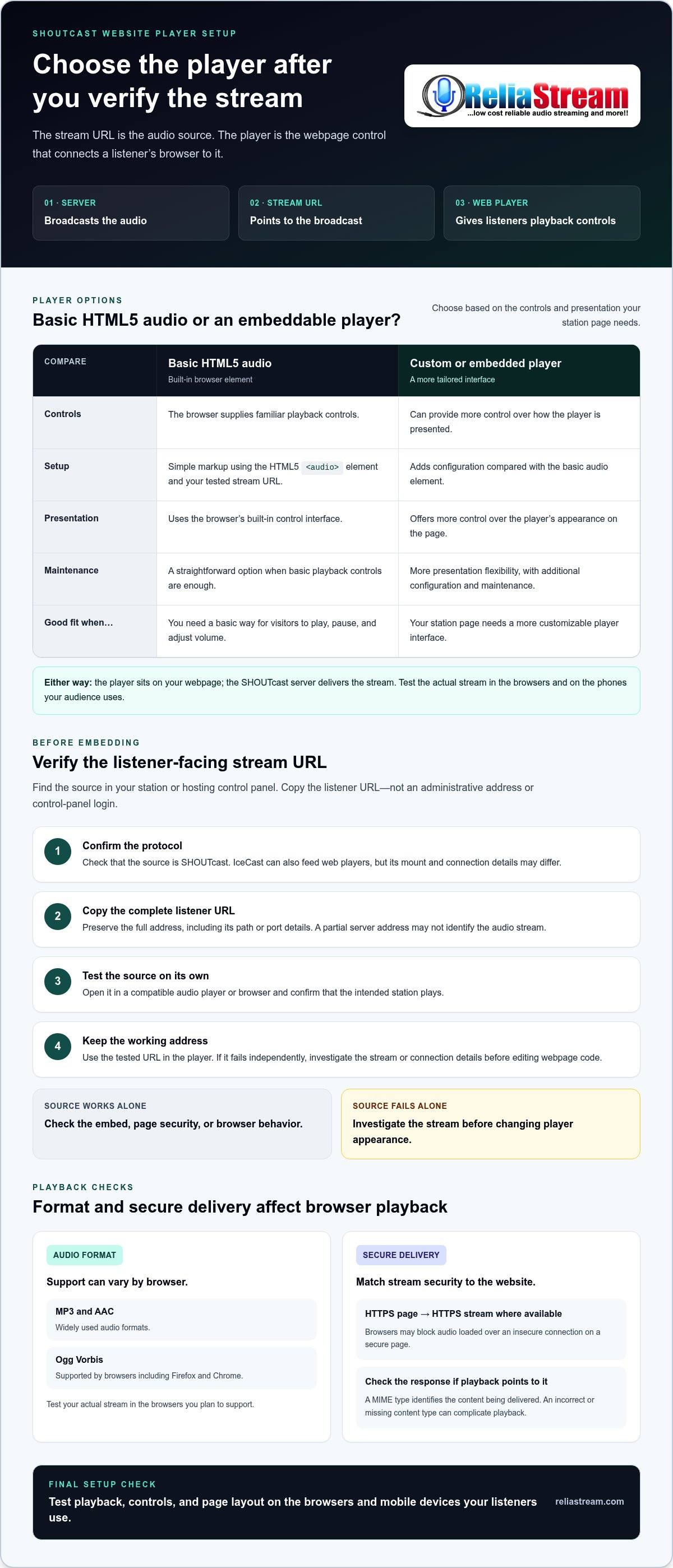
The SHOUTcast stream URL is the audio source; the player is the webpage control that asks a browser to play that source. Keeping those roles separate makes setup and troubleshooting easier. The stream details tell the browser where to request audio. The player code determines how playback controls appear on the page.
How the SHOUTcast stream connects to a web player
Think of the stream URL as the address for your live audio. When a visitor presses Play, the player requests that source and the browser receives audio from the SHOUTcast server. The player is embedded in a webpage, not installed on the server, so its controls appear alongside the rest of your station content.
This distinction helps when something changes. If the source address changes, update the stream setting in the player. If you want to adjust the player’s size or appearance, change the webpage rather than the SHOUTcast server settings. The site presents the player; the server delivers the stream.
A useful way to remember the setup: the server broadcasts, the URL points to the broadcast, and the player connects the listener’s browser to it. An html5 radio player for shoutcast brings those parts together without making the player design part of the streaming server.
HTML5 player versus legacy browser playback
Modern websites use the browser’s built-in audio capabilities instead of Flash, an older browser plugin that current browsers no longer support. A basic player can use the HTML5 <audio> element; more advanced interfaces can build on browser audio tools. The HTML5 Audio Element overview explains the element’s role, supported formats, and related audio APIs.
For a basic implementation, the markup can be as simple as this, with your tested listener URL in place of the placeholder:
<audio controls src="YOUR_SHOUTCAST_STREAM_URL"></audio>The browser supplies familiar playback controls, so listeners don’t need to install a legacy plugin. A custom or embedded interface can give you more control over presentation, but it also adds configuration and maintenance. Choose based on the features your station page needs.
Audio format support and playback behavior can differ across browsers and devices. Test the actual stream in the browsers and on the phones your audience uses. A real-device check can reveal playback, control, or layout differences before listeners encounter them.
Once you understand the roles, setup is straightforward: the server provides the audio, the URL identifies its source, and the webpage gives listeners a way to hear it.
Prepare Your SHOUTcast Stream Before Embedding the Player
Before writing player code, verify the stream source. An address can look valid but point to the wrong station, an inactive stream, or a different streaming protocol. Test the feed first so you can tell whether a later problem comes from the stream or the webpage player.
Find and test the correct SHOUTcast stream URL
Start in your station or hosting control panel. Find the SHOUTcast server’s connection or stream details and copy the listener-facing stream URL, not an administrative address or control-panel login. Centova Cast and MediaCP organize station information in control panels, though labels can vary. Confirm that the source belongs to the station you intend to broadcast.
Verify the address before embedding it:
- Identify the protocol. Confirm that the source is SHOUTcast. IceCast can also feed web players, but its mount and connection details may differ. Don’t assume an IceCast mount is the right SHOUTcast address.
- Copy the complete listener URL. Preserve the full address, including its path or port details. A partial server address may not identify the audio stream.
- Test the source on its own. Open it in a compatible audio player or browser and confirm that the intended station plays. For general SHOUTcast information, consult the Official SHOUTcast Website.
- Save the working address. Keep the tested URL available for the player setup. If it fails independently, investigate the stream or connection details before editing webpage code.
This test separates source problems from player problems. If the stream works on its own but not on your website, focus on the embed, page security, or browser behavior. If it fails independently, changing the player’s appearance won’t fix the source.
Check stream format and secure delivery
The URL is only part of the setup. The stream’s audio format affects browser playback, and support varies. MP3 and AAC are widely used; Ogg Vorbis is supported by browsers including Firefox and Chrome. Test your actual stream in the browsers you plan to support instead of assuming one format will work everywhere.
Also check the information sent with the audio. A MIME type identifies the kind of content a server is delivering and helps software interpret the response. An incorrect or missing content type can complicate playback, so inspect it if a standalone test or browser diagnostics point to a response problem.
Secure delivery matters as well. If your station website uses HTTPS, use an HTTPS stream URL where available. Browsers may block audio loaded over an insecure connection on a secure page. Check the behavior in your target browsers, then test the complete page before launch.
A properly hosted SHOUTcast source supplies the audio your player needs. ReliaStream’s SHOUTcast hosting with SSL-secured stream links gives broadcasters a secure stream source to use on their websites.
Choose Between a Basic Audio Element and an Embeddable Player
There’s no single player setup for every station. A simple listening page may need only clear playback controls. A station website built around its identity may benefit from a more configurable interface. Choose based on what listeners need and how much design and maintenance you want to manage.
| Consideration | Basic audio element | Embeddable player |
|---|---|---|
| Setup effort | Low; add the stream source and browser controls. | Often streamlined with generated embed code, though setup options vary. |
| Control | Browser provides familiar playback controls. | May offer more control over the player interface and displayed features. |
| Customization | Limited without additional styling or code. | Can offer branded colors, layouts, and station-specific presentation. |
When a basic HTML5 audio player is enough
A browser-native player suits a focused page where the main goal is to let visitors listen. It keeps the implementation small and avoids the need to build a custom control interface. Native controls provide familiar actions such as play, pause, and volume adjustment, with less interface code to maintain.
For example, if your station page has a short introduction and a prominent Play control, the basic approach may be enough. Playback still depends on the source, its audio format, secure delivery where needed, and the browser in use. Test the actual stream on your target devices.
When a styled embeddable player makes more sense
Choose a configurable embed if you want the player to match your station’s brand. Colors, layout, and station information can help the interface fit beside your logo and page design. Generated embed code can also simplify installation compared with writing a custom player interface. Features vary, so prioritize the controls and information your listeners will use.
Before publishing, test the player with a keyboard as well as a mouse or touchscreen. Make sure controls are reachable and operable, labels are understandable, and the layout fits a narrow mobile screen without clipping. Then test playback. A polished appearance only helps if listeners can start and control the stream.
Whichever approach you choose, use the working stream source and consider the page’s security. An HTTPS website may need an HTTPS stream URL to avoid browser blocking. ReliaStream’s SSL-secured radio links support secure stream delivery between the source and your page.
For a quick decision, consider the purpose of your station page. If listening is the primary feature, keep the player direct. If it’s part of a larger branded experience, compare embeddable options and test the interface before choosing. The right html5 radio player for shoutcast makes listening clear without adding complexity your site doesn’t need.
Troubleshoot SHOUTcast HTML5 Player Problems Before Launch
A player that appears on the page but stays silent doesn’t automatically mean its code is broken. Trace the audio path in order, from the stream source to the browser and then the webpage. If the stream fails on its own, check the source; if it plays independently but fails on your site, check the page, browser, and player setup.
The player appears but no audio plays
Work through these checks from source to webpage. Change one thing at a time so you can identify the cause.
- Test the stream URL independently. Open the exact listener stream address in a compatible player or browser. Confirm that it starts and carries the intended station. If it fails there too, investigate the stream, connection details, or server status before editing the website.
- Compare the working URL with the player source. Check for a typo, missing path, or outdated address. If the stream works independently but not in the player, focus on the player settings or the way the webpage requests the source.
- Check browser diagnostics. Open the page’s developer tools and inspect the console and network requests while attempting playback. Errors may indicate that the source couldn’t be reached, the request was blocked, or the response wasn’t handled as expected. Use the specific message to guide your next check.
- Review security and stream delivery. If your website uses HTTPS but the stream URL uses HTTP, the browser may block the request. Check that the page and stream protocols are compatible. Audio format and server response details can also affect playback.
- Make playback user-initiated. Autoplay restrictions vary across browsers, and audio with sound commonly requires listener interaction. A visible, clearly labelled Play button is the dependable default. A lack of automatic playback doesn’t mean the stream is down.
Playback differs across browsers and devices
Once the stream works, test the station page in the desktop and mobile browsers your audience uses. A successful test in one browser doesn’t prove the same stream and player will behave identically elsewhere. Note where the difference occurs: does the player fail to load, do the controls behave differently, or does playback start only after a tap?
On phones, make sure the Play button and other controls stay visible and easy to use on a narrow screen. Test with touch and keyboard navigation where possible. Check that another page element doesn’t cover the player or push its controls out of view. Keep the play action obvious instead of relying on autoplay to introduce the station.
If the stream works outside your site but not in the embedded player, review the URL, secure delivery, and browser diagnostics before rebuilding the interface. ReliaStream’s SHOUTcast hosting with SSL-secured stream links supports the source and secure-link requirements behind your website player.
Publish Your SHOUTcast Player and Build a Reliable Listening Experience
Embedding the player is the start, not the finish. Check that it’s easy to find, works with your actual stream, and is straightforward to use on the devices your listeners prefer. A short launch check can catch layout and playback problems before the page goes live.
Add the player to the station website and test it
Place the player where visitors can find it quickly, such as near the top of your station page or beside the station introduction. Keep it visible without pushing essential station information out of view. If you use generated embed code, add it to the intended section and preview the layout before publishing.
Use this sequence to check the finished page:
- Confirm the source. Make sure the player points to your intended SHOUTcast stream, not a test feed or an old address.
- Try the controls. Press Play, pause the stream, and adjust the volume. Make sure the play action is clear and doesn’t depend on autoplay.
- Check the page layout. Resize the browser and view the page on a phone. The player should remain visible, with controls that are easy to tap and understand.
- Verify secure delivery. If the website uses HTTPS, make sure the stream link works on a secure page. Test playback after publishing, not only in an editor preview.
- Test on listener devices. Open the live page in the desktop and mobile browsers your audience uses. Confirm that the right station plays and note any differences in controls or layout.
Keep the test focused. If the stream plays independently but not on the published page, revisit the embed settings and browser diagnostics. If it also fails outside the page, investigate the stream source first.
Keep the stream ready for listeners
Your website player depends on a working stream source. SHOUTcast hosting supplies the source; the player gives visitors a way to listen. The two have separate jobs, but the webpage must use the correct stream details and the stream link must suit the page’s security setup.
ReliaStream provides SHOUTcast hosting with SSL-secured stream links and access to Centova Cast or MediaCP control panels. Broadcasters can use these tools to manage stream details and use the secure source on their websites. ReliaStream has provided internet radio hosting since 2008.
For more context as you plan your station infrastructure, explore the radio hosting guide. Then explore ReliaStream SHOUTcast hosting and build your website player around a stream source that fits your setup.
Make Your Station Easy to Tune In To
Your player is more than a technical feature. It’s the front door to your station’s sound. Keep listening easy to find, make the controls intuitive, and revisit the setup whenever your site or streaming needs change.
With the right html5 radio player for shoutcast, the next step is to pair the player with a dependable stream source. ReliaStream offers SHOUTcast hosting, SSL-secured stream links, and Centova Cast or MediaCP control-panel options, with hosting plans ranging from 32 Kbps to 320 Kbps.
Explore ReliaStream SHOUTcast hosting to choose a stream setup for your station website and give listeners a clear way to tune in.
Frequently Asked Questions
Does an HTML5 radio player work with every SHOUTcast stream?
No. An html5 radio player for shoutcast needs a working stream URL and browser support for the audio format it delivers. Page security and browser behavior can also affect playback. Test the stream outside your website first, then test it in the embedded player. If it works independently but not on the page, compare the player’s source address with the tested URL and inspect the browser’s network errors.
Can I use a SHOUTcast player without installing software?
Usually, yes. A website player is added to a webpage, so listeners can tune in through their browser without installing separate radio software. Your station still needs an active SHOUTcast stream and a player that can load it. How you add the player depends on your site platform. After embedding it, open the published page in a desktop browser and on a phone to catch layout or playback issues.
Why does my SHOUTcast HTML5 player show controls but play no sound?
First, check whether the stream URL plays outside the webpage. If it doesn’t, investigate the stream source or its availability. If it does, compare that tested address with the player configuration. Then inspect the browser console and network requests for loading or connection errors. Also check whether the stream’s audio format is supported and whether an HTTPS page is trying to load an insecure stream.
Can an HTML5 radio player autoplay a SHOUTcast stream?
It may autoplay in some situations, but many modern browsers restrict audio that starts without listener interaction. Behavior depends on the browser and its settings, so don’t make autoplay essential to the listening experience. Place a clear Play control where visitors can find it and test it in the browsers your audience uses. A short prompt such as “Press Play to listen” makes the next step obvious.
How do I add track information to a SHOUTcast player?
Track details can appear only if the station’s stream supplies metadata and the player can display it. First, check the station’s metadata settings and confirm that current track information is being sent. Then verify that your player supports displaying it. Test with a track change to see whether the display updates. Styling can improve how metadata looks, but it can’t create details that the stream doesn’t provide.
Does my radio website need HTTPS for a SHOUTcast player?
HTTPS is the safer default for a modern station website, and a browser may block an insecure audio stream loaded from a secure page. Use an HTTPS stream link where available, then test playback from the actual HTTPS page rather than relying only on a preview. If playback fails, inspect browser developer tools for mixed-content or connection errors. Behavior can vary with the stream configuration and browser, so test your target setup.


