

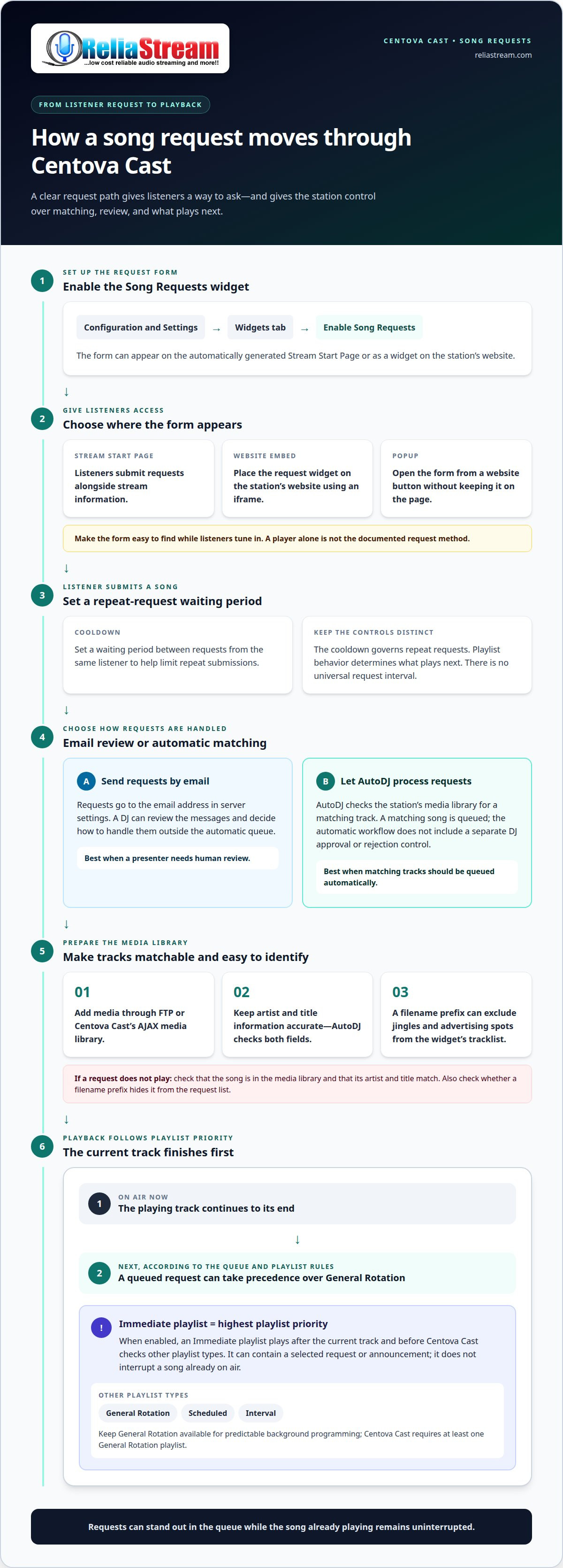
Centova Cast song requests can be submitted through a form on the stream’s start page, matched against the station’s media library, and queued for AutoDJ playback. A request won’t interrupt the track already playing. An Immediate playlist can play next after that track finishes, before Centova Cast checks other playlists.
Listeners need a clear way to request songs, and stations need control over what plays next. The start-page form gives audiences a direct way to make requests while keeping playlist rules clear.
Here’s how the form works, what happens after a listener submits a request, and how AutoDJ and Immediate playlists affect playback. You’ll also learn where to enable the request widget and how ReliaStream’s Centova Cast hosting plans can support an interactive station.
Key Takeaways
- Set playlist priorities deliberately: an enabled Immediate playlist takes precedence over other playlist types and plays through before Centova Cast checks them.
- Choose how listeners reach the request form: embed it on your site with an iframe or open it from a button in a popup.
- Control the request workflow by choosing email notifications or automatic matching, and set a waiting period between requests from the same listener.
- Enable the Song Requests widget from the Widgets tab under Configuration and Settings, then make the request option easy for listeners to find.
Immediate playlists for requested songs
Centova Cast has four playlist types: General Rotation, Scheduled, Interval, and Immediate. Immediate playlists are useful when a station wants a selected song or announcement to play next. “Immediate” refers to playlist priority, not an interruption to the track already on air. The current track finishes first.
When enabled, an Immediate playlist takes precedence over every other playlist type. Centova Cast plays it through before checking other playlists. For example, if a listener’s requested song is in an Immediate playlist while another track is playing, the current track continues. The requested song can play next, then Centova Cast returns to the other playlist choices.
This priority can make requests feel responsive without cutting off a song mid-track. It also gives the station a way to put a particular track or announcement ahead of its usual rotation. A station might use an Immediate playlist for a listener request, then queue an announcement in another Immediate playlist when that message needs priority.
To use this approach, add the requested track or announcement to an Immediate playlist, then enable it. Keep the playlist focused on items meant to take priority. Centova Cast plays it through before checking General Rotation, Scheduled, or Interval playlists. If it contains multiple items, they play in the playlist’s sequence.
Consider the listener experience before giving requests this priority. A request in an Immediate playlist can move ahead of scheduled programming and regular rotation, but it won’t interrupt the song currently playing. This suits stations that want requests to stand out while keeping tracks uninterrupted. For predictable background programming, keep a General Rotation playlist available without time restrictions. Centova Cast requires at least one.
Use Immediate playlists selectively. Their priority suits chosen requests and announcements, while General Rotation, Scheduled, and Interval playlists shape the station’s broader programming.
Centova Cast Immediate playlists start after the current song ends and can include requested songs or announcements. Either can take priority next without interrupting the song already on air.
Stream start-page song request form
Centova Cast can collect requests through its automatically generated Stream Start Page or a widget on the station’s website. Both give listeners a direct way to submit song choices.
Request Form Enablement
To enable the form on the Stream Start Page, open the Widgets tab under Configuration and Settings in Centova Cast, then enable the Song Requests widget. Listeners can submit requests from the start page. On your own website, embed the widget in an iframe or open it in a popup from a button.
Choose the option that fits how listeners already access the station. A start-page form keeps requests alongside stream information, while an embedded widget places the form on your website. A button-triggered popup makes it available without permanently using page space.
Request Limits and Scheduling
The request widget can impose a waiting period between submissions from the same listener. Set this cooldown to limit repeat requests and help manage the queue. There’s no universal request interval: configure the waiting period to suit the station’s workflow.
For playback timing, keep the request cooldown separate from playlist scheduling. A request ready to be queued takes precedence over General Rotation, while a scheduled playlist change waits until the current track ends. The cooldown governs repeat submissions; playlist behavior determines what plays next.
Listener Request Access
Listeners submit requests through the Stream Start Page or a request widget on the station’s website. A player alone isn’t the documented way to request a song, so place the widget where listeners can find it while tuning in. On mobile, they can open the form in a browser through the start page or website.
To limit spam, set a waiting period between requests from the same listener. This helps prevent rapid repeat submissions. Place the form clearly so listeners can find it without confusing it with the stream player or other station controls.
Centova Cast AutoDJ and song requests
AutoDJ matches requests against the station’s media library, then queues a matching track. The described request workflow centers on this process, rather than a stated change by version or hosting plan.
Upload media to the server through FTP, or use Centova Cast’s AJAX media library to drag tracks onto a playlist. Keep artist and title information accurate, since AutoDJ checks both fields when matching a request. The widget can display AutoDJ songs alphabetically across tabs. A filename prefix can exclude jingles and advertising spots from the tracklist.
Stations can send requests to the email address in server settings or let AutoDJ process them automatically. With automatic processing, a matching song is queued. Requests ready to be queued take precedence over General Rotation playlists, but don’t interrupt the track already playing. Centova Cast waits for it to finish.
DJ Request Approval
The automatic workflow matches and queues a requested track; it doesn’t include a separate DJ approval or rejection control. For human review, configure requests to go to the email address in server settings. A DJ can review the messages and decide how to handle each request outside the automatic queueing process.
Choose email if a presenter needs to review requests during a show. Choose automatic matching when you want AutoDJ to queue matching tracks from the library directly.
Unavailable or Unplayed Requests
If a request doesn’t play, first check that its artist and title match a track in the media library. AutoDJ queues matching library tracks, so a song that isn’t in the library can’t be matched. Also check whether a filename prefix excludes the track from the widget’s request list, particularly for jingles or advertising spots.
Next, distinguish a queued request from immediate playback. Centova Cast lets the current track finish before switching playlists, so a request may wait until the track ends. Requests ready to be queued take precedence over General Rotation, but don’t interrupt a song that’s playing.
How do you enable song requests in Centova Cast?
Enable the Song Requests widget in Centova Cast, then choose where listeners will access it. Find the control in the Widgets tab under Configuration and Settings. Make the form available on the automatically generated Stream Start Page or add the widget to your station website.
- Open Configuration and Settings in Centova Cast, then select the Widgets tab.
- Enable the Song Requests widget and choose the presentation option that suits your station.
- For a website, add the widget’s placement marker where the form should appear.
- Place its script reference just before the page’s closing body tag.
- Open the page or Stream Start Page and submit a test request.
Website widgets use two pieces of HTML code: a placement marker and a script reference. The marker determines where the form appears, and the script reference loads the widget. Keep each in its designated location. If the code conflicts with the webpage’s character encoding, use Centova Cast’s alternative Character Encoding option.
Use the generated Stream Start Page when you want a request form without adding widget code to your website. Choose the website widget when listeners should request songs alongside your existing content. Either way, make the request option easy to find and test the form before promoting it to listeners.
For a Centova Cast setup that brings station hosting and listener requests together, explore Centova Cast hosting plans as a next step.
ReliaStream: 32 Kbps Hosting Plan
ReliaStream is a natural next step when you’re ready to pair an interactive station with radio hosting. The 32 Kbps Hosting Plan is one option, alongside 64 Kbps, 128 Kbps, and 320 Kbps Hosting Plans. Choose a hosting plan that fits your station’s streaming setup, then configure Centova Cast and its request features around your programming. The form and AutoDJ workflow handle listener participation; hosting supports the station’s stream. Keep those roles clear as you plan your setup. To explore ReliaStream’s hosting options, visit reliastream.com.
Make listener participation part of your next broadcast
Give your audience a meaningful role in shaping the station while keeping programming decisions in your hands. Requests can become part of a show’s identity: invite listeners to suggest music, then decide how those requests fit your format and schedule. With Centova Cast song requests, make the interaction intentional rather than simply adding another control to a page.
When you’re planning the hosting behind that experience, ReliaStream offers 32 Kbps, 64 Kbps, and 128 Kbps Hosting Plans. Match your choice to your station’s streaming needs and the way you intend to broadcast. Then build your request workflow around the audience you want to involve.
Contact ReliaStream about song requests and take the next step toward a more interactive station. Your broadcast can grow one thoughtful listener connection at a time.
Frequently Asked Questions
How do listeners request songs on a Centova Cast radio station?
Listeners open the station’s Stream Start Page or website request widget, choose a track, and submit the form. For example, they can select a title from the available songs before sending a request. Centova Cast song requests work best when the requested artist and title match a track in the station’s AutoDJ library, so listeners can choose music that’s available to play.


