

What if the stream isn’t the problem? A broadcast that stops, buffers, or sounds rough can point to the audio source, encoder, stream server, or listener’s playback setup. Guessing at settings can make the fault harder to find. Common internet radio broadcasting issues often produce similar symptoms, but their causes may be in different parts of the signal path.
It’s frustrating when listeners report dropouts and you can’t tell whether the live feed, Auto DJ, hosting connection, or their device is responsible. When live and automated programming don’t switch as expected, changing several settings at once can make the cause even harder to identify.
This guide shows you how to trace a fault from broadcast source to server to listener, run a focused test, and restore a more reliable listening experience without changing settings at random. You’ll also learn what evidence to collect, including when the issue started and which playback methods are affected, so a hosting support request can focus on the likely cause. Start by identifying where the failure appears, then test one part of the path at a time.
Key Takeaways
- Trace common internet radio broadcasting issues across the audio source, encoder, stream server, and listener playback to narrow down where a fault begins.
- When a stream has no sound, check the encoder connection, selected input, mute state, and source levels before changing server settings.
- Compare the station player with the direct stream link to help distinguish playback-specific trouble from a broader stream problem.
- For live and Auto DJ handoff failures, check which source is active and whether scheduled content is ready to play.
- Before requesting hosting support, reproduce the issue and record when it happened, who was affected, encoder status, stream link, and control-panel messages.
Common internet radio broadcasting issues start at the source, server, or listener
A stream that works one minute and cuts out the next is frustrating, especially when reports don’t show whether everyone is affected or just one listener. Before changing settings, trace the signal in order: audio source and encoder, streaming server, then listener device and player. This helps locate the fault before a change creates another problem. Common internet radio broadcasting issues can share a symptom while having very different causes.
What counts as a common internet radio broadcasting issue?
A broadcast fault can occur anywhere along the audio path from the station’s source to a listener’s playback. Reports usually fall into a few groups: connection failures, silence, dropouts, buffering, or audio that sounds different from what the station expects.
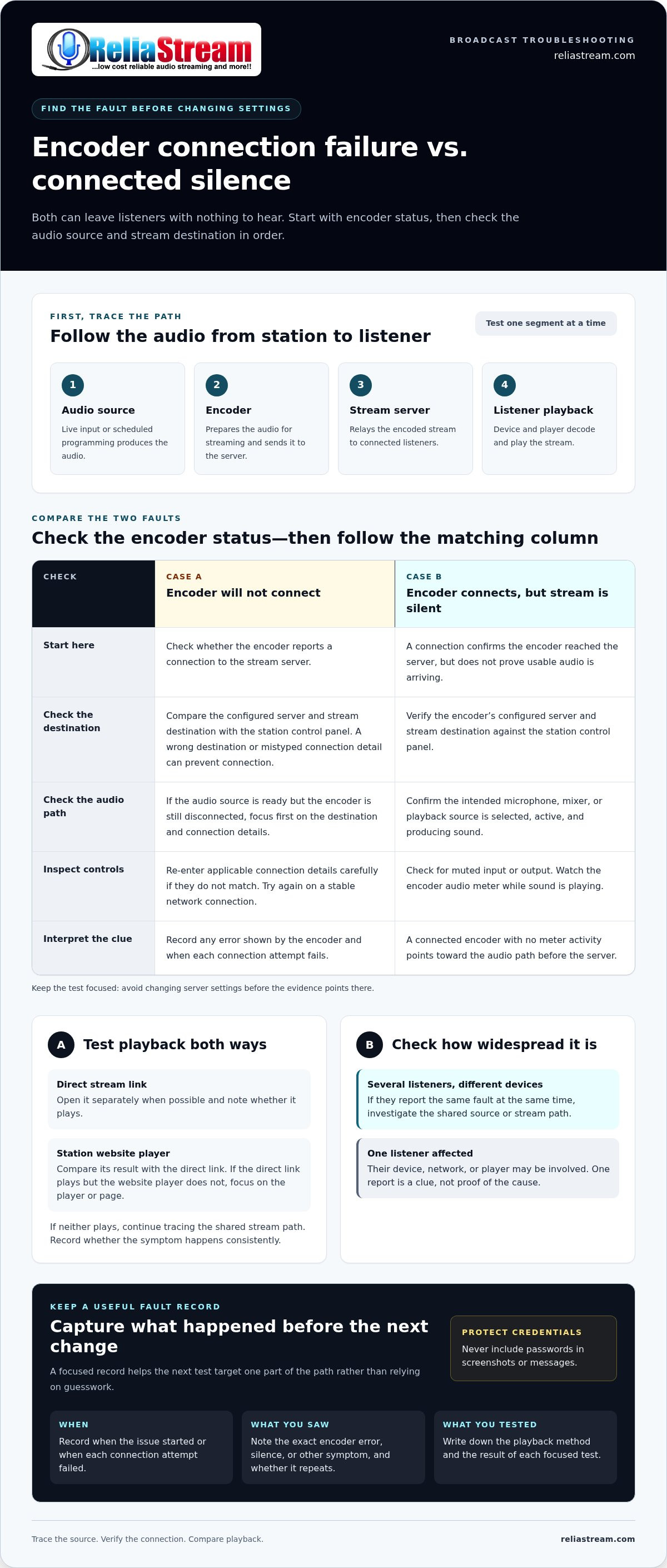
First, establish the scope. If several listeners using different devices report the same fault at the same time, investigate the shared source or stream path. If one person is affected while others can listen normally, their device, network, or player may be involved. One report is a useful clue, but it doesn’t identify the cause on its own.
Map the stream path before changing settings
The source provides the audio, whether it’s a live input or scheduled programming. The encoder prepares that audio for streaming and sends it to the server. The streaming server relays the encoded stream to connected listeners, whose devices and players then decode and play it. Internet Radio: An Overview gives broader context on the technology and how internet radio differs from traditional radio.
Test one segment at a time. Check whether the source is producing audio, whether the encoder indicates a connection, and whether a listener can reach the stream. When possible, open the direct stream link separately from the station’s website player. If the direct link plays but the website player doesn’t, focus on the player or page. If neither plays, continue tracing the shared stream path.
Use the symptom as a starting clue, not proof of a specific cause:
- Stream won’t open: Check whether the encoder is connected and whether the direct stream link is reachable.
- Silence: Look first for missing or muted audio at the source, then compare playback through the direct stream link.
- Dropouts: Note whether they affect multiple listeners at the same time or only one playback setup.
- Buffering: Compare playback on different devices and through the direct stream link to narrow down where it occurs.
- Unexpected audio quality: Compare the sound at the source with what listeners hear, then test another playback method.
Keep each test controlled. For example, if the station player is silent, try the direct link without changing encoder or server settings. If the result differs, the player may be involved. If the same problem occurs, look farther upstream or test whether the listener’s connection is a factor. Record what you tested and what happened so the next step targets one part of the path rather than relying on guesswork.
Diagnose internet radio connection failures and streams with no sound
A failed connection and a silent stream are different faults, even if both leave listeners with nothing to hear. Start with the encoder’s status, then check the source and stream destination in order. This keeps each test focused and helps you avoid changing server settings before the evidence points there.
- Check the encoder connection. Does it report that it’s connected to the stream server? If not, focus first on the destination and connection details. If it is connected, move on to the audio input.
- Confirm the selected source. Check that the encoder is using the intended microphone, mixer, or playback source. Make sure that source is active and producing audio.
- Inspect mute controls and levels. Check for a muted input or output, then watch the encoder’s audio meter while sound is playing. A connected encoder with no meter activity points toward the audio path before the server.
- Verify destination and credentials. Compare the encoder’s configured server and stream destination with the station control panel. Carefully re-enter the applicable connection details if they don’t match.
- Test playback and record the result. Open the direct stream link separately from the station website player when possible. Note the exact error, silence, or other symptom and whether it happens consistently.
When the encoder will not connect to the stream server
Check that the encoder is pointed to the intended server and stream destination shown in the station control panel. A wrong destination or mistyped connection detail can prevent a connection even when the audio source is ready. Re-enter the relevant details carefully, but never include passwords in screenshots or messages. Try again on a stable network connection, and record when each attempt fails along with any error the encoder displays.
When the encoder connects but listeners hear silence
A connection confirms that the encoder reached the server, but it doesn’t prove that usable audio is arriving. Confirm that the intended input is selected and producing sound, then check its mute controls and levels while watching the encoder meter. If the meter shows activity, test the direct stream link and compare it with the station website player. If the direct link has audio but the website player is silent, investigate the player. If both are silent, continue tracing the source and stream path.
Keep changes small. Adjust one suspected input or connection detail at a time, then repeat the same playback test. This gives you a clear before-and-after result instead of a stack of unexplained changes. If the encoder connects, the input meter shows audio, and direct-stream playback still fails, the evidence may point toward a server-side issue. In that case, internet radio hosting options may be relevant to your next step.
Compare buffering, dropouts, and poor audio by testing each listening point
Buffering, brief dropouts, and thin or distorted audio can come from different parts of the listening path. Compare the station website player with the direct stream link, then repeat the test on another device or network. Neither playback method is automatically at fault. The pattern across tests is what helps narrow down the cause.
Use this quick comparison to decide what to test next:
- Buffering on several devices and networks: Start by checking the shared stream path. If the direct link and website player both buffer, the issue may affect the stream itself. Compare results over time and note whether listeners experience it together.
- Buffering for one listener or network: Test the same stream on another device and connection. If playback improves, that points toward the original listener’s connection or playback setup rather than a station-wide fault.
- Dropouts in both the website player and direct link: Check whether other listeners report dropouts at the same time. A shared pattern may point upstream; an isolated report calls for a local playback test.
- Poor audio in both playback methods: Compare the stream with the audio being sent from the source. If the stream sounds poor across devices, review the source and stream audio settings.
- One playback method fails: If the direct stream works but the website player doesn’t, investigate the player or page. If the player works but the direct link doesn’t, check the link and how it’s being opened.
Is buffering caused by the station or the listener connection?
Look for a shared pattern. Ask whether listeners on different devices and networks report the same symptom at the same time. If they do, investigate the stream path. If one listener is affected, compare playback on another device and network. When the problem follows the listener or connection, focus on local playback conditions. When it appears across independent listening points, examine the station’s shared stream.
How bitrate and audio settings can affect listening
Bitrate describes how much audio data the stream sends over time. A stream’s bitrate and a listener’s available connection can affect how consistently it plays, while audio settings also shape what listeners hear. Review quality and consistency together. Don’t assume that changing bitrate alone will fix dropouts or poor sound. Test any adjustment by comparing the same stream on the same devices and connections.
Browser security can also matter. A secure webpage may behave differently if its player tries to load a stream through an incompatible HTTP/HTTPS setup. That’s one possible cause, not a universal explanation for buffering or dropouts. If the website player fails but the direct link works, inspect the player’s stream address and security context. For more detail, see this SSL radio streaming guide.
These comparisons turn vague reports into useful evidence. Record which link, device, and network were tested, and whether other listeners experienced the symptom at the same time. That makes the next diagnostic step more targeted.
Fix live broadcast and Auto DJ handoff problems with a focused checklist
A missed handoff can sound like a stream failure, even when the server connection is still active. The key question is what the station is sending at the scheduled transition: the live input, an Auto DJ playlist, silence, or the previous program. Check the active source and scheduled content before changing stream settings. These common internet radio broadcasting issues are easier to isolate when you reproduce the transition and note exactly what happens.
Use this sequence for a scheduled live show or a return to automation:
- Note the expected transition. Record the scheduled time and which source should take over.
- Check the control panel. Confirm the current source status and whether the intended live or automated source is active.
- Verify the content. Make sure the scheduled program or playlist is selected and its audio files are available to play.
- Run a short test. Reproduce the handoff, then record the time, what listeners hear, and any control-panel status or message.
This separates a programming problem from a connection fault. If the stream remains connected but plays the wrong content or falls silent at a scheduled time, focus on the source selection, schedule, and available audio. If the live encoder disconnects at the same moment, investigate its connection separately.
When a live DJ cannot take over the broadcast
Check that the live source is connected and that the encoder shows an active audio input. In the control panel, verify that the intended stream destination is selected and note which source is currently active. Then classify the result: does the stream go silent, disconnect, or continue playing another source? Each outcome points to a different part of the handoff, so record it before changing the schedule or connection details.
When Auto DJ does not start or return as expected
Confirm that scheduled content is available and the correct playlist or program is selected. Review the schedule around the transition for overlapping entries or unintended gaps, then check the active source status to see what the station is actually sending. A short, controlled test can show whether automation fails to start, starts with no content, or is prevented from taking over by another active source. For configuration steps, use the Auto DJ setup guide.
- Silence at the handoff: Check for a missing program, unavailable playlist content, or a source that is active but not sending audio.
- Previous audio keeps playing: Check whether the outgoing source remains active or the scheduled source is selected.
- Live show fails to take over: Compare encoder status with the control panel’s active-source status.
Keep the test focused: change one schedule, source, or content selection at a time, then repeat the same handoff. If evidence points to a hosting-side or control-panel issue, explore managed radio hosting as a relevant next step.
Prevent repeat broadcasting issues and know when hosting support can help
Once a stream is back, capture what happened before the details fade. A useful support request follows a simple sequence: reproduce the fault if it’s safe to do so, isolate which part of the stream path is affected, document the results, then share those findings with hosting support. This turns reports like “the radio keeps cutting out” into evidence that can help narrow down the cause.
What to record before asking for streaming support
Write down the approximate time of the incident and whether it was continuous or intermittent. Then capture what you observed at each test point. A concise record is more useful than a long list of settings changed during troubleshooting.
- Timing: Note when the problem started, when it stopped, and whether it recurred.
- Scope: Record whether multiple listeners were affected or reports came from one device, player, or network.
- Encoder status: State whether the encoder connected and whether its audio meter showed input.
- Playback tests: Include the stream link tested and whether it played directly and through the station website player.
- Control-panel details: Copy relevant status messages or errors, and note which source was active.
- Listener setup: Include the affected device and player, if known, along with the exact symptom.
Keep credentials private. Don’t include stream passwords in screenshots or messages. If a screenshot helps show a status or error, remove or obscure sensitive details first. Also list any single change made during testing and its result. That helps support distinguish the original fault from a side effect.
When a hosting setup may be the right next step
Repeated symptoms across independent listeners, playback methods, or tests may point to a shared server-side issue, especially when the encoder is connected and the source is producing audio. Share your evidence with hosting support before making broad configuration changes. If the findings keep pointing to hosting or control-panel configuration, reviewing that setup may be the practical next move.
ReliaStream provides ShoutCast and IceCast hosting, with Centova Cast and MediaCP control-panel options. SSL streaming may be relevant when the evidence points to a secure-playback mismatch, but it isn’t a universal fix for stream faults. Match the next step to the diagnosis, not just to the symptom.
Good notes make recurring common internet radio broadcasting issues easier to compare and help keep troubleshooting focused. If the evidence points to a hosting-side concern, explore ReliaStream radio hosting and consider which hosting and control-panel setup fits your station.
Build a stronger, more dependable station from here
Every fault you investigate can make the next one easier to handle. Keep a simple incident log and look for patterns over time: recurring trouble at a particular transition, a playback method that behaves differently, or issues that appear across listeners. That record can guide future checks and give hosting support a clearer picture if the same problem returns.
The goal isn’t to chase every setting. It’s to make informed changes based on what your tests show. When common internet radio broadcasting issues point to the hosting setup, choose a platform that fits how your station streams and manages programming. ReliaStream provides internet radio hosting, with options including ShoutCast, IceCast, Centova Cast, MediaCP, Auto DJ, and SSL streaming.
Ready to consider a hosting setup for your station? Explore ReliaStream hosting for your station. Keep testing with purpose, and keep your broadcast moving forward.
Frequently Asked Questions
Why is my internet radio stream not working?
Start by checking the encoder’s status and whether it’s receiving audio, then test the direct stream link. If the encoder won’t connect, compare its destination details with the station’s control panel. If it’s connected but silent, check whether the audio meter moves and whether the input is muted. To narrow down common internet radio broadcasting issues, note when the fault began and whether other listeners can reproduce it.
Can listeners hear my radio stream on one device but not another?
Yes, one device or player can fail even while another plays the same stream. Test the identical stream link on both devices, keeping the network the same for a fair comparison. If one browser fails but another works on that device, the issue may be specific to the browser or player. Record the device, operating system if known, and player used so you can spot a repeatable pattern.
Why does my internet radio stream work on Wi-Fi but not mobile data?
Wi-Fi and mobile data use different network paths, so success on one doesn’t identify the cause by itself. Try the same direct stream link on both connections using the same device and player. Note whether playback never starts, stops after a while, or shows an error. If another listener can reproduce the mobile-data problem, include that comparison when investigating; otherwise, focus on the affected device and connection.
Can a firewall or VPN stop an internet radio encoder from connecting?
Yes, a firewall or VPN can affect a connection, but test before treating it as the cause. Note the encoder’s error on its usual network, then compare with another permitted connection if your organization allows it. Don’t disable security controls without authorization. If the results differ, share the test details with your network administrator or hosting support so they can investigate without exposing the station to unnecessary risk.
Does changing bitrate fix buffering on an internet radio station?
Not necessarily. Bitrate affects how much audio data is sent over time, but buffering can also involve the listener’s connection, device, player, or a broader stream issue. Before adjusting it, compare playback on the same device across different networks, and compare another device on the original network. If you do change a stream setting, change only one at a time and repeat the same tests to see whether the result changes.
What information should I send radio hosting support about a stream problem?
Send a short incident report with the time, whether the fault was continuous or intermittent, and how many listeners reported it. Include encoder connection status, whether its audio meter showed input, the direct-link test result, affected device and player, and any visible error. Add what you tested and the outcome. Never include passwords or private credentials; redact them from screenshots before sharing.
Will an SSL stream link fix every internet radio playback issue?
No. An SSL link may help when a secure webpage or player can’t load an insecure stream, but it won’t repair a silent source, failed encoder connection, or unrelated listener network problem. Compare the direct link with the website player and check whether the webpage and stream use compatible security settings. If both playback routes fail in the same way, look beyond SSL rather than switching links at random.


