

To prevent radio stream buffering for listeners, first find out where playback breaks down. A listener’s stream can stall because of a weak connection, an encoder issue, or pressure on the streaming server. The complaint is real, but the cause isn’t always where you expect it to be.
Start by checking whether the problem affects one listener or several, and whether it follows a listener across networks or devices. Those clues can help separate a local connection issue from a problem with your broadcast setup. Avoid changing bitrate or other settings until you have a likely cause to test.
This guide walks you through a practical diagnosis, from listener reports and encoder output to bandwidth and server capacity. You’ll also see how bitrate and codec choices affect sound quality and accessibility, so you can match your stream to your content and audience. Hosting options from 32 Kbps to 320 Kbps give stations room to choose, but a lower setting alone won’t solve every buffering problem. Find the source first, then make a focused change.
Key Takeaways
- Use the pattern of listener reports to narrow down whether buffering starts with a device, connection, broadcast source, or delivery path.
- Record the time, device, player, and connection type for each report so you can compare incidents and spot useful clues.
- Test one targeted change at a time, then check playback again from a listener’s perspective.
- Balance bitrate and bandwidth needs against the audio detail your programming requires before changing stream quality.
- Match hosting capacity and Auto DJ workflows to your station’s needs, while treating them as parts of continuity planning, not guarantees against buffering.
Why does an internet radio stream buffer for listeners?
A buffering complaint tells you playback has paused, but not why. The player may be receiving data too slowly, the station’s outgoing stream may be interrupted, or something along the delivery path may be preventing audio from arriving steadily. Pinpointing the source matters: changing stream quality without evidence can affect sound and bandwidth without fixing the fault.
What does radio stream buffering mean?
A player briefly stores incoming audio in a buffer, then reads from that stored data as playback continues. This reserve helps smooth out small fluctuations in delivery. If incoming audio falls behind what the player is using, the reserve can run low and playback pauses while the player waits for more data. The Streaming media overview explains the basic process and why interruptions can occur.
Buffering isn’t the same as a stream that won’t open. If the player connects and audio starts, then pauses or repeatedly stops and resumes, the listener may be experiencing buffering. If the stream never starts or the player reports that it can’t connect, that points to an availability or connection problem instead. A stream that plays continuously but sounds muffled, distorted, or uneven has an audio-quality complaint, not necessarily a buffering issue. Identify which behavior listeners are experiencing before investigating.
Which parts of the listening chain can cause interruptions?
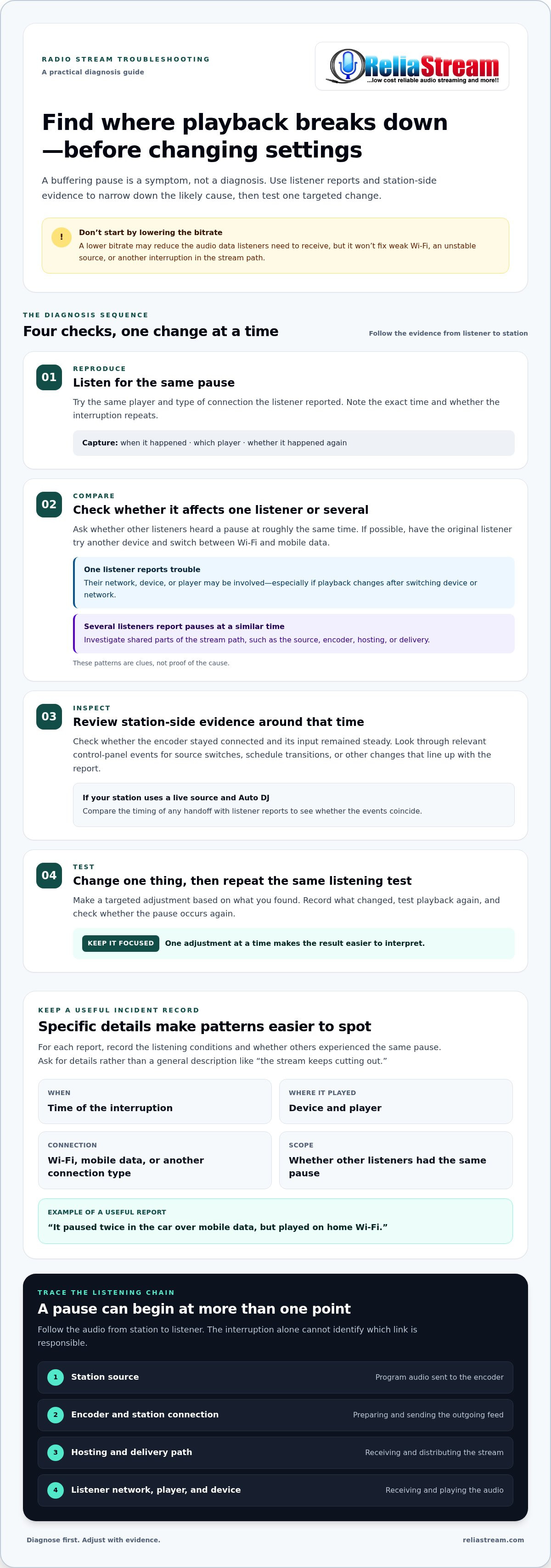
Follow the audio from the station to the listener. The source produces the program; an encoder prepares it for streaming; hosting receives and distributes that stream; then the listener’s network, player, and device handle playback. A weakness at any point can interrupt the flow. Buffering is a symptom, not a diagnosis: the pause alone cannot identify which link is responsible.
- Station source: A break or interruption in the audio sent to the encoder can affect the stream before it reaches hosting.
- Encoder and station connection: Encoder configuration or an unstable connection from the station can disrupt the outgoing feed.
- Hosting and delivery path: A server-side issue or a problem moving audio toward a listener may affect delivery.
- Listener network and device: Weak or congested Wi-Fi, mobile connectivity changes, or device and player behavior can interfere with playback for an individual listener.
The pattern offers clues. If several listeners report pauses at roughly the same time, investigate shared parts of the chain, such as the source, encoder, hosting, or delivery. If one listener reports trouble while others continue listening, their network, device, or player may be involved. These are starting points, not proof. The same stream can play steadily on one connection and buffer on another because each listener receives it through a different local network and device.
Don’t automatically lower the bitrate or assume the hosting server is at fault. Identify where the disruption appears to begin, then test the likely cause. A clear diagnosis protects both the listening experience and stream settings that are already working.
How to diagnose radio stream buffering before changing settings
Start with evidence, not a settings change. A lower bitrate may reduce the audio data each listener needs to receive, but it won’t fix weak Wi-Fi, an unstable source, or an interruption elsewhere in the stream path. Use a repeatable process to narrow down the likely cause without changing several things at once.
- Reproduce the pause. Listen to the stream yourself, ideally using the same player and type of connection reported by the listener. Note the exact time and whether the interruption repeats.
- Compare listener reports. Find out whether other listeners heard a pause at a similar time. Ask the original listener to try another device and, if possible, switch between Wi-Fi and mobile data.
- Inspect the station source. Review encoder status and source stability around the reported time. Check relevant control-panel events, including whether a schedule change or handoff between a live source and Auto DJ coincided with the interruption.
- Test one change at a time. Make a targeted adjustment based on the evidence, then repeat the same listening test. Record what changed and whether the pause occurred again.
How to tell whether the issue affects one listener or many
Compare reports across listeners before changing stream settings. An isolated report, especially one that stops when the listener changes device or network, points toward that listener’s playback setup or connection. Similar reports from several people at roughly the same time suggest a shared part of the chain deserves attention. Neither pattern proves the cause, but both help you decide where to investigate first.
Keep a short incident record for each report. Capture the time, device, player, connection type, and whether other listeners experienced the same pause. Ask for specific details rather than “the stream keeps cutting out.” For example, “It paused twice in the car over mobile data, but played on home Wi-Fi” gives you a clearer lead.
What station-side evidence should you inspect?
Check whether the encoder remained connected and whether its input was steady during the reported window. Review control-panel events for source switches, schedule transitions, or other changes that line up with the pause. If your station uses a live source and Auto DJ, compare the timing of any handoff with listener reports. A recurring interruption at the same transition is more useful evidence than a one-off complaint.
Record each test in a simple log: the time, conditions, suspected point in the chain, change made, and result. Keep listener tests comparable by changing only one variable at a time. For example, don’t lower the bitrate and replace the player in the same test. If playback improves, you won’t know which change mattered. Note the selected stream setting alongside connection details, since bitrate affects how much data must reach each listener. That context will help you assess bandwidth needs in the next step.
Once the evidence points toward stream delivery, review whether your current radio hosting setup fits the station’s needs. The goal is a measured fix, not a blind reset.
How bitrate, connection speed, and stream quality affect buffering
Bitrate is the amount of audio data a stream delivers each second, usually measured in kilobits per second (Kbps). A higher bitrate sends more data and can preserve more audio detail, but listeners need a connection that can keep up. If the stream’s data arrives more slowly than the player uses it, playback may pause. Other network activity can also reduce the bandwidth available to the listener.
Consider both sound and access. A talk station may not need the same audio detail as a music station, while listeners on mobile connections may have less consistent bandwidth. As a general guide, spoken-word streams often use 32 to 64 Kbps; mixed programming can suit 96 to 128 Kbps; and 128 Kbps is a common balance for music. Higher-fidelity music may call for 192 Kbps or more, with greater bandwidth demand.
- Lower bitrate: Requires less data per listener and may help when evidence points to limited connection capacity. It can also reduce perceived audio detail.
- Higher bitrate: Can deliver more audio detail, but asks more of each listener’s connection and increases total data sent as concurrent listeners increase.
Bitrate is only one part of delivery. If the source or encoder is interrupting, lowering the stream rate won’t address that fault. Nor can a lower bitrate fix a listener’s unstable Wi-Fi or a delivery issue elsewhere. Test a change only when the evidence points to bandwidth pressure, then compare playback under similar listening conditions.
When should a station test a lower bitrate?
Consider a controlled lower-bitrate test when reports suggest listeners with constrained connections are affected, while the source and encoder appear steady. Keep the test conditions comparable and record listener feedback before and after the change. If playback improves but the sound loses detail, weigh that trade-off against audience needs. There’s no single bitrate that suits every format, connection, and listening goal.
Start with the quality your programming needs, then assess whether listeners’ connections and the station’s delivery setup can support it consistently. If a test doesn’t improve playback, restore the previous setting and investigate other likely causes instead of continuing to lower quality.
How do listener count and hosting capacity fit into the picture?
Each listener receives the stream, so total outgoing data demand grows as concurrent listeners increase. For example, a 128 Kbps stream sent to 100 listeners represents 12,800 Kbps of audio data before delivery overhead. Compare real audience peaks and stream bitrate with your hosting configuration. A setting that works for a small audience may need reassessment as concurrent listening grows.
Bitrate and hosting capacity work together, but they answer different questions: bitrate affects the data required per listener, while hosting configuration must suit the station’s overall audience and delivery needs. For more context on aligning those choices, see budget internet radio hosting guidance. Make bitrate changes based on observed playback and audience conditions, not a one-size-fits-all rule.
How Broadcasters Can Reduce Radio Stream Buffering
Make changes that match the evidence. If reports point to one listener’s network, changing the station’s encoder may add risk without addressing the cause. If the source feed is dropping, lowering bitrate won’t repair it. Choose one likely cause, test a focused adjustment, then check playback from the listener’s perspective before moving on.
Which listener-side checks can help isolate a problem?
Ask the listener to try another device or player, then switch between Wi-Fi and mobile data if available. Have them play another audio service on the same connection. If other audio also struggles, the local connection or device may be involved. If other services play normally but your station buffers, investigate your stream path. These comparisons offer clues, not a final diagnosis.
Which station-side adjustments are worth testing?
First confirm that the audio source and encoder are stable. If they are, test a single bitrate or stream-configuration change, then compare playback under similar conditions. Keep a brief record of the original setting, the adjustment, and listener results. For platform context, review ShoutCast and IceCast differences, but remember that changing platforms alone doesn’t guarantee a fix.
Use the pattern of the problem to prioritize what you test:
- One listener, one connection: Focus first on that listener’s network, device, and player.
- Several listeners at the same time: Review the station source, encoder, hosting, and delivery path around that timestamp.
- Pauses at a source handoff: Check the transition between live broadcasting and Auto DJ, along with related encoder or control-panel events.
- Stable source, but constrained connections struggle: Test a lower bitrate and assess both playback and perceived audio quality.
Retest after every adjustment using the same player and connection where possible. Record whether the pause returns, whether it affects one or multiple listeners, and whether the change affects sound quality. If the result is unclear, repeat the test rather than stacking more changes. This helps reduce buffering without sacrificing audio quality unnecessarily.
Secure links deserve a separate check. HTTPS or SSL helps protect the connection between the stream and listener, but it doesn’t increase available bandwidth or repair an unstable source. An SSL-secured stream link is a security measure, not a buffering cure. See this SSL radio streaming guidance for more context.
If your evidence points to hosting configuration, explore radio hosting options for your station as part of your next measured step.
How radio hosting and Auto DJ can support a steadier listener experience
Hosting and automation are parts of the delivery setup, not switches that eliminate buffering. The right configuration gives your station a suitable place to send its stream and a workflow for managing what goes on air. Start with the evidence you gathered: recurring interruptions across listeners may justify reviewing hosting settings, while an isolated device problem usually calls for a different response.
Match the hosting bitrate to your programming, sound-quality goals, audience conditions, and expected listening patterns. ReliaStream’s ShoutCast and IceCast hosting options span 32 Kbps to 320 Kbps, giving broadcasters a range of settings to consider. A higher bitrate carries more audio data per listener, so consider the stream and the size and pattern of your audience together. A plan should suit the station’s needs, but selecting a bitrate alone can’t resolve an encoder interruption or a listener’s weak connection.
When should a broadcaster review their hosting setup?
Review it when multiple listeners report recurring pauses, especially if reports line up in time or coincide with audience peaks. Bring the incident log, chosen bitrate, audience patterns, and relevant encoder or control-panel events into the review. Look for a relationship between interruptions and changes in demand or station configuration. This makes the review evidence-led, rather than a reaction to one complaint or a guess that hosting is at fault.
Useful details to compare include:
- Stream setting: Note the current bitrate and whether a controlled test changed playback or perceived sound quality.
- Audience pattern: Check when listener reports occur and whether they cluster around busier listening periods.
- Station workflow: Look for source switches, schedule transitions, or encoder events that match the timing of reported pauses.
How can Auto DJ fit into continuity planning?
Auto DJ is a station-management feature that can play scheduled audio when a live broadcast isn’t supplying the program. It can support planned station operation and help manage transitions between scheduled playback and live sources. But source continuity is different from delivery quality: automation can keep station programming moving, while a listener’s Wi-Fi, mobile connection, device, or player remains outside its control.
Automation supports station workflows but cannot control every listener’s connection. If buffering happens during a handoff, review the schedule and source transition. If listeners pause at unrelated times, keep investigating the wider delivery path. ReliaStream’s Centova Cast and MediaCP control panels include station-management features such as Auto DJ, supporting broadcasters’ operational workflows without guaranteeing uninterrupted playback.
Treat hosting, bitrate, and Auto DJ as pieces of a broader diagnosis. If your findings point to a hosting or station-management review, explore ReliaStream radio hosting and compare the available setup with your station’s needs.
Make listener feedback part of your next upgrade
Buffering complaints can become useful signals, not just interruptions to manage. Keep a simple record of what listeners experience and revisit it as your audience, programming, or listening habits change. That gives you a clearer baseline for future decisions and helps you spot when a once-suitable setup may need a fresh look.
The best way to reduce radio stream buffering is to keep testing against real listening conditions. Make deliberate adjustments, check the effect, and retain the changes that improve playback without compromising the experience your station wants to deliver. Small, evidence-led steps build confidence over time.
If your next step is to review the foundation behind your broadcast, explore ReliaStream radio hosting and find a setup that fits your station. Keep learning from your listeners and refining your stream. Explore ReliaStream’s ShoutCast and IceCast hosting plans to find a setup that fits your station.
Frequently Asked Questions
Why does my radio stream keep buffering for listeners?
Buffering can result from a listener’s connection or player, an interruption in the station’s audio source, encoder instability, or a problem along the delivery path. Look for patterns: if reports come from listeners on different devices and networks at similar times, investigate shared station-side components. If one person is affected, have them try another connection or player. Those comparisons help narrow the search before you change settings.
Can lowering my radio stream bitrate stop buffering?
It can help when the stream’s data demand is too high for the affected listeners’ available bandwidth, but it won’t address every cause. For example, if pauses happen only on a listener’s mobile connection while playback is stable elsewhere, a lower-bitrate test may be useful. Compare playback and perceived sound quality before and after the change. If the problem continues, restore the original setting and investigate other parts of the stream path.
How do I know if buffering is caused by my radio server?
You can’t identify the server as the cause from a buffering report alone. A stronger clue is several listeners on separate networks reporting interruptions at roughly the same time, especially if your encoder and source appear stable. Compare those timestamps with available hosting or control-panel events and repeat playback from another connection. If the evidence continues to point to delivery, review your server configuration and audience demand rather than assuming a single report proves a server fault.
Does SSL radio streaming prevent buffering?
No. SSL protects the connection between a stream link and the listener, but it doesn’t increase bandwidth or keep an unstable source from dropping. For instance, switching from an unsecured link to an SSL-secured link may address a security or compatibility need, yet buffering may remain if the listener’s connection is weak. Treat stream security and playback continuity as separate checks, and diagnose the cause of pauses independently.
Can Auto DJ prevent my radio station from going offline?
Auto DJ can keep scheduled audio playing when a live broadcast isn’t providing the program, which supports continuity in station operations. It can’t ensure that the hosting server, stream delivery, or every listener’s connection remains available. If playback disappears during a live-to-automated transition, review the schedule and source handoff. If the stream itself can’t be reached, investigate availability and delivery separately from the Auto DJ playlist.
Should I switch from SHOUTcast to Icecast to fix buffering?
Not without evidence that your current server setup is causing the problem. A switch by itself won’t correct limited listener bandwidth, an unstable encoder feed, or a device-specific issue. First compare reports across listeners and inspect source and hosting events. SHOUTcast and Icecast are both internet radio server options; consider a change only if your station’s configuration or workflow gives you a clear reason to do so.


