

A delayed radio stream isn’t always a slow network. Stream latency can arise at different points, so diagnosing radio stream latency starts by comparing where delays appear: in the stream itself, the player’s buffer, or the listener’s connection.
Buffering can make playback steadier but add delay, while playback controls may pause or lag without changing how the stream is delivered. A connection can also struggle during congestion even if it can handle the stream’s average bitrate. That’s why one listener’s experience may not reveal the source of the problem.
This guide helps you distinguish those causes instead of guessing. Compare buffering and playback behavior, look for signs of network congestion, and monitor the stream from broadcaster to listener. The goal is a clear diagnosis: find where latency begins, then focus on the part of the delivery path that needs attention.
Key Takeaways
- Separate buffering and playback-control effects from delays introduced earlier in the stream’s delivery path.
- Look for congestion-related performance changes, even when a connection appears able to handle the stream’s average bitrate.
- Use end-to-end monitoring to narrow down where delay accumulates between the broadcast source and the listener.
- Compare the symptoms and monitoring evidence to choose the next troubleshooting step, rather than changing settings by guesswork.
Buffering, caching, and playback controls
A player buffer holds incoming audio before playback, smoothing brief changes in delivery. That cushion can also increase the delay between a live broadcast and what a listener hears. Lower live-stream latency can make listeners more likely to experience buffering, so the smallest buffer is not automatically the best setting for every audience.
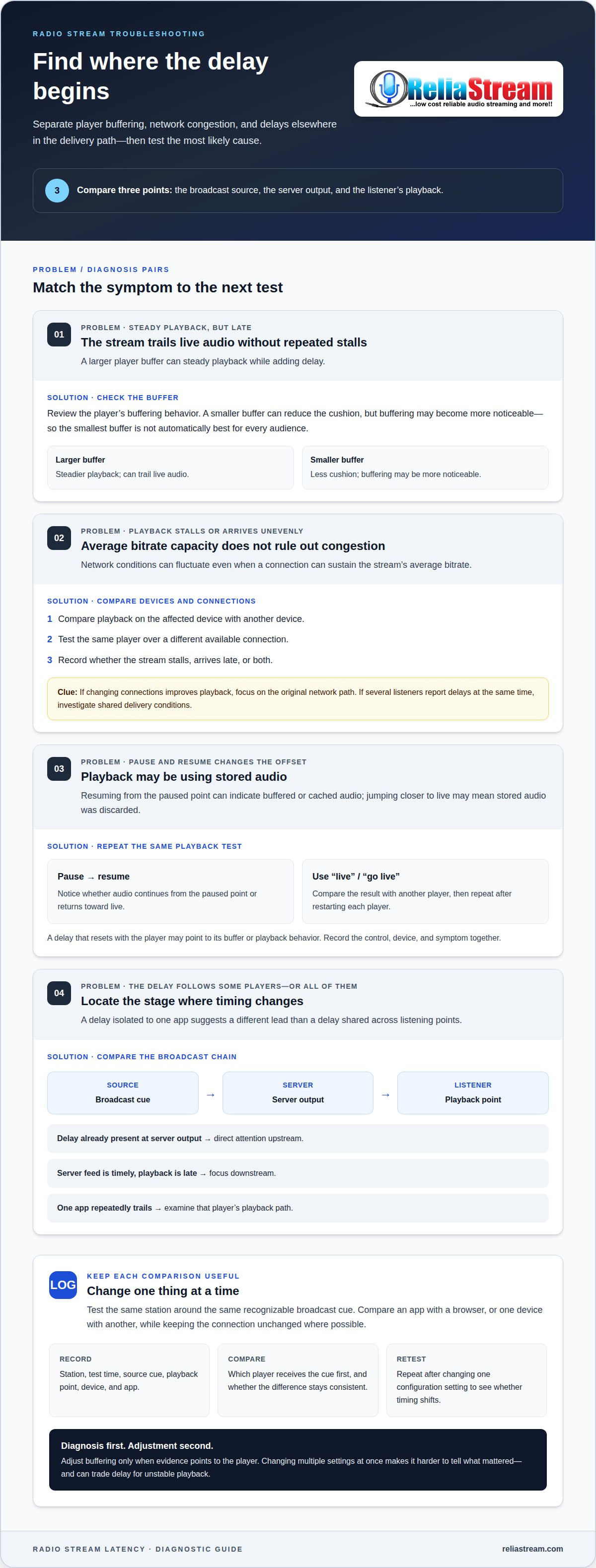
Separate the player’s behavior from the stream’s delivery. For example, if pausing a live station and pressing play resumes audio from a saved position, the player may be using buffered or cached audio. If playback jumps closer to the live point, it may have discarded some stored audio. These actions affect what the listener hears, but do not identify where the delay began.
Use the same test sequence on a desktop player and a mobile player:
- Start the same station in both players and note whether either begins later or buffers repeatedly.
- Pause one player, wait briefly, then resume. Observe whether it continues from the paused point or returns toward live audio.
- Use any “live” or “go live” control, then compare the audio with the other player.
- Repeat after restarting each player. A delay that resets with the player may point to its buffer or playback behavior.
Record the playback control, device, and symptom together. A pause that creates a consistent offset is different from interruptions during uninterrupted listening.
| Option | Latency effect | Diagnostic clue |
|---|---|---|
| Larger player buffer | Can add playback delay | Playback remains steady but trails live audio |
| Smaller player buffer | Can reduce the cushion | Buffering may become more noticeable |
| Pause or resume control | Changes the listener’s playback position | Audio resumes behind or near the live point |
Choose your next step based on the symptom: review buffer settings when steady playback trails live audio, and investigate delivery or connection conditions when playback repeatedly stalls.
Congestion and performance degradation
Network congestion can delay a live stream even when a connection can sustain its average bitrate. To reduce excessive latency, identify where congestion affects delivery, then address that bottleneck instead of changing player settings blindly.
Congestion effects
Congestion is pressure on the network path carrying audio; performance degradation is the resulting slowdown or interruption. A stream may have enough average bandwidth yet still arrive unevenly as network conditions fluctuate. If several listeners report delays at the same time, shared delivery conditions deserve attention. If only one player struggles, its device or connection is a stronger lead.
Latency reduction steps
Latency-reduction steps are targeted changes made after identifying a likely cause. Congestion is a condition to diagnose; reducing unnecessary buffering or adjusting delivery configuration is an intervention. Start with the listener pattern, then compare the same station across devices and connections before changing settings. This helps avoid trading a delay problem for unstable playback.
Use this practical sequence to narrow the cause:
- Compare playback on the affected device and another device.
- Test the same player over a different available connection.
- Note whether the stream stalls, arrives late, or both.
- Adjust buffering only when evidence points to the player, then retest.
If changing connections improves playback, focus on the original network path. If the same delay follows the station across devices, examine stream delivery and player configuration. Keep each test focused: changing multiple settings at once makes it harder to identify what mattered. Record the connection and player used before each comparison.
For a stream-link setup, an SSL Radio Link is one relevant option to consider. It addresses secure stream access, not network congestion itself.
End-to-end latency monitoring
End-to-end monitoring compares timing at the broadcast source with the audio received by a listener. A repeatable test makes diagnosing radio stream latency more precise by showing which part of the path needs attention.
Buffering and network delay
Stream latency is the total gap between a broadcast event and its playback. Buffering and network delay can both contribute. To distinguish them, note whether audio arrives with a steady offset or fluctuates with stalls. If a player pauses and later resumes from stored audio, a playback buffer may be involved. Uneven arrival across repeated checks points to changing network conditions.
Apps, browsers, and devices
Compare the same station in an app and a browser, then repeat the test on another device. Start each test around the same recognizable broadcast cue and keep the connection unchanged. Record which player receives the cue first and whether the difference remains consistent. If one app repeatedly trails while another does not, its playback path is a stronger lead than a delay shared by every device.
Broadcast chain diagnosis
To diagnose radio stream latency across the broadcast chain, compare the cue at the source, server output, and listener playback. A delay already present at server output directs attention upstream; a timely server feed followed by late playback points downstream. This stage-by-stage comparison isolates delivery handoffs, unlike app testing, which focuses on the listener’s choice of player.
Keep a compact log of the station, test time, source cue, playback point, device, app, and observed timing difference. Repeat the same sequence after changing one configuration setting. The comparison will show whether the adjustment shifted the delay or left it unchanged.
When results differ between listeners, compare their playback paths before changing the broadcast chain. When the same delay appears at multiple listening points, investigate the shared stage first. This turns a vague report of “late audio” into a specific next diagnostic step.
End-to-end streaming radio latency
End-to-end delay is the total time between an event at the broadcast source and its playback for a listener. Common streaming technology typically has 15-30 seconds of latency, while traditional over-the-air radio broadcasts typically have less than one second.
Encoder settings
Encoder settings shape how audio is prepared and passed into the stream, so they can affect delay before delivery begins. A setup that uses a larger playback buffer may handle delivery changes more smoothly, but listeners can hear the broadcast later. Compare the complete listening experience: timing, interruptions, and whether the delay stays consistent across players.
Streaming protocols
Streaming protocols govern how audio moves from the source toward listening apps and browsers. Their delivery and buffering behavior can affect how quickly audio reaches playback and how it responds to variable network conditions. Encoder settings shape the outgoing audio stream; a protocol affects how that stream is transported and presented downstream.
Reducing latency can bring live audio closer to the source, but lower live-stream latency can make listeners more likely to experience buffering. The right balance depends on whether the priority is near-live timing or steadier playback across varied connections.
To compare the whole path, play a recognizable live cue and note when it reaches each listening point. Compare the timing in a browser and a radio app, then repeat with the same source and connection. A consistent offset across players points toward a shared stage; a difference limited to one player points toward its playback path.
Use the results to guide changes: review encoder configuration when delay appears before delivery, and examine protocol or playback behavior when it emerges downstream. Change one part at a time, then compare the same cue again. This keeps the cause visible instead of masking it with several simultaneous adjustments.
Explore radio streaming options as you assess the delivery setup behind your broadcast.
ReliaStream: Alexa Streaming App
ReliaStream offers an Alexa Streaming App for broadcasters who want to make their station available through Alexa, alongside hosting plans for delivering the stream. If monitoring points to the hosting setup as a factor, the 32 Kbps, 64 Kbps, and 128 Kbps Hosting Plans are options to consider for your broadcast bitrate.
The Alexa app gives listeners another way to access a station; it does not replace latency testing or identify where a delay begins. Use monitoring results to choose your next step: assess stream delivery when delays appear across listening platforms, or consider a custom Alexa streaming skill to expand how audiences access your station.
Contact ReliaStream to discuss your radio streaming setup.
Make Your Next Stream Test Count
Make latency troubleshooting a repeatable part of your broadcast workflow. When a delay appears, record the conditions that revealed it: player, device, connection, and point in the broadcast chain. That gives your next comparison a clear starting point and helps keep adjustments focused.
As your station evolves, repeat these tests after meaningful changes to your stream or listening setup. A simple, consistent comparison can show whether a new issue follows the delivery path or appears only in a particular listening environment. That’s the practical value of diagnosing radio stream latency: base decisions on observed behavior, not guesswork.
If you’re ready to discuss your streaming setup, contact ReliaStream about stream latency. Take the next step with a clearer view of what your listeners hear, and keep building a broadcast experience you’re proud to share.
Frequently Asked Questions
How do you measure latency in a radio stream?
Compare the time of an identifiable live event at the source with when listeners hear it. Mark the source time, record playback, and calculate the difference. For a repeatable test, use the same spoken cue or sharp audio event, then repeat under consistent player and connection conditions. Record each result separately, since changing measurements may indicate variable delivery rather than a fixed offset.
What is the typical latency for internet radio streaming?
Common streaming technology typically has 15-30 seconds of latency. Treat that as a broad reference, not a pass-or-fail target: observed delay depends on the delivery path and playback setup. Compare your station with its source using the same live cue, then consider how timing affects your broadcast, especially for live interaction. A useful target depends on the listening experience you want to provide.
What tools can measure audio streaming latency and buffer size?
A synchronized clock, source timestamp, and audio recording can help measure end-to-end delay. Some players also show buffer details in diagnostic displays. For example, compare the timestamp of a broadcast cue with its arrival in a recording. Buffer size is separate from total latency, so use a player’s reported buffer metric when available; do not infer an exact buffer amount from delay alone.
How do CDN, server, and listener network conditions contribute to stream delay?
A content delivery network can affect how audio travels from the streaming server to listeners, while server processing and buffering can add delay before distribution. On the listener’s side, congestion or an unstable connection can interrupt delivery and prompt the player to wait for more audio. Comparing reports from several listeners helps distinguish a shared server or distribution issue from a problem limited to one connection.


