

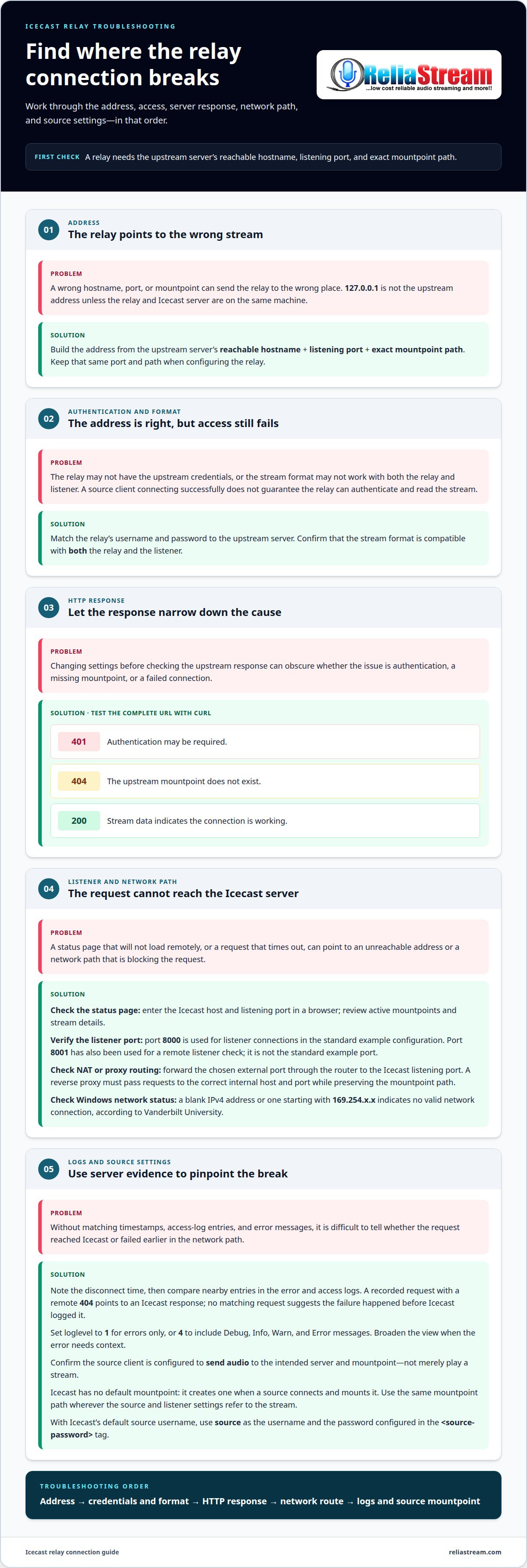
Most icecast server connection problems start with the wrong upstream address, port, or mountpoint. For a relay, use the upstream server’s reachable hostname, its listening port, and the exact mountpoint path; don’t use 127.0.0.1 unless the relay and Icecast server are on the same machine. A correct URL gets the relay pointed at the right stream. Then authentication, format, and network access determine whether it connects.
It’s frustrating when a stream works locally but fails as soon as another server tries to relay it. The cause is often one specific setting, not a need to rebuild everything. Check the URL first, then use the response and logs to narrow down the issue before changing settings.
This guide explains how to identify the upstream stream URL, test credentials and formats, and interpret common HTTP responses and Icecast log messages. It also covers source-client settings, mountpoints, listening ports, and firewall or NAT issues. Follow the steps in order to pinpoint where the connection breaks and restore the relay.
Key Takeaways
- Build the upstream URL from the reachable server hostname, listening port, and exact mountpoint path so the relay targets the right stream.
- Use HTTP responses and Icecast logs to narrow down whether the issue points to authentication, a missing mountpoint, or a failed connection.
- Check the source client’s credentials and mountpoint settings; Icecast creates a mountpoint when a source connects to it.
- On Windows, a blank IPv4 address or one starting with 169.254.x.x indicates no valid network connection, according to Vanderbilt University.
Upstream authentication and stream formats
Start with the upstream listener, then check access, stream format, and the network path. These steps help distinguish a bad URL from an authentication or buffering issue.
Check Upstream Authentication and Formats
Check the relay’s upstream credentials and format settings. Match the username and password to the upstream server, and confirm that the stream format works with both the relay and listener. A source client connecting successfully does not guarantee the relay can authenticate and read the stream.
Test the Upstream Stream URL
Test the complete upstream address, including hostname, listening port, and mountpoint. Use curl to request the stream. An HTTP 401 response can indicate required authentication; an HTTP 404 means the upstream mountpoint doesn’t exist. An HTTP 200 response with stream data indicates the connection is working.
- Open the status page. Enter the Icecast host and listening port in a browser. The status page shows active mountpoints and stream details. If the page doesn’t load remotely, check whether the address and port are reachable before changing credentials.
- Confirm the listener port. Icecast commonly uses port 8000 for listener connections with its standard example configuration. Set the listening port in the server’s listener configuration, then use that same port in the relay address. Port 8001 has also been used for a remote listener check; it isn’t the standard example port.
- Check the route through NAT or a proxy. Forward the chosen external port through the router to the Icecast server’s listening port. Configure a reverse proxy to pass requests to the correct internal host and port, preserving the mountpoint path. A timeout can indicate that something is preventing the request from reaching the server.
- Inspect network and buffering conditions. On Windows, a blank IPv4 address or one starting with 169.254.x.x indicates no valid network connection, according to Vanderbilt University. Check queue size and buffering when playback stutters: a queue that cannot absorb delivery interruptions can cause gaps, while excessive buffering can add delay.
Diagnosing errors in Icecast logs
Use the error log to identify the failure, then compare it with the access log. Matching timestamps can link a relay attempt to Icecast’s response.
Inspect Icecast Logs for Errors
Read the error log around the time the relay failed. Set Icecast’s loglevel to 1 to show errors only, or use 4 to include Debug, Info, Warn, and Error messages. Start with the narrowest useful view, then broaden it if the error lacks context. Check the access log too: it can show whether Icecast returned a remote 404 response.
Troubleshoot Connections on Windows and Linux
On Windows or Linux, compare the same Icecast evidence: timestamps, error messages, and access-log entries. First establish whether the request reached Icecast. If the access log records it, inspect the corresponding error entry. If there is no matching request, investigate the network path to the server.
- Record the failure time. Note when the relay disconnects, then inspect nearby entries in both logs. This makes it easier to match one connection attempt with its response.
- Read the error message first. Look for the specific failure, such as a rejected connection or a stream that ended unexpectedly. Avoid changing several settings before identifying what the log actually reports.
- Compare the access log. Check whether the request appears and whether Icecast produced a remote 404. A recorded request with a 404 points to a response from the server; no matching request suggests the failure happened before Icecast logged it.
- Adjust log detail deliberately. Use
1when you need an error-only view. Set4when Debug, Info, Warn, and Error messages can help explain the sequence. Return to focused logging after diagnosis. - Keep a short timeline. Pair each disconnect time with the relevant access and error entries. That record helps distinguish a repeated server response from an intermittent connection failure.
If log patterns point to persistent hosting-side issues, consider IceCast hosting options as a practical next step.
Icecast source clients and mountpoints
Trace the stream from its source client to the Icecast mountpoint. A mismatch at either end can stop the source from appearing.
- Confirm the source client’s role. The source is the software that sends audio to an Icecast server and connects it to a mountpoint. Check that the selected client is configured to publish to the intended server, rather than merely play a stream. Keep the source settings focused on that one connection while troubleshooting.
- Set the mountpoint in the source client. Icecast doesn’t have a default mountpoint. It creates one when a source connects and mounts it, so the mountpoint doesn’t need advance configuration. Use the same path wherever the source and listener settings refer to that stream. A path mismatch can make the expected stream appear unavailable.
- Check source authentication. With Icecast’s default source username, enter
sourceas the username and use the password configured in the<source-password>tag. A different password in the client prevents the source from completing authentication. Confirm which server configuration supplies the password before changing client settings. - Keep mountpoint names simple. Icecast permits mountpoint characters except U+0000. Still, avoid characters that need escaping under RFC 3986. Some players handle those characters inconsistently. A straightforward path reduces compatibility issues and makes it easier to spot typos between the source and listener address.
- Check whether the client is sending audio samples. Some streaming clients can send a silent audio source when no samples are available. That can help prevent a client from attempting to stream without audio data. If the source connects but no expected audio arrives, inspect the client’s input and sample flow.
- Trace client-to-server behavior. Libraries such as libshout handle socket connections and data timing for Icecast clients. If a client using libshout disconnects, isolate whether the socket closes or audio delivery stops. Test one source client at a time, and avoid assuming a configured fallback mount will work without testing the actual disconnect behavior.
Common causes of Icecast relay connection failures
Trace the failed connection from the listener back to Icecast. The cause is often somewhere in the network path, server settings, or delivery capacity.
-
Troubleshoot Connection Refused Errors
Start by confirming Icecast is listening on the intended interface and port. A server bound only to localhost won’t accept connections from another computer. The address 127.0.0.1 always refers to the local machine. If a remote request times out, something is preventing it from reaching the server; inspect the route before changing stream settings.
-
Check Server Ports and Firewall Settings
Check the listening port with
netstat, then inspect firewalls at both ends. A firewall or misconfigured NAT can block the connection even when Icecast is running. With NAT, forward the external port to the Icecast server’s listening port. A remote HTTP 404 means something responded, but it may not be Icecast. -
Resolve DNS, Hostname, and Certificate Errors
Use a public DNS hostname for remote access. Icecast’s
<hostname>setting should point to the server through an A or AAAA record. Don’t put 127.0.0.1 in a relay address used by another machine. For SSL failures, check that the public hostname, certificate, and reverse-proxy destination match the same stream route. -
Review Connection and Listener Limits
Check Icecast’s configured listener and connection limits against current usage. When a limit is reached, new listeners or relay connections may be rejected. Consider delivery capacity, too: temporary bandwidth drops or a server unable to deliver streams at the required rate can cause disconnections. Compare when failures occur with listener demand and available bandwidth.
Once the relay is stable, help listeners tune in on Google TV with the Google TV App.
The poster fixed the issue by changing the configuration from allowing only localhost connections to allowing all connections. The administrator also suggested checking netstat and the firewall, and forwarding NAT correctly.
A RadioBOSS user reported disconnections every 2 or 3 days.
ReliaStream
ReliaStream offers IceCast hosting for broadcasters who want their stream delivered from a hosted server instead of managing the streaming server themselves. If relay failures keep disrupting your setup, moving the stream to hosted IceCast can be a practical next step. The right bitrate plan depends on the audio quality you need and the bandwidth your stream must deliver. Available options include the 32 Kbps Hosting Plan, 64 Kbps Hosting Plan, 128 Kbps Hosting Plan, and 320 Kbps Hosting Plan. These plans give broadcasters bitrate choices for different streaming needs. If you’re ready to explore hosted IceCast for your station, contact ReliaStream to discuss your setup.
Keep Your Stream Moving Forward
Make your next relay test the starting point for a more resilient setup. Once the connection is stable, record the working upstream address and settings as a baseline. If icecast server connection problems return, you can compare changes instead of rebuilding the configuration from scratch.
If the fault persists across clients or keeps interrupting your broadcast, hosted IceCast can be a practical next step. ReliaStream provides hosted streaming for radio broadcasters. Describe what happens when the connection fails and what you want your stream to do next to get started.
Contact ReliaStream for IceCast help and take the next step toward a steadier broadcast. Keep building, keep testing, and keep your listeners tuned in.
Frequently Asked Questions
How do I find the correct upstream stream URL for my relay?
Use the address for the upstream listener, not your relay’s public listener address. Open the upstream status page to confirm the intended stream appears there. If the relay receives the wrong program, compare the mountpoint on the status page with the stream path in the relay settings. This can reveal confusion between source and listener addresses.
What Causes Icecast Relay Not Working?
An Icecast relay can fail because the upstream stream is unavailable, the server rejects access, or the network blocks the request. To diagnose Icecast server connection problems, test one part of the chain at a time: confirm the source is publishing, then check whether the relay can reach the upstream server. If the source is stable but the relay fails, focus on relay settings and network access.
What is a mountpoint?
A mountpoint is the named stream path Icecast uses to identify an audio feed. For example, a station could publish its main program on one path and a separate feed on another. Listeners on the same mountpoint hear the same stream, so playback is shared. Listeners sharing a mountpoint hear the same stream, so individual playback controls may not work independently.


