

A silent stream doesn’t always mean the broadcast itself has failed. If you’re wondering what to do when your radio stream is down, test it on another device and network first. Then check whether the problem lies with the player, your broadcast source, or the stream connection. This quick process of elimination helps you focus on the right fix instead of changing settings at random.
It’s frustrating when listeners can’t tune in, especially when you’re on air. A few targeted checks can help narrow down where the interruption is happening. If playback fails on just one device, the player or local connection may be the issue. If it fails across devices and networks, check the stream source and hosting setup next.
This guide walks through the checks in a practical order, explains what common symptoms can tell you, and helps you choose your next step. You’ll know when a playback test is enough, when to inspect your encoder settings, and when the stream connection needs attention. Follow the evidence to get your broadcast back online.
Key Takeaways
- Use the stream’s symptoms to narrow down whether the interruption comes from playback, the broadcast source, or the connection.
- Review encoder settings and reconnect the source if the stream is failing across devices.
- Choose your next troubleshooting step based on where playback breaks, rather than changing several settings at once.
- ReliaStream’s Alexa Streaming App can help listeners access your station through Alexa; hosting plans are another option when your stream setup needs a different fit.
What to do when my radio stream is down
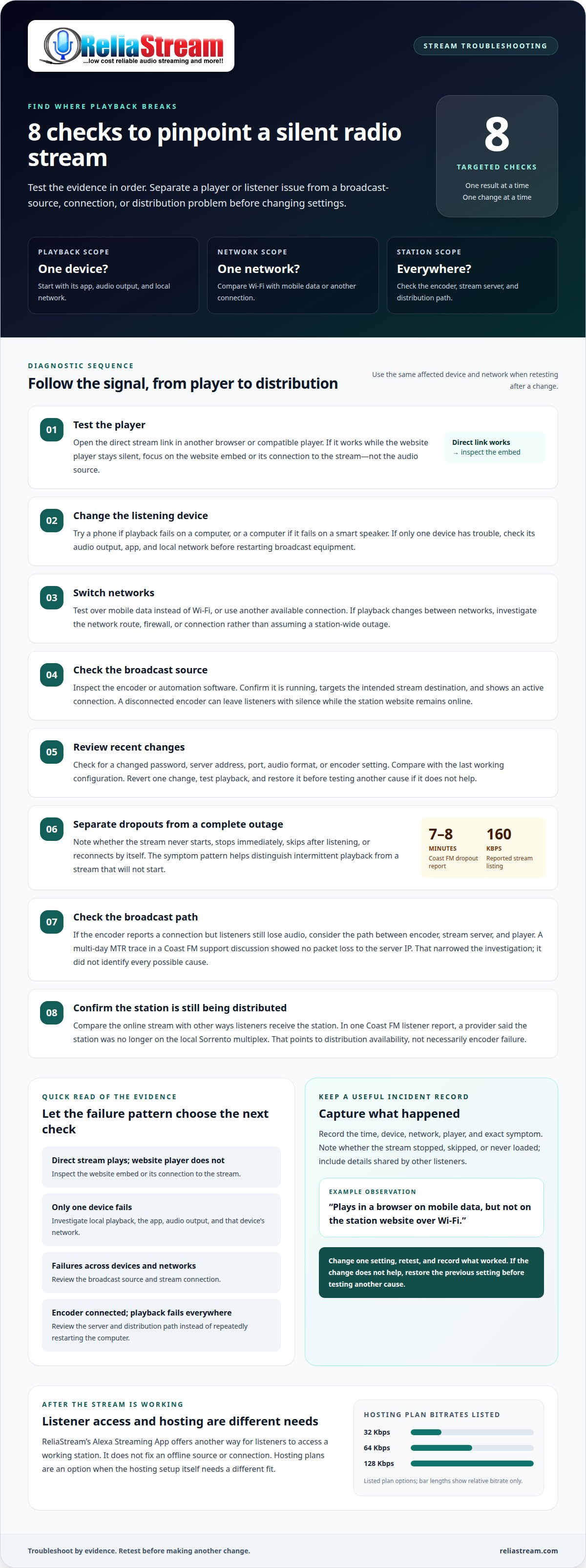
If you’re deciding what to do when your radio stream goes down, first identify where playback fails. A station can be broadcasting normally even when its online player, encoder connection, or a listener’s network has a problem. Test the stream on another device and a separate network, then use the results to guide your next check. This helps avoid random changes that create new problems.
Follow this sequence to isolate the fault before changing settings:
- Test the player. Open the station’s direct stream link in another browser or compatible player. If that works while the website player stays silent, focus on the website embed or its connection to the stream, not the audio source.
- Change the listening device. Try a phone if the stream fails on a computer, or a computer if it fails on a smart speaker. If only one device has trouble, check its audio output, app, and local network before restarting broadcast equipment.
- Switch networks. Test over mobile data instead of Wi-Fi, or use another available connection. If the stream plays on one network but not another, the difference points toward a network route, firewall, or connection issue rather than a station-wide outage.
- Check the broadcast source. Look at the encoder or automation software. Confirm it is running, using the intended stream destination, and showing an active connection. A disconnected encoder can leave listeners with silence even when the station website remains online.
- Review recent changes. Look for a changed password, server address, port, audio format, or encoder setting. Compare the current setup with the last working configuration. Revert one recent change at a time, then test playback before making another adjustment.
- Separate dropouts from a complete outage. Note whether the stream stops immediately, skips after listening, or reconnects by itself. Coast FM listeners described dropouts after about 7-8 minutes, while the stream was listed at 160 kbps. That pattern differs from a stream that never starts.
- Check the broadcast path. If the encoder reports a connection but listeners still lose audio, consider the path between the encoder, stream server, and player. A multi-day MTR trace in a Coast FM support discussion showed no packet loss to the server IP. That result narrowed the investigation, but did not by itself identify every possible cause.
- Confirm the station is still being distributed. Compare the online stream with other ways listeners receive the station. In one Coast FM listener report, a provider said the station was no longer on the local Sorrento multiplex. That points to distribution availability, not necessarily an encoder failure.
Keep a brief incident record as you test. Note the time, device, network, player, and exact symptom. Record whether the stream stopped, skipped, or never loaded. For example, “plays in a browser on mobile data, but not on the station website over Wi-Fi” points to a more specific issue than “the stream is broken.” If several listeners report the same failure, note any details they share.
Use each result to choose your next check. If a direct link works but the website player fails, inspect the embed. If only one device fails, investigate local playback. Failures across devices and networks, combined with an encoder disconnect, point toward the broadcast source or stream connection. If the encoder stays connected but playback fails everywhere, review the server and distribution path rather than repeatedly restarting the computer.
Make one change, then test again on the same device and network where you first noticed the problem. If playback returns, record the change so you know which setup works. If it doesn’t, restore the previous setting before testing another cause. This controlled approach keeps troubleshooting useful, whether the fault is in the player, encoder, network path, or station distribution.
ReliaStream: Alexa Streaming App
ReliaStream’s Alexa Streaming App gives listeners another way to access your station through Alexa. It’s a useful option when your stream is working and you want listeners to access it through an Alexa app as well as your existing player. It won’t fix a source or connection that is offline, so resolve the underlying stream fault first.
If the issue points to your hosting setup rather than listener access, ReliaStream also offers 32 Kbps, 64 Kbps, and 128 Kbps Hosting Plans. The right next step depends on what failed: a working stream that needs an Alexa listening option is different from a broadcast source that won’t connect.
To discuss an Alexa Streaming App for your station, contact ReliaStream.
Keep Your Next Broadcast Moving
Knowing what to do when your radio stream is down gives you more than a fix for today. It helps you prepare a calmer response for the next interruption. Decide how your team will share updates, who will handle listener questions, and where you’ll record what worked. A clear plan helps everyone focus on restoring the listening experience instead of scrambling for answers.
If you want to talk through your station’s streaming setup or listener access, contact ReliaStream for help. Bring the details that matter to your situation, and use the conversation to identify a practical next step. Every outage can show you where to make your operation stronger. Keep learning, keep broadcasting, and keep your listeners in the picture.


