
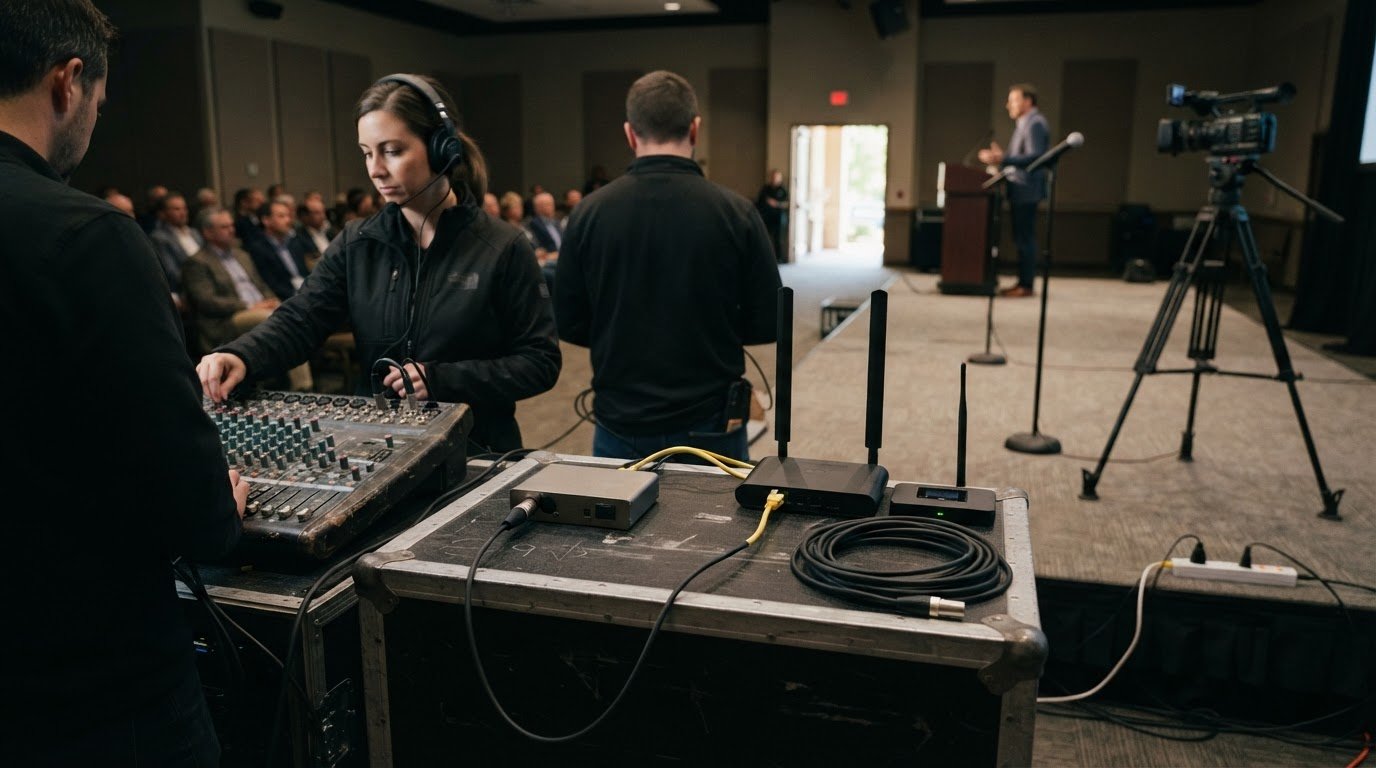
A polished remote broadcast is built before anyone hits Go Live. A remote broadcasting setup for live events needs a stable internet connection, clear audio, suitable production tools, and a backup plan. For a 1080p corporate livestream, plan for a sustained upload speed of 10 to 20 Mbps.
A remote broadcasting setup for live events brings presenters, cameras, audio feeds, and streaming tools together. A weak connection or unclear audio can distract viewers, so make each part dependable before the event begins.
This guide walks through the essentials, from choosing a dedicated wired connection and capturing audio from the room’s sound system to selecting production tools and rehearsing a backup plan. You’ll see what to prepare, what to test, and how to respond if picture or sound quality drops. Clear steps. Fewer surprises. A smoother live event.
Key Takeaways
- Plan for a sustained upload speed of 10 to 20 Mbps for a 1080p corporate livestream, and favor a dedicated wired connection over venue Wi-Fi.
- Capture audio from the room’s sound system so remote viewers can hear presenters and audience contributions clearly.
- Match cameras and production software to the event format, then rehearse how the director will switch between speakers and visuals.
- Prepare backup connectivity and test the full stream before going live so you can respond quickly if quality drops.
Internet connectivity and upload bandwidth
Plan the connection around the stream’s resolution, production method, and venue network. Test the actual upload path, not just the advertised connection speed.
For events in the United States, obtain permission to use music and other protected content, and arrange releases for featured participants where needed. Event and content rights depend on what the broadcast includes.
Setup costs vary with the equipment, staffing, connectivity, and production requirements. The price depends on the project and is provided after a quote request.
-
Assess Internet Speed and Stability
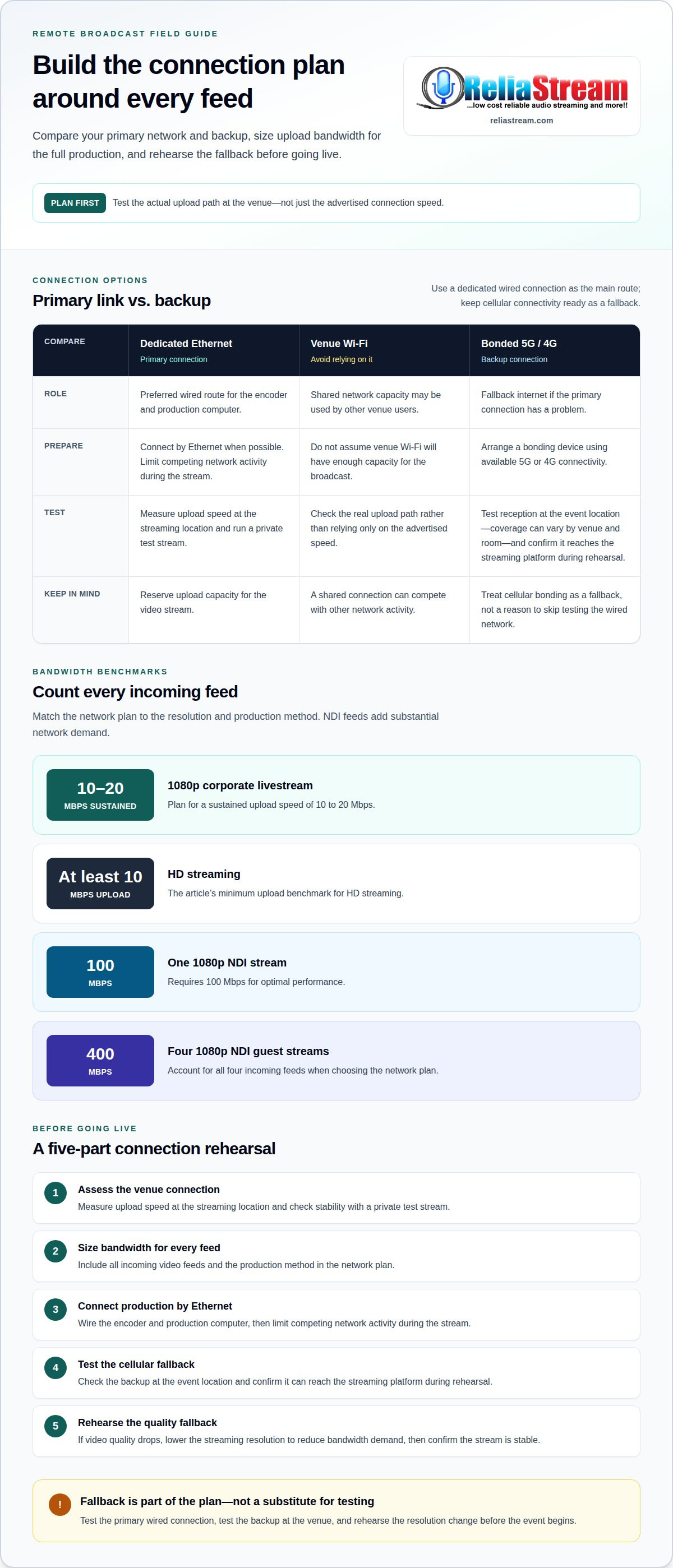
Measure upload speed at the streaming location, then run a private test stream to check stability. A 1080p corporate livestream typically needs a sustained upload speed of 10 to 20 Mbps; HD streaming needs at least 10 Mbps. Keep the connection dedicated and hardwired with Ethernet when possible. Avoid relying on venue Wi-Fi, which may share network capacity with other users.
-
Select Bonded 5G/4G Connectivity
Arrange a cellular bonding device as backup internet, using available 5G or 4G connectivity. Test the device at the event location because cellular reception can vary between venues and rooms. Confirm the backup connection can reach the streaming platform during rehearsal. Treat it as a fallback, not a reason to skip testing the primary wired network.
- Match bandwidth to production traffic. One 1080p NDI stream requires 100 Mbps for optimal performance; four 1080p NDI guest streams require 400 Mbps. Account for every incoming feed before choosing the network plan.
- Connect the encoder and production computer by Ethernet, then limit competing network activity during the stream. This helps reserve upload capacity for video.
- Decide on a fallback before going live. If video quality drops, lower the streaming resolution to reduce bandwidth demands, then confirm the stream is stable.
Follow a clear sequence: assess the venue connection, size bandwidth for every feed, connect by Ethernet, test a cellular backup, and rehearse changing the resolution. This gives the remote broadcast a practical route from setup to live stream.
Audio capture and audience microphones
Plan the audio path before framing the camera. Use the room’s sound system for the main feed, then add separate microphones so remote viewers can hear audience questions.
For accessibility, prepare captions for spoken content and audio description of important visual information, such as on-screen graphics or actions. Include both in the technical rehearsal to assess timing and clarity before the broadcast.
- Take program audio directly from the room’s sound system instead of relying only on a microphone pointed at a speaker. Ask the audio operator for a clean feed to the streaming setup, then listen for clear speech, music, and transitions during rehearsal.
- Give each remote presenter a clip-on lavalier or USB microphone rather than relying on a built-in computer microphone. Position a lavalier near the speaker’s mouth, or place a USB microphone close enough to capture speech without crowding the camera frame.
- Assign an audience microphone for questions and pass it to each speaker before they talk. Otherwise, online viewers may hear the presenter’s response but miss the question that prompted it.
- Test every microphone separately during the technical rehearsal. Ask presenters to speak at their normal volume, then listen for room echo, handling noise, and changes in loudness as they move. Adjust microphone placement before adding music or graphics.
- Set a clear audio sequence for the live program: mute unused microphones, open the presenter’s channel when they speak, and bring up the audience microphone for questions. A producer can monitor the stream while the camera operator handles framing, helping catch audio issues before they distract viewers.
- Test captions and audio description with the final audio mix. Confirm captions reflect the spoken words and descriptions identify visual details viewers cannot hear, such as a chart appearing on screen. Keep speech intelligible when descriptions or other audio play.
Production hardware and software considerations
Choose production tools to suit the event format, incoming feeds, and intended stream. Route each camera, microphone, and remote guest into a single live video workflow.
-
Compare RTMP, SRT, and WebRTC
Choose a protocol supported by both your encoder and streaming destination. RTMP is commonly used to send a live stream to a platform. SRT is designed to transport video over potentially unreliable networks, while WebRTC supports interactive, low-latency communication, often through a browser. Test the full path before choosing a protocol for the program.
-
Connect Remote Cameras, Microphones, and Guests
Bring each remote contributor into the production through a video-conference or contribution tool, then route their picture and sound into the switching workflow. Remote productions can use webcams and camera phones at separate locations. Check each guest’s framing, lighting, and sound, and confirm the director can select each feed independently.
- Choose camera coverage to suit the event. A professional corporate livestream should use at least one professional-grade camera, and two or more cameras benefit most corporate events. A wide shot establishes the room, while a closer view keeps the active speaker visible.
- Configure the production software with the program’s planned sources. Add speaker feeds, presentation slides, and prepared video clips as separate inputs. The director can switch live, insert intro videos, add titles or lower thirds, and cut between speakers.
- Map the run of show to production cues. Mark when slides appear, which camera covers each speaker, and when graphics or videos enter. This gives the director a clear sequence and helps prevent missed transitions during the live stream.
- Rehearse the full chain before the event. Confirm every source appears in the switcher, audio follows the correct speaker, and graphics are readable in the live output. Test the outgoing stream on its selected platform, not just inside the production software.
Backup plans and troubleshooting
Decide how to respond to each failure before the broadcast starts. A clear runbook helps the production team act quickly without disrupting the program.
- Write a fallback sequence for likely failures: lost video, missing audio, or a dropped stream. Assign someone to monitor the output and tell the director which source needs attention. Keep the sequence beside the production controls so the team can find it during a live transition.
- Rehearse with presenters and confirm the stream reaches its platform cleanly. Have the remote production team join the video meeting one hour before the program, then ask participants to join the director-hosted meeting fifteen minutes before it begins. Use these checks to spot login, framing, lighting, or sound issues.
- Plan what to do if the picture freezes. Switch to another camera or a prepared title card while the operator checks the affected feed. If bandwidth strain reduces picture quality, lower the resolution and confirm the stream recovers before returning to the main shot.
- For audio dropouts, determine whether the issue affects one microphone or the entire mix. Mute the faulty channel, use an available backup source, and have the presenter continue only after the director confirms the audio is clean. This keeps troubleshooting focused instead of changing several settings at once.
- Keep a separate way to communicate with presenters and crew if the production platform fails. A phone call or messaging channel lets the director give instructions while the team restores the connection. Record the chosen contact method in the runbook.
- Watch the actual output on the selected platforms, including YouTube when it’s the destination. Assign someone to monitor comments, questions, and technical quality, then log problems and fixes after the event. For internet radio streaming alongside live productions, explore MediaCP Plans and Centova Cast Plans.
ReliaStream
ReliaStream supports broadcasters who want to carry an event’s audio beyond the video production. Its ShoutCast and IceCast hosting plans provide a destination for internet radio streams, complementing a live video workflow rather than replacing its cameras, microphones, or production tools.
Choose a hosting plan that fits your audio stream: options include the 32 Kbps Hosting Plan, 64 Kbps Hosting Plan, 128 Kbps Hosting Plan, and 320 Kbps Hosting Plan. This is a useful next step when your event needs a dedicated internet radio stream or your broadcast extends an existing radio channel. For a video-only event, focus on the video platform and production setup described above.
For hosting that supports your event’s audio broadcast, contact ReliaStream.
Make Your Next Broadcast Easier to Run
Use each broadcast to improve the next one. After the event, note which production decisions made coordination easier and where handoffs slowed the team down. Apply those observations to refine the workflow, clarify roles, and make future planning more deliberate.
A remote broadcasting setup for live events can become a repeatable production process, not just a one-off arrangement. Keep a working version of your event plan and adapt it to each program’s presenters, audience, and format. This gives your team a clear starting point while leaving room for new ideas.
If your next event also needs an internet radio stream, ReliaStream’s hosting options can support that part of your broadcast. Take the next step when you’re ready to plan how audio hosting fits your production: Contact ReliaStream about your broadcast. Keep building, keep improving, and bring your next live event to the audience with confidence.
Frequently Asked Questions
What does the experience look like from behind the scenes?
A producer coordinates the rundown while the director manages the live program. For example, as a remote guest finishes speaking, the director can cue the next presenter while the producer checks incoming questions. A separate operator can monitor the audience-facing output, not just the production preview. This division of attention helps the team catch mismatches viewers might otherwise see.
What is remote live stream broadcasting?
Remote live stream broadcasting is a produced video program assembled from people or content in separate locations and delivered online. Unlike a basic video call, it lets a director shape what viewers see instead of simply showing everyone in one meeting. A company presentation, for example, could combine a remote speaker, prepared visuals, and a live host in one program.
What equipment is needed for a remote broadcasting setup for live events?
Plan for a computer capable of running the production software, a camera or webcam for each on-site view, and suitable audio inputs. A capture interface connects compatible camera signals to the computer. Add monitoring headphones so an operator can hear the program mix, along with lighting and power connections suited to the venue. The exact kit depends on the number of sources and the event format.
What internet upload speed and connection backup are needed for live event streaming?
Size upload capacity for the stream and all incoming feeds, then test it with those sources active. Network use at the venue can change during an event, so assess the connection under realistic conditions, not just during a quiet setup. Keep a backup path, such as cellular service, that does not depend on the same venue connection. Test the switch before the event.
Which platforms and software are best for remote live event broadcasting?
Choose a viewing platform based on where the intended audience can access the event, then select production software that supports your planned sources and output. YouTube or Facebook may suit events whose viewers already use those platforms. The viewing platform hosts the stream; production software assembles and manages the program. Confirm the software can deliver to your chosen destination before building the show around it.
How do you prevent audio, video, and connectivity problems during a live broadcast?
Use a rehearsal to catch issues, then troubleshoot by isolating one part of the signal chain at a time. If the local preview looks right but viewers report a problem, inspect the outgoing stream and platform destination. If one guest’s picture fails, switch away from that source while checking its connection. Keep a prepared holding visual ready to cover a brief interruption.


