

Opening more ports can make your Icecast server less secure without making it more reachable. A sound icecast server firewall configuration follows the actual stream path: the port Icecast listens on, the source client connecting to its mountpoint, and the route listeners take from outside your network.
If listeners can’t reach your stream, the block could be in the server firewall, the router’s NAT settings, or the network path between them. If your source client can’t connect, opening a listener port may not solve the problem. These settings are easy to mix up, so trace the connection before changing rules.
This guide shows you how to find the active listening port in your Icecast configuration, apply a narrow firewall rule, and test access from outside your local network. The default TCP port is 8000, but your active configuration is the one to trust. You’ll also learn how to distinguish an Icecast problem from a host firewall or network routing issue. If you’d rather not administer the server infrastructure yourself, managed IceCast hosting is another option.
Key Takeaways
- Trace the audio path from source client to Icecast server, then from server to listeners, to identify which traffic needs access.
- Check the active Icecast configuration for its listening port. Treat port 8000 as a common default, not an assumption.
- Build your icecast server firewall configuration around the required port and traffic, and check host, cloud, and router rules for overlapping blocks.
- Test from outside your local network, then compare service status, listening sockets, logs, and firewall counters to narrow down failures.
- If you’d rather focus on broadcasting than server administration, consider managed IceCast hosting with SSL-secured links and control panel access.
What Does an Icecast Server Firewall Configuration Need to Allow?
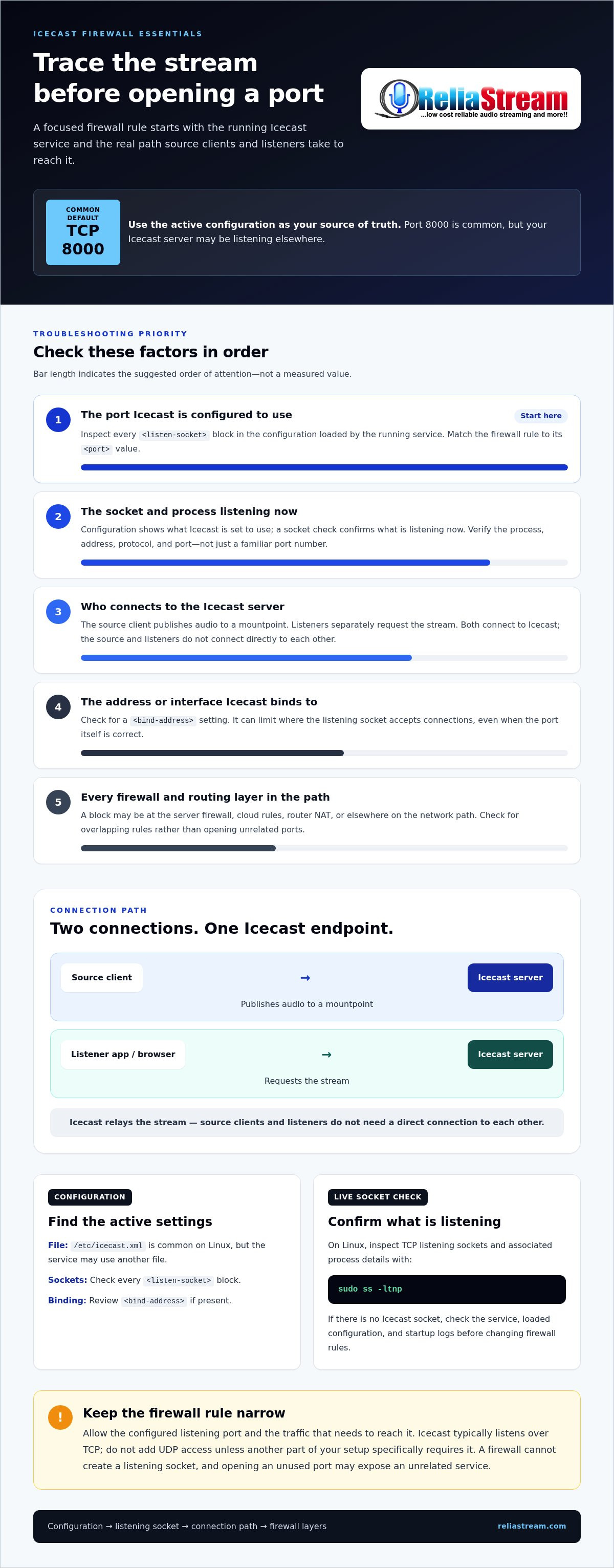
A firewall rule should allow the connections your broadcast needs while keeping unrelated services unreachable. For Icecast, that means identifying who connects to the server and in which direction. An icecast server firewall configuration is not a reason to open a range of ports. It should allow the service’s active listening port and the traffic that needs to reach it.
Icecast is the shared endpoint. Your source client sends audio to it, and listeners request that audio from it. The source and listeners don’t connect directly to each other.
How source clients, listeners, and Icecast connect
The source software initiates a connection to Icecast, authenticates, and publishes audio to a mountpoint, which identifies the stream. A listener app or browser makes a separate connection to the Icecast server and requests that stream. Both connections arrive at the same server, but they serve different roles.
This distinction helps identify which firewall needs attention. The server’s firewall must allow incoming connections to Icecast from source clients and listeners. A restrictive outbound firewall on the source client’s network may also need to permit its connection to the server. Listener devices initiate outbound requests too, so they don’t need an inbound rule exposing them to the internet. Stateful firewalls generally track initiated connections and allow related responses, though network policies can vary.
- Source to server: audio is published to the mountpoint.
- Listener to server: a browser or app requests the stream.
- Source to listener: no direct connection is needed; Icecast relays the stream.
Focus on allowing the necessary traffic to the Icecast service, rather than opening ports on every device involved in broadcasting.
Firewall rules versus Icecast configuration
These settings do different jobs. Icecast’s configuration defines how the server behaves, including which port it listens on. The firewall controls whether network traffic can reach that listening service. A correct firewall rule can’t make Icecast listen on a port its configuration doesn’t use. Likewise, a correctly configured Icecast service remains unreachable if a firewall blocks its port.
Port 8000 is Icecast’s common default TCP port, not a universal answer. The active configuration is the source of truth. If it specifies a different listening port, a rule for 8000 won’t open access to the service. Permitting a port Icecast isn’t using won’t fix the connection and may expose an unrelated service. The Icecast streaming media project overview provides broader context on the server and its streaming role.
Keep the rule narrow: permit the configured listening port and avoid allowing unrelated inbound traffic just to make a test succeed. If you’re comparing server options, this ShoutCast and IceCast comparison can help explain how the platforms differ. For firewall access, start with the actual connection path and listening settings.
Find the Icecast Listening Port Before Changing Firewall Rules
Don’t build a firewall rule around a port number from a generic guide. Icecast commonly uses TCP port 8000, but the active server configuration determines which port your firewall must allow. Match three things: the running Icecast process, its listening socket, and the firewall rule. If they don’t line up, changing the firewall may not fix the connection.
Check the port and bind settings in icecast.xml
Inspect the configuration file used by the running service. On many Linux installations, the path is /etc/icecast.xml, but a service may start with a different file. If the location isn’t clear, check the service settings or startup command. In the XML, find each <listen-socket> block and note the <port> value. Icecast can have more than one listening socket, so check every block.
Also check for a <bind-address> setting. It can limit the socket to a particular address or interface, affecting where the server accepts connections. Make a backup before editing. For example, on Linux, sudo cp /etc/icecast.xml /etc/icecast.xml.bak saves a copy if that’s the active path. After a change, check that the XML is well formed with xmllint --noout /etc/icecast.xml, if that tool is installed. The Icecast official documentation on configuration explains the available settings.
Check which service is listening
Configuration shows what Icecast is set to use; a socket check shows what’s listening now. On Linux, run sudo ss -ltnp to list TCP listening sockets and associated process details, where available. Find the Icecast process and compare its port with the configured <port>. A line ending in :8000, for example, indicates a listener on that port. Confirm the process and address rather than relying on the number alone.
If you use a different operating system or firewall tool, use its equivalent for inspecting sockets. Commands and service names vary by distribution. If there’s no Icecast socket, check whether the service started, which configuration file it loaded, and its startup logs before changing firewall rules. A firewall can block traffic, but it can’t create a listening socket.
Match the rule to the socket’s actual protocol and port. Icecast’s listener is typically TCP; don’t add UDP access unless another part of your setup specifically needs it. Review admin and status access, relay connections, and any reverse-proxy routes separately. They may use the same listener, a different configured socket, or a proxy-facing port. Expose only the paths your setup needs. If you’d rather focus on broadcasting than server administration, professional IceCast hosting is an alternative.
Compare Host, Cloud, and Router Firewalls for Icecast
The server’s firewall may not be the one blocking the stream. Traffic can pass through several layers before it reaches Icecast, and each layer protects a different machine or network. Allowing the stream at one layer won’t help if another layer still denies it. Trace the route and check each point where traffic can be filtered.
Here’s the practical difference:
| Layer | What it protects | Icecast access to check |
|---|---|---|
| Host firewall | The server’s operating system | Allow inbound traffic to the configured stream port |
| Cloud security group | The virtual server at the hosting-provider network edge | Allow the required inbound port before traffic reaches the server |
| Router or NAT | A private network behind a public router | Forward the stream port to the server’s private address |
Host firewall or cloud security rule?
A host firewall filters traffic on the server itself. A cloud security group or provider-level firewall filters traffic before it reaches the virtual machine. If both are active, both must permit the configured Icecast port and protocol. An open host rule won’t overcome a cloud rule that drops the request upstream. A provider rule alone won’t help if the operating system blocks the connection.
Use a specific inbound rule for the stream port, not a broad range of ports or unrestricted access to every service. Keep management access separate from listener access. Atlantic.Net’s Icecast installation and firewall guide offers a practical example of provider-level setup considerations.
When a router or NAT rule matters
A server with a public address may be reachable directly, subject to its host and provider firewalls. If Icecast runs on a computer inside a home or office network, the router usually needs a port-forwarding rule. That rule sends incoming traffic on the public side to the correct private address and port inside the network. The server’s local firewall may also need to allow the same traffic.
Keep the destination precise. Forward only the required stream port to the Icecast machine, and don’t expose an admin interface just because listeners need the audio stream. If remote administration is needed, restrict that access separately instead of combining it with the listener rule.
The safest icecast server firewall configuration stays narrow at every layer: allow the required stream traffic, avoid blanket port ranges, and review each control point independently. If external access fails, confirm that the request can pass through the provider rule, host firewall, and router or NAT path that applies to your setup.
Configure and Test Icecast Firewall Access Step by Step
Work through the checks in order. A firewall rule only helps if Icecast is running, listening on the expected port, and reachable through every network layer in the path. These Linux examples are templates, not commands to paste blindly. Replace PORT with the TCP port you verified in the active configuration, and use the firewall tool managing your server.
- Verify the service. On a Linux system using systemd, check sudo systemctl status icecast2. The service may have a different name on your distribution. If it isn’t running, investigate its startup status and logs before opening ports.
- Confirm the listening socket. Run sudo ss -ltnp and check that Icecast is listening on the configured port and an address that accepts the intended connections. A service bound only to a local interface won’t be reachable externally through a firewall rule.
- Add a narrow inbound rule. Allow TCP traffic to that port only. Avoid broad port ranges and unrelated services.
- Test from outside the server’s network. Use a separate network, such as a phone connection with Wi-Fi disabled, and request the full stream URL.
Add a narrow inbound rule for the configured port
Choose the example that matches your Linux firewall. On a distribution using UFW, the template is sudo ufw allow PORT/tcp. On a system using firewalld, the equivalent pattern is sudo firewall-cmd --permanent --add-port=PORT/tcp, followed by sudo firewall-cmd --reload. Replace PORT in each command with the verified number. UFW and firewalld syntax, availability, and defaults vary by distribution, so don’t run both examples as if they’re interchangeable. Provider firewall consoles have separate controls, so configure that layer too if it applies.
Source restrictions can reduce exposure when you know the permitted source addresses and don’t need access from the general public. Listener addresses are different: public listeners can connect from changing networks and addresses. For a public stream, an IP restriction on the listener port can block intended audiences. Keep administrative access separate and restricted instead of adding it to a public listener rule.
Verify the stream from outside the server
Once local checks pass, open the stream URL from a network that doesn’t share the server’s local connection. Confirm that the hostname resolves to the right server, the URL uses the correct port, and the mountpoint matches the working Icecast setup. A port-only connection test can show whether a socket is reachable, but a listener app or browser test confirms that the actual mountpoint responds.
If the stream uses HTTPS, test the secure URL and confirm which endpoint handles the secure connection. The TLS endpoint may be Icecast itself or a proxy, depending on your setup. If the test fails, note the exact error and check the firewall layer, routing, DNS, and mountpoint rather than opening additional ports at random.
Prefer broadcasting without managing this server setup yourself? Explore professional IceCast hosting with SSL-secured stream links.
Troubleshoot Icecast Firewall Errors or Choose Managed Hosting
A failed stream doesn’t automatically mean the firewall is at fault. Start with the symptom, then test the next likely layer. Check Icecast’s service status, listening sockets, logs, and firewall counters. Together, these checks help distinguish a service failure from a blocked connection, incorrect route, or unavailable mountpoint.
Diagnose connection timeouts, refusals, and unreachable streams
Use the error as a clue, not a verdict. A connection refusal often means the server responded but nothing is accepting connections at that address and port. Check that Icecast is running and listening on the expected interface and port. Review its logs for startup errors or configuration problems. A timeout suggests the request may be dropped along the way, so inspect firewall rules and routing at each layer.
Test locally on the server first, then from another device on the same network, and finally from a separate external network. If local access works but external access fails, focus on filtering or routing between the internet and the server. Check the host firewall, cloud security rules, and router forwarding if the server sits behind NAT. Firewall counters, where available, can show whether matching traffic is being allowed or dropped.
If the server responds but the stream is missing, look beyond the port. Confirm that the source client is connected and publishing, and that the requested mountpoint matches the source’s configured mountpoint. Check Icecast logs for source connection or mountpoint errors. If a hostname fails but the server responds by IP address, investigate DNS resolution and whether the hostname points to the intended server.
- Refusal: check service status, listening socket, address, and port.
- Timeout: inspect firewall rules, routing, and NAT along the connection path.
- Wrong destination: verify DNS and the server address.
- Server reachable, stream missing: check source status, mountpoint, and Icecast logs.
Work through these checks before changing rules. A disciplined icecast server firewall configuration keeps troubleshooting focused instead of exposing extra ports that don’t address the cause.
When managed IceCast hosting fits better
Self-managed IceCast gives you control over the server, but you’re also responsible for its operating system, firewall layers, network access, and ongoing troubleshooting. Managed hosting suits broadcasters who would rather concentrate on programming and streaming than administering that infrastructure. It moves server administration away from your own machine, while the stream still needs to be configured correctly for your audience and source.
ReliaStream provides professional IceCast hosting with SSL-secured links and access to control panels such as Centova Cast and MediaCP. If you’ve completed the technical checks and would prefer a hosted setup, explore ReliaStream IceCast hosting.
Make Your Next Broadcast Easier to Manage
A reliable stream depends on more than a rule that works today. Treat your icecast server firewall configuration as part of your broadcast setup: record the access you’ve allowed and revisit it when the server or network changes. That gives you a clear starting point the next time a connection fails, without widening access just to get back on air.
Then decide where you want to spend your effort. If maintaining server infrastructure is distracting you from programming and growing your audience, hosted IceCast can simplify that side of the operation. ReliaStream provides professional ShoutCast and IceCast hosting, with SSL-secured stream links and Centova Cast or MediaCP control panel options.
Ready to shift more attention back to broadcasting? Explore ReliaStream IceCast hosting for a hosted setup. Keep building, keep improving, and get your stream ready for more listeners.
Frequently Asked Questions
Is port 8000 always the port I need to open?
No. Port 8000 is common, but it isn’t universal. Check the active Icecast listen-socket configuration, then compare it with the server’s actual listening sockets. If those values differ, investigate which configuration the running process loaded before adding a rule. Match the firewall rule to the port and protocol in use. Copying a default blindly can leave the stream blocked or expose a port unrelated to Icecast.
Do Icecast listeners need an inbound TCP or UDP firewall rule?
Typical Icecast HTTP audio streams use TCP, so listener access generally needs a TCP rule. Don’t add UDP simply because another streaming system uses it. A proxy, custom configuration, or related service can change which endpoint receives the connection, so check the actual listener and proxy setup first. If you’re unsure which protocol is active, inspect the listening sockets and stream URL before changing firewall policy.
Can I restrict the Icecast firewall rule to my source client’s IP address?
Yes, if the source client connects from a known, stable IP address and your rule is intended to permit that source. Listener access is different: public listeners can arrive from many addresses, so restricting the stream port to the source IP may prevent audiences from connecting. Keep administration access restricted separately. After applying an IP limit, test a source connection and a listener connection from networks that should be allowed.
Why does my Icecast stream work locally but not from the internet?
Local playback confirms only that the service responds within the local path. External access can still fail because of a host firewall, cloud security rule, missing router forwarding, or incorrect public address. Check that Icecast listens on an interface reachable from outside, then test using the public hostname or address from a separate network. If the hostname fails but the address works, investigate DNS rather than changing the Icecast port.
How can I test whether an Icecast port is reachable from outside?
From a network outside the server’s LAN, test the public hostname and configured port, then request the expected stream path in a browser or player. A port check can confirm that a connection reaches a listening endpoint, but it can’t prove that the source is publishing or that the mountpoint exists. Compare the external result with Icecast status and logs. A reachable port with no audio points to a different issue than a timeout.
Does enabling SSL mean I can close the Icecast firewall port?
No. SSL protects data in transit, but listeners still need to reach the endpoint that serves the stream. The exposed port depends on your setup: Icecast may terminate TLS itself, or a proxy or other front end may handle it and pass requests onward. Trace the public connection to its TLS endpoint, then allow only the access that architecture requires. Don’t close a port until you’ve tested the replacement path externally.
What should I check if the firewall allows the port but listeners still cannot connect?
Confirm Icecast is running, listening on the configured port, and bound to an interface reachable by listeners. Then check whether the hostname resolves to the correct public address, the mountpoint is available, and any provider-level filtering permits the request. If the service won’t start, validate the XML configuration and inspect Icecast logs for errors. This helps distinguish a startup or mountpoint problem from a network block.


