

What if the error log points to where your stream is failing, but you’re looking in the wrong place? When a station drops or an encoder won’t connect, restarting the server or changing settings can interrupt a live broadcast and make useful clues harder to find. This shoutcast server error log guide starts with a safer step: capture the relevant message and its context before changing anything.
Logs may be available through a hosting control panel or directly in the server environment, depending on your setup. A technical message can also be hard to connect to what listeners hear. This guide explains where to look, how to assess clues such as a 401 connection error or a directory response issue, and what to check before making a change. Follow the evidence across the encoder, stream, and directory, preserve the original details, and make one targeted change at a time.
Key Takeaways
- Use the shoutcast server error log guide to narrow down the problem before changing a live station setup.
- Look for logs in the server environment or hosting panel. Their location and availability depend on the setup.
- Connect error clues to the relevant layer, such as the encoder, stream, or directory, rather than treating one message as proof of the cause.
- Match log timestamps to listener symptoms, preserve the original configuration, and test one change at a time.
- Use panel information for the checks it supports, and escalate when the evidence points to server-side access you don’t have.
What a ShoutCast server error log can, and cannot, tell you
Use log evidence to narrow down the problem before changing a live setup. An error log records events or problems reported by software while it runs. The messages and details available for ShoutCast depend on the DNAS version and hosting setup, so don’t assume every installation uses the same format or exposes the same information.
A ShoutCast error log is version- and hosting-dependent evidence of reported events, not a complete diagnosis of every stream failure. It can help identify where to investigate, but it shows only part of the broadcast path. For background on the software and how it functions, see the Shoutcast Wikipedia article.
Silence, a failed connection, and intermittent playback describe what a listener experiences, not necessarily what failed. A server issue can make a stream unreachable, but an encoder problem, network route, incorrect stream URL, or listener’s own connection can produce similar reports. Treat the symptom as a starting point, then compare it with what the log records.
Which parts of the broadcast path can produce errors?
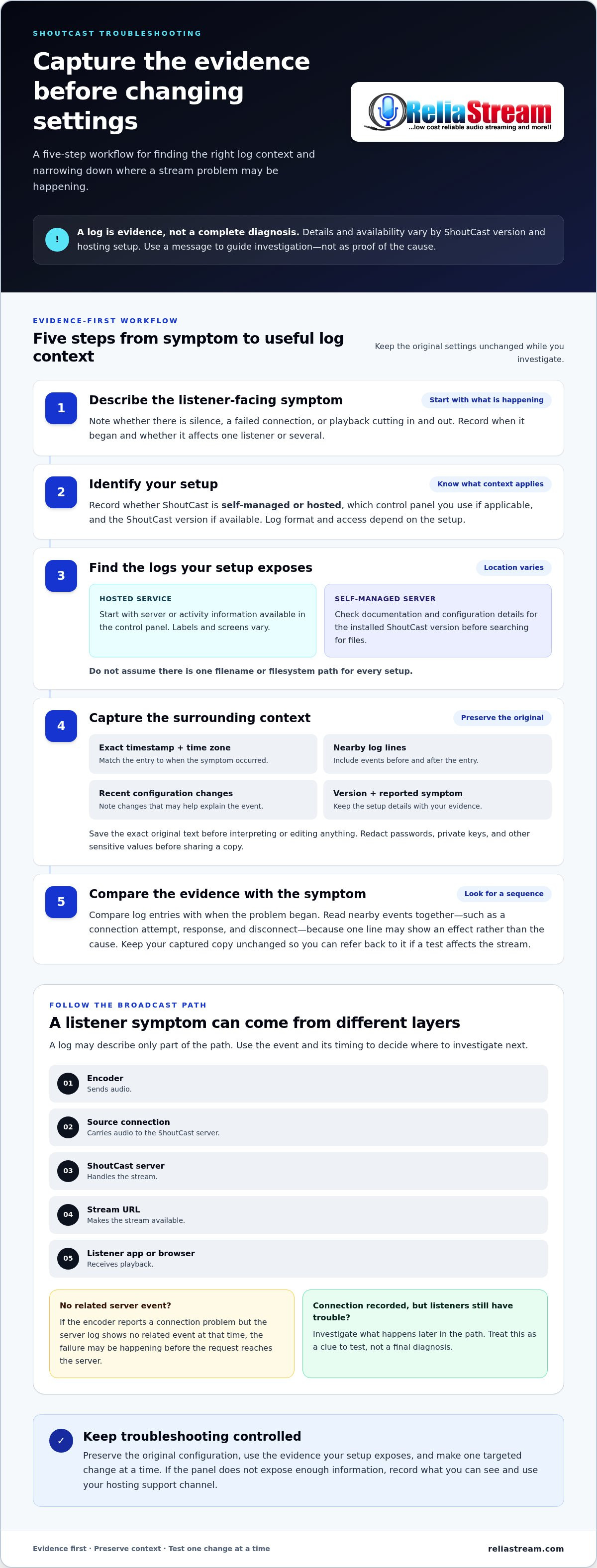
Think of the stream as several linked layers: the encoder sends audio, a source connection carries it to the ShoutCast server, the server handles the stream, a stream URL makes it available, and a listener’s app or browser receives playback. A log message may concern server configuration, an incoming connection, or stream delivery. It may not describe every layer, so a listener report alone doesn’t prove the server is at fault.
For example, if an encoder reports a connection problem but the server log shows no related event at that time, the failure may be happening before the request reaches the server. If the server records a connection but listeners still report trouble, investigate what happens later in the path. These are clues to test, not final diagnoses.
Why one error line rarely tells the whole story
Read a message alongside nearby events. If timestamps are available, compare them with when the symptom began. Look for a sequence, such as a connection attempt, a response, and then a disconnect. The first visible error may follow an earlier failure, while a later message may describe the effects rather than the cause.
Wording and detail vary by ShoutCast version and hosting setup. A standalone installation may expose information differently from a hosted service’s control panel. A short message may not include enough context to identify the failing component, so don’t apply a universal fix based on one line.
The useful question isn’t simply, “What does this message mean?” Ask what was happening at that time, which part of the broadcast path could have generated the entry, and what other evidence supports that explanation. Keep the original settings unchanged while you investigate. A careful diagnosis helps avoid turning a small issue into an avoidable interruption.
How to find and safely capture your ShoutCast error log
Start with evidence, not settings. Use this process to locate the information your setup exposes and preserve enough context to make it useful. The route depends on whether you manage a standalone installation or use hosted ShoutCast service, so don’t rely on a filename or menu path that may not apply to your server.
- Note the symptom. Describe what’s happening, such as silence, a failed connection, or playback cutting in and out. Record when it began and whether it affects one listener or several.
- Identify your setup. Note whether ShoutCast is self-managed or hosted, which control panel you use, if applicable, and the ShoutCast version if available. This gives you context for finding and interpreting the information.
- Locate the available logs. For hosted service, start with the server or activity information in your control panel. For a self-managed installation, consult documentation and configuration details for the installed version. Don’t assume there is one filename or filesystem path for every setup.
- Capture the relevant context. Save the event’s exact timestamp, time zone, surrounding log lines, and any recent configuration changes. Preserve the original text before trying to interpret or edit anything.
- Inspect the evidence. Compare the entries with the time of the reported symptom. Keep the captured copy unchanged so you can refer back to it if a test affects the stream.
Where to look in a hosted or self-managed setup
For hosted service, start with the server or event information available in your panel. Labels and screens vary, so look for log-related details without relying on a particular click sequence. If you use Centova Cast or MediaCP, this Centova Cast and MediaCP comparison explains the control-panel context. With a self-managed server, use documentation that matches your installed ShoutCast version before searching for files or changing configuration.
Capture useful evidence before troubleshooting
Save the lines around the relevant event, not only the one that looks like an error. Nearby entries may show what happened immediately before or after it. Note the listener-facing symptom, when it started, and whether it affects one listener or several. These details help connect a report to the right event rather than relying on memory.
Keep the original log text intact, but redact passwords, private keys, and other sensitive values before sharing a copy. Include the time zone, ShoutCast version, and recent changes in your notes. If the panel doesn’t expose enough information, record what you can see and use your hosting support channel as the next step. Broadcasters looking for panel-based stream management can explore ReliaStream ShoutCast hosting, with Centova Cast or MediaCP options.
How to interpret common ShoutCast error-log clues
Read log entries as clues about a symptom and a possible layer, not as automatic diagnoses. A message can help you decide what to check next, but it may not reveal the root cause on its own. A log clue narrows the investigation; it doesn’t independently confirm the root cause.
Use the table to organize what you see. Examples and wording vary by ShoutCast version and hosting setup. Before acting on a specific message, compare it with documentation for your installed version and the information your host makes available.
| Clue category | What it may indicate | Safe next check |
|---|---|---|
| Source or connection event | A source connection attempt, interruption, or rejection may direct attention to the encoder-to-server link or source configuration. | Compare the timestamp with the encoder’s status and the reported interruption. Review the relevant settings before changing them. |
| SSL or HTTPS access | A secure-link warning or browser access problem may concern the HTTPS connection. It doesn’t prove the audio server has stopped serving a stream. | Compare access through the secure stream URL with server and source activity. Check SSL details against documentation for your setup. |
| Directory response | A message about waiting for a directory response may relate to station listing or directory communication, not listener playback. | Check whether the stream itself is reachable and playing separately from its directory listing status. |
| Repeated disconnects or errors | A recurring pattern may indicate a connection that repeatedly drops, but the entry alone won’t identify why. | Compare the timing and sequence of entries with encoder status and listener reports before considering a restart or edit. |
Connection and source-related clues
Source connection entries can focus your investigation on the path between the encoder and server. Check whether the event lines up with the encoder showing a failed or interrupted connection. If the times don’t match, look for a time-zone difference or a delay between the reported symptom and the captured event. Don’t change a port, password, or encoder setting based on a vague connection clue. First confirm that the message and configuration apply to your ShoutCast version.
SSL, directory, and repeated-error clues
SSL or HTTPS and directory-response messages describe issue categories, not universal diagnoses. A secure URL failing while another access route works calls for a different investigation from a server that has stopped accepting a source. A directory listing issue can also be separate from whether listeners can reach the audio stream. Check each function separately, then compare the results with the log.
For repeated messages, look for a pattern. Do they appear with each reported interruption, only during source reconnects, or when playback seems normal? A burst of messages can be a secondary effect. Preserve the relevant entries and configuration before testing one explanation. The guide is most useful when the message, timestamp, and symptom agree. If they don’t, keep investigating instead of applying a one-line fix.
A safe step-by-step workflow for troubleshooting ShoutCast log errors
A useful log becomes more powerful when you turn it into a controlled test. Don’t change settings at random in the hope that playback returns. Connect the reported symptom to a timestamp and a likely part of the broadcast path, then test one explanation while keeping the original setup recoverable.
- Define the symptom. Describe what listeners experience, when it began, and whether it affects one listener, several listeners, or everyone. “Playback stops intermittently” gives you more to compare than “the stream is broken.”
- Match the timestamp. Compare the symptom’s start time with the log and note the time zone. Check the entries immediately around the event, not only the line that looks most alarming.
- Identify the likely layer. Compare the log with encoder state, server status, and access to the affected stream link. Decide which part of the path the evidence points toward before choosing a test.
- Test one hypothesis. Start with read-only checks. If the evidence supports changing a setting, save the original configuration and adjust only one relevant item. Avoid combining changes, which makes it difficult to identify what helped.
- Retest and record. Check the same symptom again and compare the new log pattern with the original. Record whether playback changed, whether the message returned, and what you changed. Keep, refine, or reverse the edit based on that evidence.
Run one controlled test at a time
Compare the event time with encoder status, server status, and the affected stream link. When practical, test playback from another device or network without changing other variables. This can help distinguish a broader stream issue from a problem isolated to one listener’s setup. Keep a brief change log with the time, setting changed, and observed result. Small tests produce clearer answers.
If the stream remains down or the pattern suggests a wider interruption, the steps for fixing ShoutCast downtime offer a broader recovery workflow. Use them alongside your captured evidence, not as a reason to skip controlled checks.
Know when the log calls for escalation
Escalate when a hosted setup restricts access to the server files or controls needed for investigation, when the issue persists after a careful test, or when the evidence points to server-side configuration you can’t manage. Provide the exact timestamps, time zone, ShoutCast version, relevant message text, listener symptoms, and actions already attempted. Redact passwords, private keys, and private connection details.
Clear evidence makes the next troubleshooting step more focused. If managed ShoutCast hosting with Centova Cast or MediaCP fits your workflow, explore ReliaStream ShoutCast hosting as an option for managing your station setup.
Use better hosting and control-panel access to manage ShoutCast errors
A control panel can make routine station management easier, but it won’t show every part of the server. Use it to review the status or activity information and manage the settings it exposes. If an error points to server-side configuration or files you can’t access, you’ll need the right server access or help through your hosting support channel.
That distinction matters once you’ve gathered evidence. A panel supports your troubleshooting workflow, but the information it provides depends on the panel and hosting configuration. Don’t assume it displays every ShoutCast log or diagnostic detail. For a comparison of the panel options, see this guide to Centova Cast and MediaCP.
What a control panel can add to the troubleshooting process
Depending on your setup, a control panel may bring station management and some server or activity information into one interface. Review what it provides and compare it with the time of the reported stream problem. If the evidence requires access to server-side configuration or logs the panel doesn’t expose, don’t guess at hidden paths or settings. Use the access your hosting arrangement provides and escalate questions that require administrator-level visibility.
When a hosted ShoutCast setup is a practical next step
Managed hosting can suit broadcasters who want ShoutCast hosting and station management through a professional hosting service. ReliaStream provides ShoutCast hosting with Centova Cast or MediaCP control-panel options. SSL streaming and Auto DJ are also available as part of the hosting offering. These features support station management, but they don’t guarantee error-free operation or identify the cause of a particular log message.
Use your troubleshooting notes to decide what you need from a setup. Do you need a panel for station management? Is the issue beyond the controls you can access? Does your workflow call for SSL streaming or Auto DJ? These are practical needs to weigh when considering hosted service. The same troubleshooting principle applies: gather evidence, then make a targeted decision about settings, access, or hosting.
If a managed setup aligns with your station’s needs, explore ReliaStream ShoutCast hosting. A suitable control-panel workflow can help you manage the information and settings available to you, while server-side issues still require appropriate access and diagnosis.
Turn your troubleshooting notes into a stronger station setup
Use each incident to improve your station’s operating plan. Decide which information you need at hand during a stream issue, which tasks belong in your control panel, and which require server-side access. Clear answers can guide your setup decisions and make future troubleshooting more focused.
If you’re weighing managed hosting, ReliaStream provides professional ShoutCast and IceCast hosting, Centova Cast and MediaCP control-panel options, SSL streaming, and Auto DJ features. These tools help manage a station; they don’t promise that errors will never occur. Choose a setup that fits how you run your broadcast and the access you need.
Explore ReliaStream ShoutCast hosting to find a hosting and control-panel setup for your station. Keep your troubleshooting notes close so your next decision is based on evidence.
Frequently Asked Questions
Where do I find the ShoutCast server error log?
There isn’t one universal location for a ShoutCast server error log. Access depends on your installation, software version, and hosting setup. For hosted service, check the server or activity information available in your control panel. For a self-managed installation, consult configuration documentation for your installed version. If you can’t access the relevant server information, note what your panel shows and use your hosting support channel to locate the right evidence.
What does a ShoutCast server error log tell me?
It records events or problems reported by the server and can help narrow down which part of the broadcast path needs attention. It doesn’t always prove the root cause: a recorded failure might be the result of an earlier issue. Compare the entry’s timestamp with the listener report and encoder status. Treat each line as evidence to test, not an instruction to change a setting.
Why is my ShoutCast stream down if the log shows no obvious error?
A missing or unclear message doesn’t prove the server is healthy. The issue could involve the source encoder, network, stream link, hosting environment, or an individual listener’s connection. The log may not cover every layer. Compare the outage time with encoder and server status, then test the stream link from another listener context if practical. This can help distinguish a station-wide problem from an isolated access issue.
Can I fix a ShoutCast server error by restarting the server?
A restart shouldn’t be your first troubleshooting step. It can interrupt service without addressing the cause and may make the original symptom harder to examine. First preserve the relevant log details and check what changed around the time of the failure. If the evidence points to a specific setting, follow documentation for your version and make one targeted change. If you lack the required server access, escalate with your captured evidence instead of restarting blindly.
What should I send when reporting a ShoutCast server error?
Provide the event time and time zone, exact error text, ShoutCast version if known, affected stream link or identifier, listener symptoms, and checks or changes already attempted. For example, state whether playback failed for one listener or several and whether the encoder showed a connection issue at the same time. Share only the relevant log excerpt. Remove passwords, private keys, and sensitive connection details before attaching or pasting anything.
Are ShoutCast error messages the same across every version and host?
No. Message wording, available logs, access methods, and configuration can differ by ShoutCast version and hosting setup. A troubleshooting step written for another release or panel may not fit your environment. Check documentation for your installed version and the control panel you use, then compare its guidance with the message and timestamp you recorded. Don’t copy a fix from an unrelated setup until you know its assumptions match yours.
What is the difference between a ShoutCast error log and a listener report?
A ShoutCast error log records events reported by the server; a listener report describes what someone hears or can access, such as silence, buffering, or a failed link. Compare the report’s time with server and encoder information to see whether the events line up. If one listener can’t connect but others can still play the stream, the issue has a different scope from a station-wide outage, which helps guide your next check.


